With Microsoft Intune you manage your organisation's laptops, phones and tablets from the cloud: deploy apps, handle updates, enforce BitLocker and wipe a lost device. Before you can enrol devices, a few basic settings need to be right. This article covers them.
1. Licences
Intune Plan 1 is included in Microsoft 365 Business Premium, E3, E5 and Enterprise Mobility + Security, among others. Assign the licence to every user who enrols devices. Read check your licence.
2. Automatic enrolment for Windows
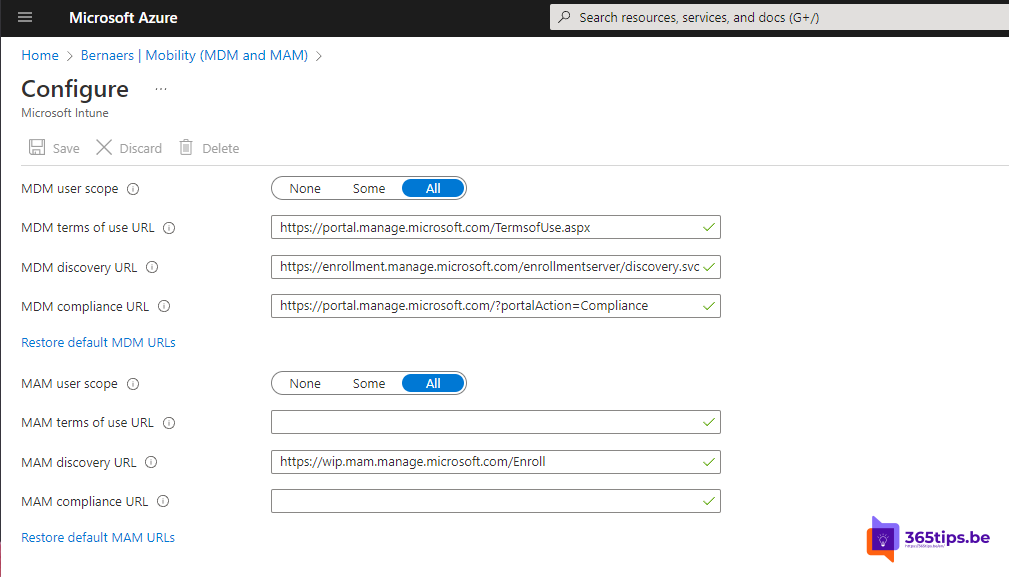
- Go to intune.microsoft.com > Devices > Enrollment > Windows > Automatic Enrollment.
- Set MDM user scope to All or a test group.
- Set the MAM user scope to None unless you use app protection without enrolment.
Every device joined to Microsoft Entra now lands in Intune automatically.

3. Enrolment restrictions
Under Devices > Enrollment > Device platform restrictions, choose which platforms are allowed (Windows, iOS, Android, macOS) and whether personal devices may enrol.
4. A compliance policy
Under Devices > Compliance, create a policy per platform, for example: BitLocker on, a minimum Windows version, a password and Defender active. Combine it with Conditional Access so only compliant devices reach your data.
5. Connect Apple and Android
- iOS, iPadOS and macOS: create an Apple MDM push certificate under Devices > Enrollment > Apple. Renew it every year with the same Apple ID.
- Android: link your Intune account to Managed Google Play for Android Enterprise.
Next steps
- Deploy the Company Portal and the Microsoft 365 apps.
- Manage Windows updates and Windows LAPS.
- Set up Windows Autopilot for new PCs.
Read also
Add a Windows device to Microsoft Entra and Intune manually
Windows Autopilot: what it is and how to set it up in 4 steps
Install the Intune Company Portal automatically on all computers
Nederlandstalige versie: De basisinstellingen om Microsoft Intune te gebruiken in Microsoft 365