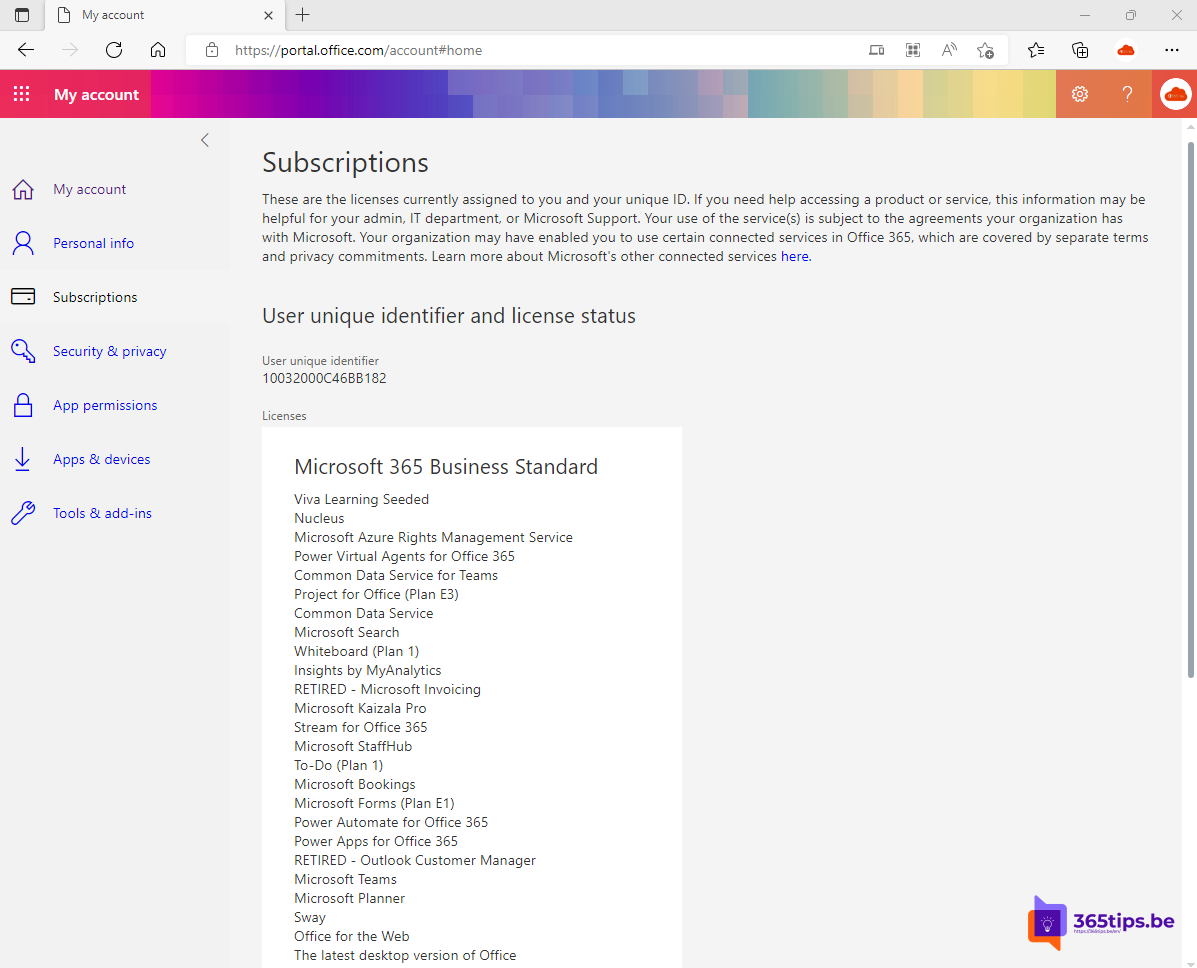
Can't use Copilot, is an app missing from your Microsoft 365 menu, or is IT asking which plan you have? Then you want to know which Microsoft 365 licence is assigned to your account. This article shows how to check it yourself as a user, in your Office apps, and how an administrator checks it in the admin center or with PowerShell.
As a user: My Account
- Go to myaccount.microsoft.com and sign in with your work or school account.
- Click Subscriptions.
- You see the licences assigned to your account, for example Microsoft 365 Business Premium or Office 365 E3, plus any add-ons such as Microsoft 365 Copilot.
On the same page, under Office apps, you see whether you may install the desktop versions of Word, Excel and Outlook, and on how many devices you already use them.

In Word, Excel or Outlook
- Open an Office app and go to File > Account (in Outlook: File > Office Account).
- Under Product Information you see which product is activated, for example Microsoft 365 Apps for enterprise, and with which account.
This shows which version of the apps you use, not always your full subscription. For that, use My Account.
As an administrator: the Microsoft 365 admin center
Licences of one user:
- Go to the Microsoft 365 admin center > Users > Active users.
- Click the user and open the Licenses and apps tab.
- You see which licences are assigned and which components (apps) are on or off.
All licences in your organization: go to Billing > Licenses for the number of purchased and assigned licences per product, or Billing > Your products for your subscriptions and renewal dates.
With PowerShell (Microsoft Graph)
The old MSOnline and AzureAD modules are retired; use the Microsoft Graph PowerShell SDK:
Install-Module Microsoft.Graph -Scope CurrentUser
Connect-MgGraph -Scopes "User.Read.All","Organization.Read.All"

# Licences of one user
Get-MgUserLicenseDetail -UserId "jan@yourcompany.com" | Select-Object SkuPartNumber

# All licences in the organization: purchased and in use
Get-MgSubscribedSku | Select-Object SkuPartNumber, ConsumedUnits,
  @{n='Purchased';e={$_.PrepaidUnits.Enabled}}
You get technical names, such as SPB (Microsoft 365 Business Premium), O365_BUSINESS_PREMIUM (Microsoft 365 Business Standard) or ENTERPRISEPACK (Office 365 E3). Microsoft publishes a list of all product names and their technical names on Microsoft Learn ("Product names and service plan identifiers for licensing").
The most common licences at a glance
| Licence | Office desktop apps | Notable |
|---|---|---|
| Microsoft 365 Business Basic | No, web and mobile only | Exchange, Teams, SharePoint, OneDrive |
| Microsoft 365 Business Standard | Yes | Basic + desktop apps, Bookings, webinars |
| Microsoft 365 Business Premium | Yes | Standard + Intune, Entra ID P1, Defender for Business |
| Office 365 E1 / E3 | E1 no, E3 yes | For larger organizations, without Intune |
| Microsoft 365 E3 / E5 | Yes | Including Windows Enterprise, Intune, Entra ID P1 (E5: P2 and Defender) |
| Microsoft 365 Copilot | n/a | An add-on licence on top of one of the plans above |
Business plans are meant for organizations of up to 300 users. What exactly is included changes regularly; check Microsoft's current overview before you choose.
Common questions
- I see no licences in My Account: no licence is assigned to your account, or you are signed in with a personal Microsoft account instead of your work account.
- Office says "Unlicensed Product": sign in to the app with your work account via File > Account. If that doesn't help, ask your administrator to check that the desktop apps are in your licence.
- A licence was just assigned but doesn't work yet: it can take up to a few hours for all services to activate. Sign out and back in.
Read also
How to encrypt or protect an e-mail in Outlook and Microsoft 365
All Microsoft 365 admin portals in one list: the right URLs in 2026
Security defaults in Microsoft Entra ID: what they do and how to enable them
Nederlandstalige versie: Welke Microsoft 365-licentie heb ik? Zo bekijk je het