Many organisations use the same local administrator password on every device. If that one password leaks, an attacker can sign in to all of them. Windows LAPS (Local Administrator Password Solution) fixes that: every device gets a unique, strong password that rotates automatically and is stored securely in Microsoft Entra ID. This article shows how to enable it with Entra and Intune, and how to retrieve a password.
What do you need?
- Windows 11 or a supported Windows 10 version with the April 2023 updates or later. Windows LAPS is built into Windows; the legacy LAPS MSI isn't needed.
- Devices that are Microsoft Entra joined or hybrid joined.
- Microsoft Intune to deploy the policy.
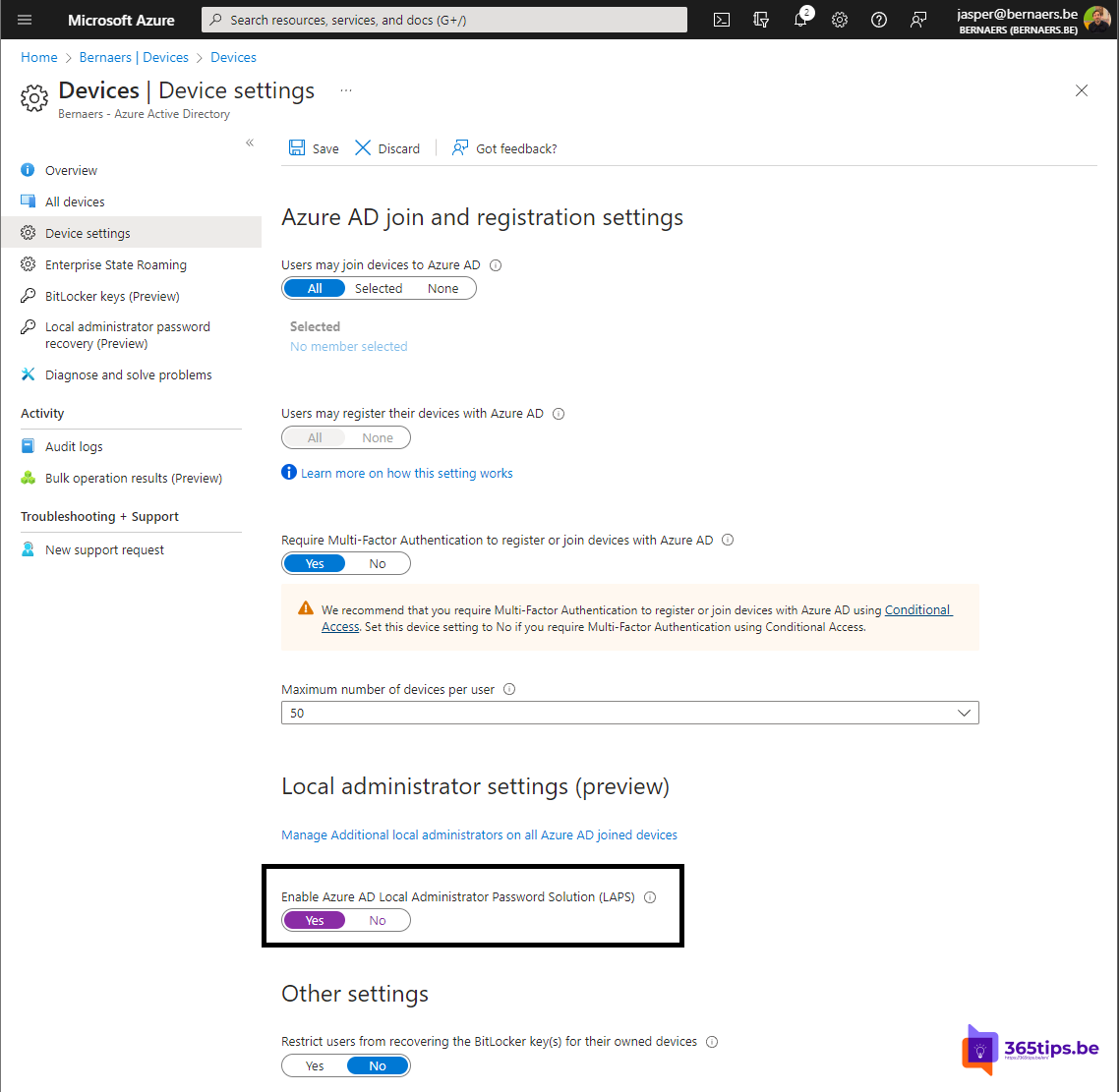
Step 1: enable LAPS in Entra
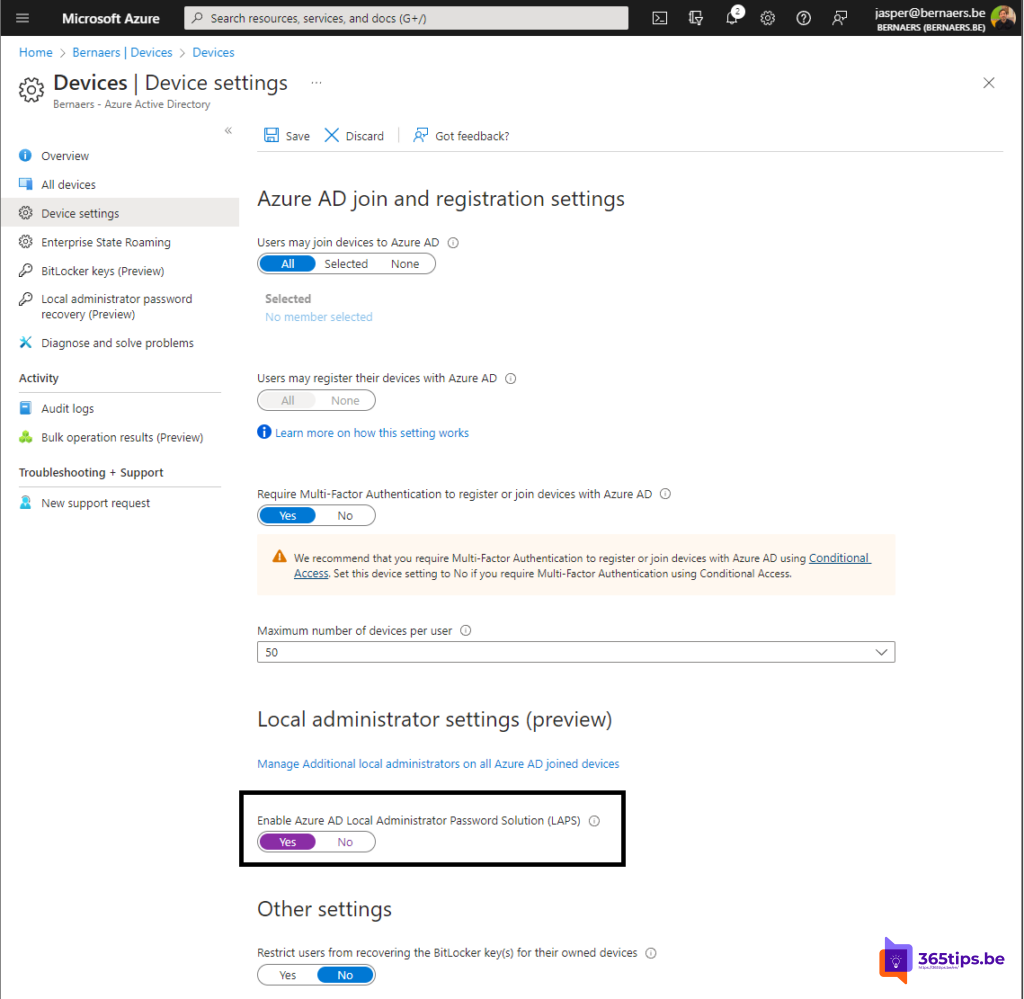
- Go to entra.microsoft.com > Devices > All devices > Device settings.
- Set Enable Microsoft Entra Local Administrator Password Solution (LAPS) to Yes.
- Select Save.
Step 2: create a policy in Intune
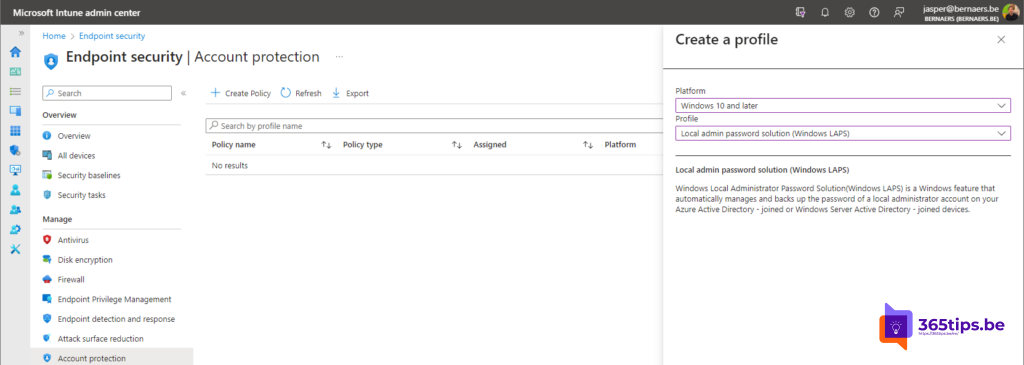
- Go to intune.microsoft.com > Endpoint security > Account protection > Create policy.
- Choose platform Windows and profile Local admin password solution (Windows LAPS).
- Set Backup directory to Backup the password to Microsoft Entra ID only.
- Choose the password age (for example 30 days), length and complexity.
- Configure post-authentication actions: after use, the password rotates automatically and the session can be signed out.
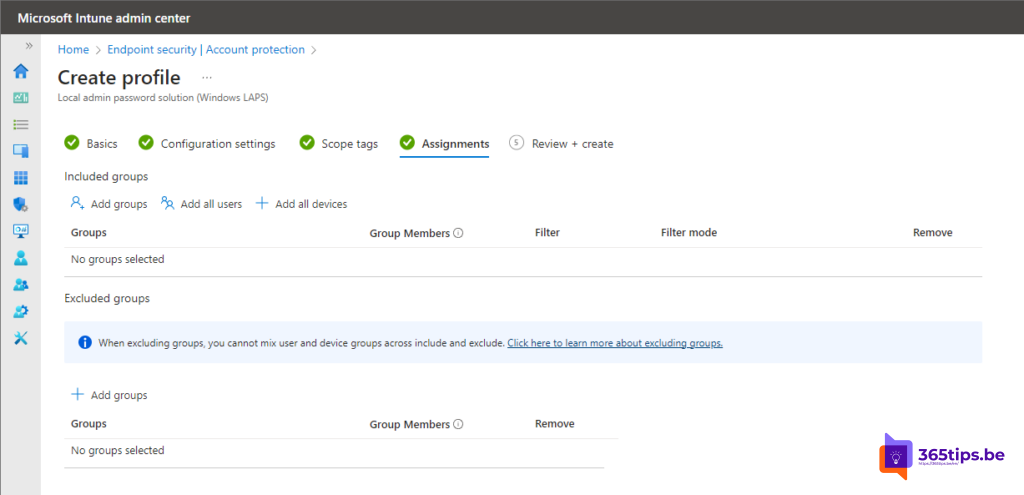
- Assign the policy to a device group and save.
Step 3: retrieve the password
- In Entra: Devices > select the device > Local administrator password recovery > Show local administrator password.
- In Intune: Devices > select the device > Local admin password.
- With PowerShell: Get-LapsAADPassword -DeviceIds <name> -IncludePasswords (Microsoft Graph module).
Only roles such as Cloud Device Administrator, Intune Administrator or a custom role with read access to local credentials can see the password. Every view is recorded in the audit logs. See admin roles in Microsoft 365.
Rotate the password right away
Used the password or shared it with a colleague? In Intune, choose Rotate local admin password on the device. The device creates a new password at its next sync.
Setting up new devices? Combine LAPS with Windows Autopilot and security defaults in Entra ID.
Read also
Windows Autopilot: what it is and how to set it up in 4 steps
Security defaults in Microsoft Entra ID: what they do and how to enable them
Install the Intune Company Portal automatically on all computers
Nederlandstalige versie: Zo activeer en gebruik je Windows LAPS met Microsoft Entra ID