No Autopilot yet, or want to bring an existing PC under management quickly? Then add a Windows device to Microsoft Entra and Intune manually, from Windows settings. This article shows how, for a company PC and for a personal device.
Before you start
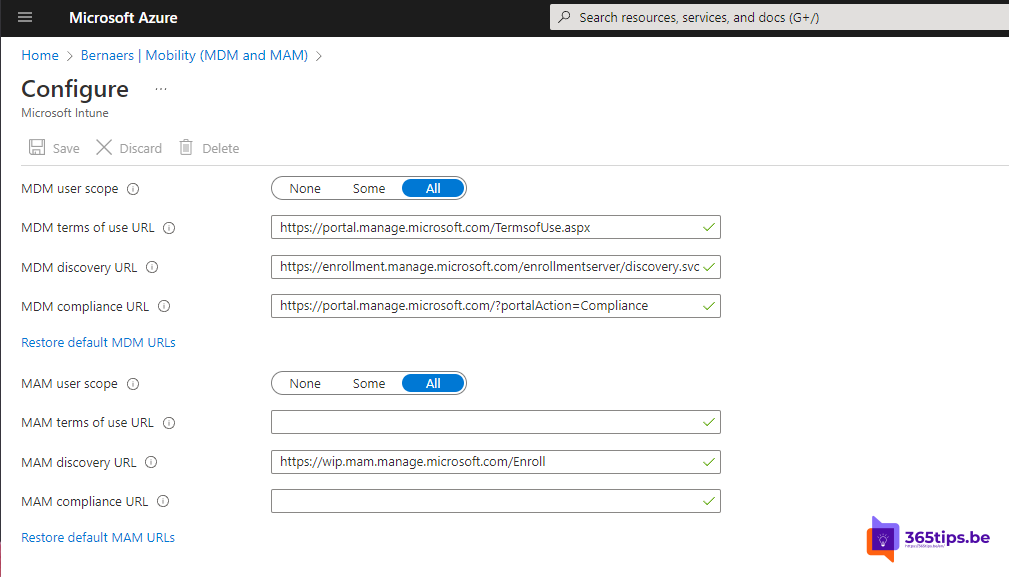
- Automatic enrolment is on in Intune. Read Intune basic setup.
- The user has an Intune licence.
- Windows 11 Pro, Enterprise or Education. Home can't be joined to Entra.
Join a company PC to Entra
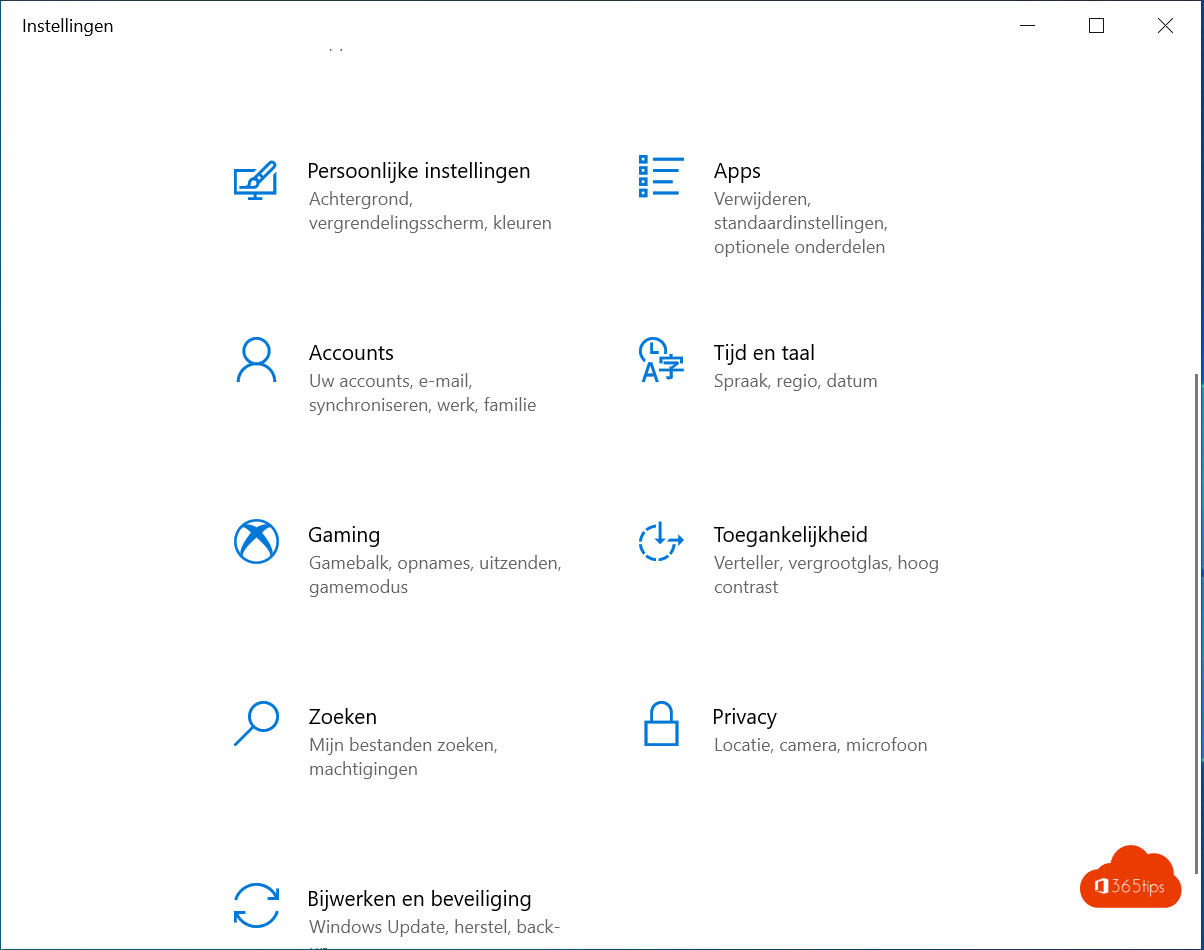
- Open Settings > Accounts > Access work or school.
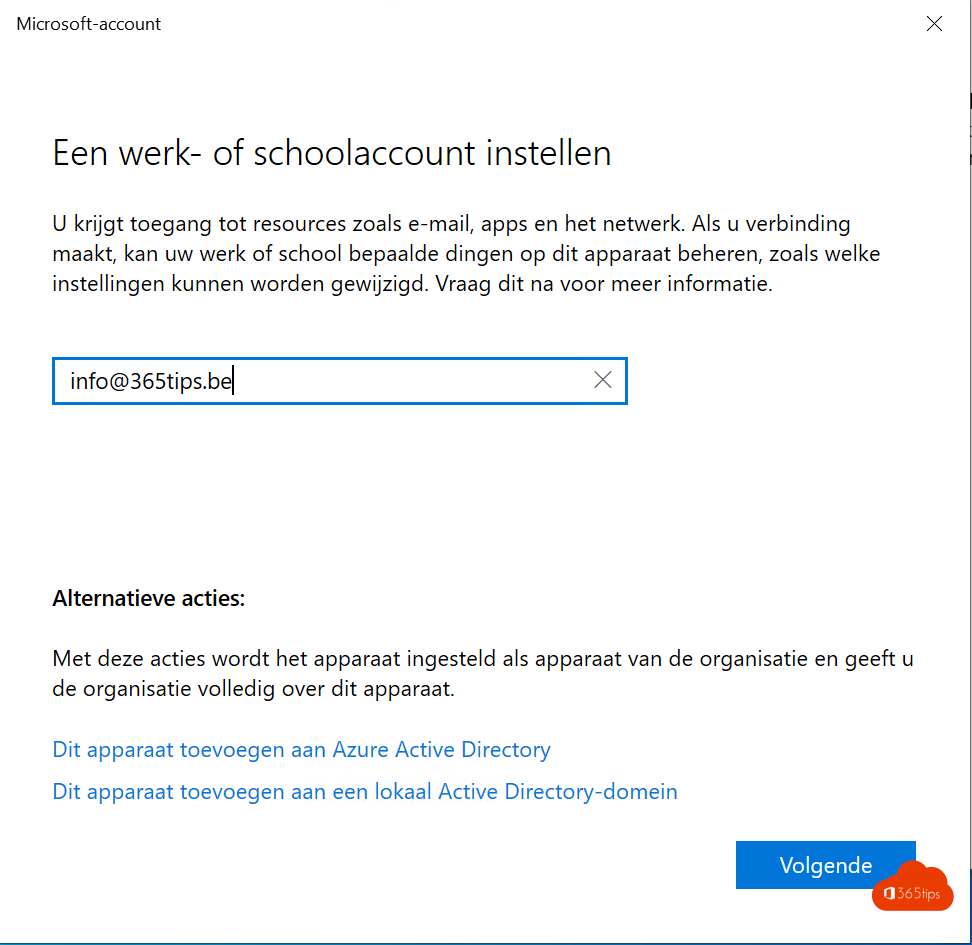
- Select Connect.
- At the bottom, select Join this device to Microsoft Entra ID.
- Sign in with your work account and confirm with MFA.
- Restart and sign in with your work account.
The device is now in Entra ID and, thanks to automatic enrolment, in Intune too.
A personal device
For your own PC, select Connect under Access work or school and just sign in, without the join option. The device is then registered. Or install the Company Portal app and enrol it there.
Check it
- In Windows: Access work or school > select the account > Info. You see the management status and can sync.
- In intune.microsoft.com > Devices > Windows, the device appears within minutes with its owner and compliance status.
Tip
For new PCs, Windows Autopilot is far more efficient: the user signs in and the PC sets itself up. More on join types in Entra join or hybrid join.
Read also
Entra joined, hybrid joined or registered: which should you choose?
Windows Autopilot: what it is and how to set it up in 4 steps
The basic settings to start using Microsoft Intune
Nederlandstalige versie: Een Windows-toestel handmatig toevoegen aan Microsoft Entra en Intune