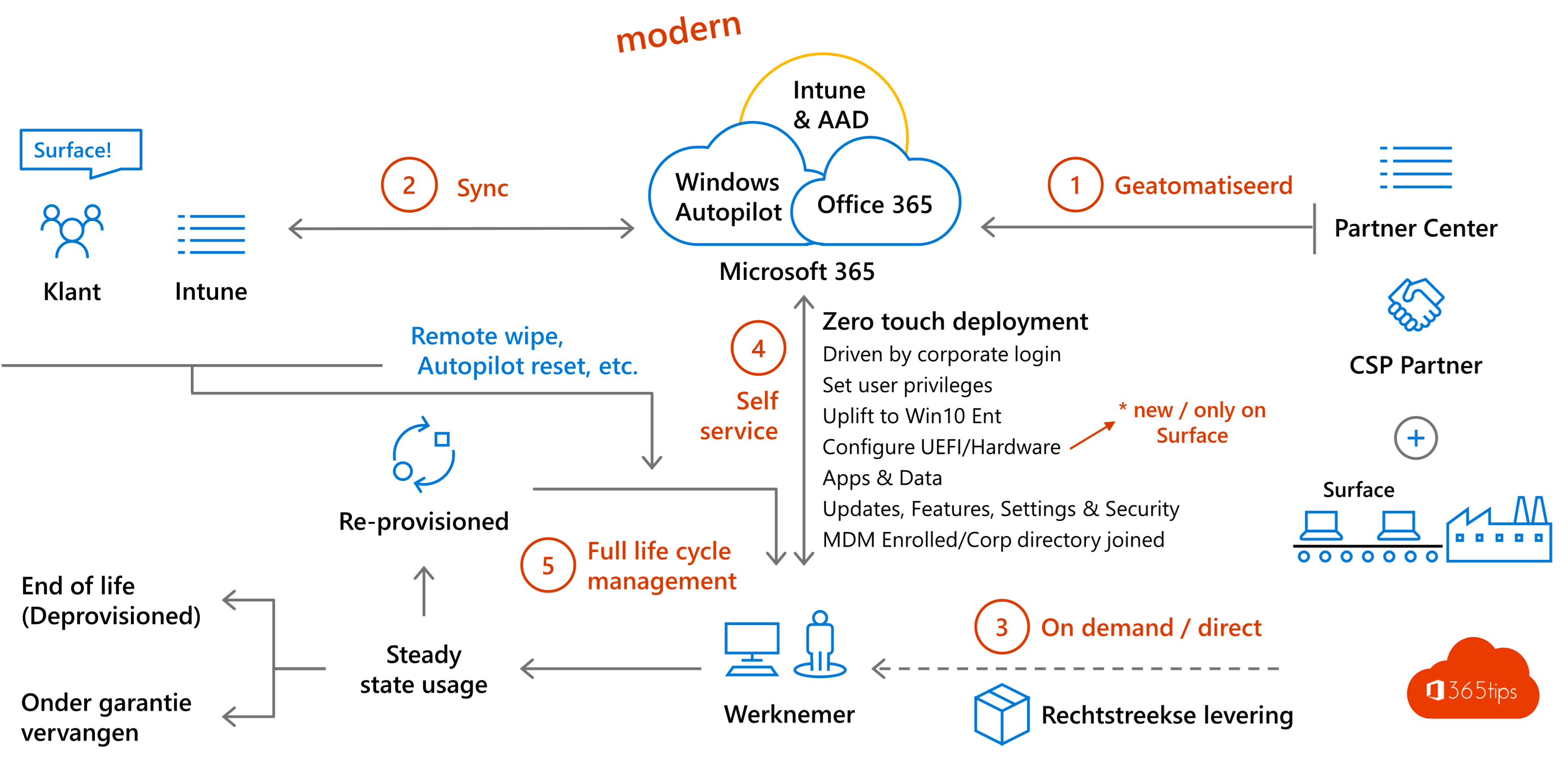
Ship a new laptop straight from the supplier to the employee, who unpacks it, turns it on, signs in with their work account, and fifteen minutes later has a fully configured PC. Without IT ever touching it. That's Windows Autopilot. This article explains how Autopilot works, what you need, which modes exist and how to set it up in four steps in Microsoft Intune.
What does Autopilot do?
- Deploy new devices without IT having to install or image them first.
- Automatically join devices to Microsoft Entra ID (or hybrid to Active Directory) and enroll them in Intune.
- Install apps, settings, security and Wi-Fi profiles automatically through Intune.
- Repurpose devices for a new employee with Autopilot Reset or a remote full reset.
What do you need?
- Licenses: Microsoft Intune and Microsoft Entra ID P1, for example through Microsoft 365 Business Premium or Microsoft 365 E3/E5.
- Windows 11 Pro, Enterprise or Education (Windows 10 has been out of support since October 2025).
- An internet connection during setup.
- Automatic enrollment in Intune turned on for your users.
Which mode should you choose?
| Mode | When |
|---|---|
| User-driven | The default: the employee signs in and the device becomes theirs |
| Self-deploying | Kiosks, meeting rooms, shared devices without a fixed user |
| Pre-provisioned | IT or the supplier installs apps in advance, so the user is ready faster |
| Autopilot device preparation | Newer, simpler variant without registering a hardware hash first; fewer options |
Set up Autopilot in four steps
- Register devices. Have your supplier or partner register devices at purchase, or upload the hardware hash of existing devices in Intune under Devices > Windows > Enrollment > Devices. From an existing PC, collect it with PowerShell:
Install-Script Get-WindowsAutopilotInfo
Get-WindowsAutopilotInfo -Online
- Create a group. Create a dynamic group in Entra ID with all Autopilot devices, for example with the rule (device.devicePhysicalIDs -any (_ -startsWith "[ZTDId]")).
- Create a deployment profile. In Intune: Devices > Windows > Enrollment > Deployment profiles. Choose the mode, Entra join, language and what the user sees, and assign the profile to the group.
- Configure the Enrollment Status Page. Under Enrollment Status Page, decide which apps and settings must be installed before the user sees their desktop.
The user then turns on the device, picks a language and Wi-Fi, and sees a sign-in screen with your organization's name.
Tips
- Test with one device and a small pilot group first.
- Keep the number of required apps on the Enrollment Status Page small; every extra app adds waiting time.
- Use BitLocker and Windows Hello for Business through Intune, so every device is encrypted and passwordless from day one. See also passwordless sign-in in Microsoft 365.
Read also
Enable passwordless sign-in in Microsoft 365 in 3 steps
Upgrade from Windows 10 to Windows 11 with the Installation Assistant
Which Microsoft 365 licence do I have? How to check
Nederlandstalige versie: Windows Autopilot: wat het is en hoe je het opzet in 4 stappen
More in English
▸Enable passwordless sign-in in Microsoft 365 in 3 stepsLet users sign in without a password using passkeys in Microsoft Authenticator, FIDO2 keys or Windows Hello.…
▸Upgrade from Windows 10 to Windows 11 with the Installation AssistantUpgrade from Windows 10 to Windows 11 without losing files using the Installation Assistant. Requirements,…
▸Create a bootable Windows 11 USB driveCreate a bootable Windows 11 USB drive for free with Microsoft's Media Creation Tool or Rufus, and boot a PC…
▸Security defaults in Microsoft Entra ID: what they do and how to enable themWhat security defaults in Microsoft Entra ID (formerly Azure AD) do, who they are for, how to turn them on or…