A stolen password is where most Microsoft 365 breaches begin. Multi-factor authentication (MFA) adds a second step, usually a notification in the Authenticator app. Even with your password, an attacker then can't sign in. Microsoft says MFA blocks more than 99% of account attacks. This article covers the three ways to turn on MFA and which one to pick.
Which option should you choose?
| Option | Licence | Best for |
|---|---|---|
| Security defaults | Free | Small organisations without Entra ID P1 |
| Conditional Access | Entra ID P1 (in Business Premium, E3, E5 and more) | Anyone who wants exceptions and rules per app or location |
| Per-user MFA | Free | Legacy, no longer recommended |
Turn on security defaults
Go to entra.microsoft.com > Identity > Overview > Properties > Manage security defaults and enable them. All users must then register the Authenticator app within 14 days. More in security defaults in Entra ID.
With Conditional Access
- Go to Protection > Conditional Access > Create new policy from templates.
- Choose the template Require multifactor authentication for all users.
- Exclude your break-glass emergency accounts, and keep those safe.
- Set the policy to Report-only first, check the sign-in logs, then turn it on.
Turn off security defaults once you use Conditional Access; the two don't work together.

For the user
- Install Microsoft Authenticator on your smartphone.
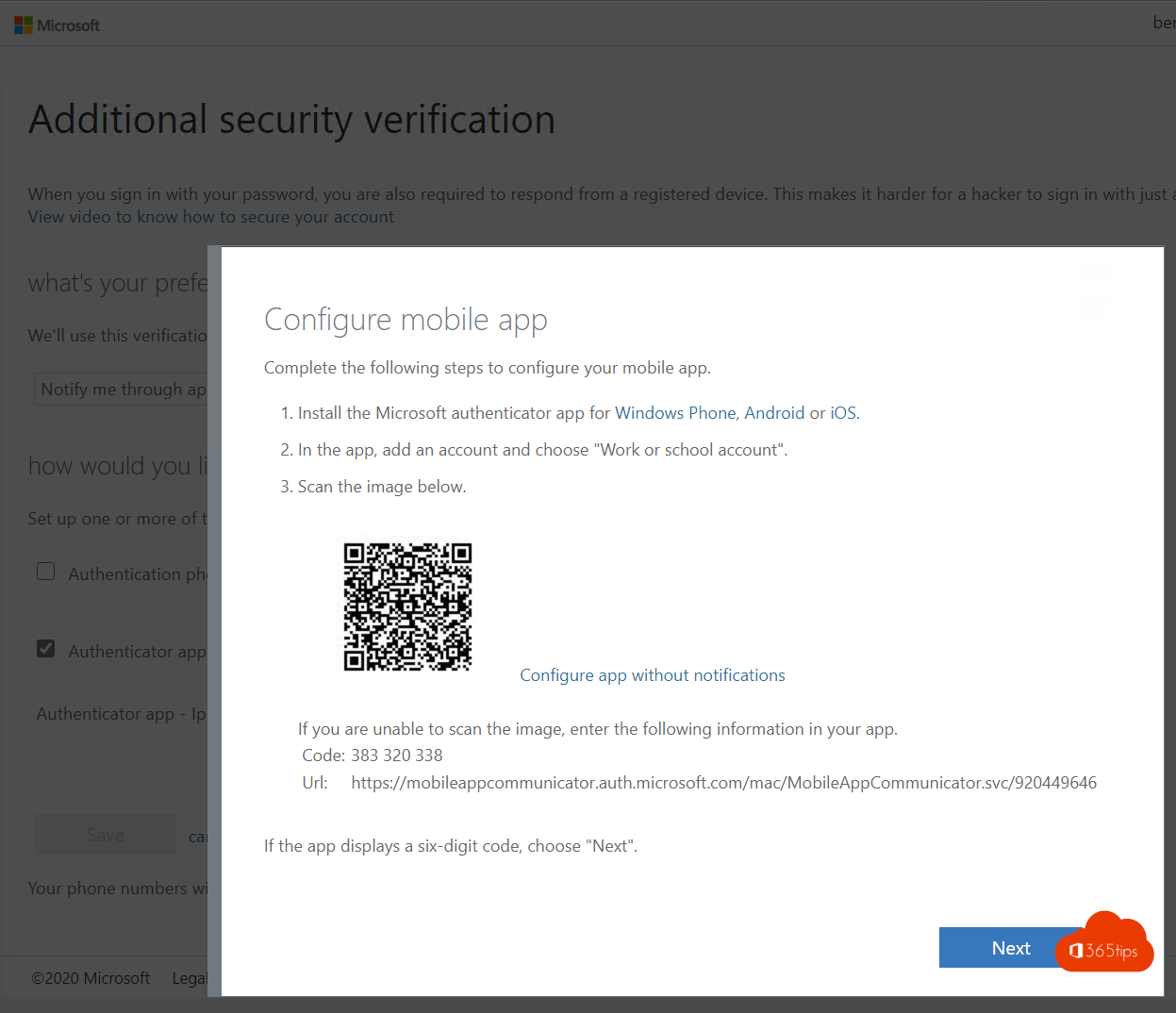
- Go to aka.ms/mysecurityinfo > Add sign-in method > Authenticator app and scan the QR code.
- When signing in, type the number shown on screen into the app.

Mandatory for admins
Microsoft is making MFA mandatory, step by step, for anyone signing in to the Azure portal, the Entra admin center, Intune and the Microsoft 365 admin center. Still have admins without MFA? Sort it out now.
One step further
Use passkeys or Windows Hello for Business: they resist phishing. Read passwordless sign-in. Old apps that don't support MFA? See app passwords. Users locked out? Set up self-service password reset.
Read also
Security defaults in Microsoft Entra ID: what they do and how to enable them
Enable passwordless sign-in in Microsoft 365 in 3 steps
Enable Self-Service Password Reset (SSPR) in Microsoft Entra ID
Nederlandstalige versie: Multi-factor authenticatie (MFA) activeren in Microsoft 365