Word, Excel, PowerPoint, Outlook, Teams and OneNote on every company PC without anyone installing anything? With Microsoft Intune you deploy the Microsoft 365 apps automatically. This article shows how to create the app profile and choose the right architecture, update channel and language.
Add the app
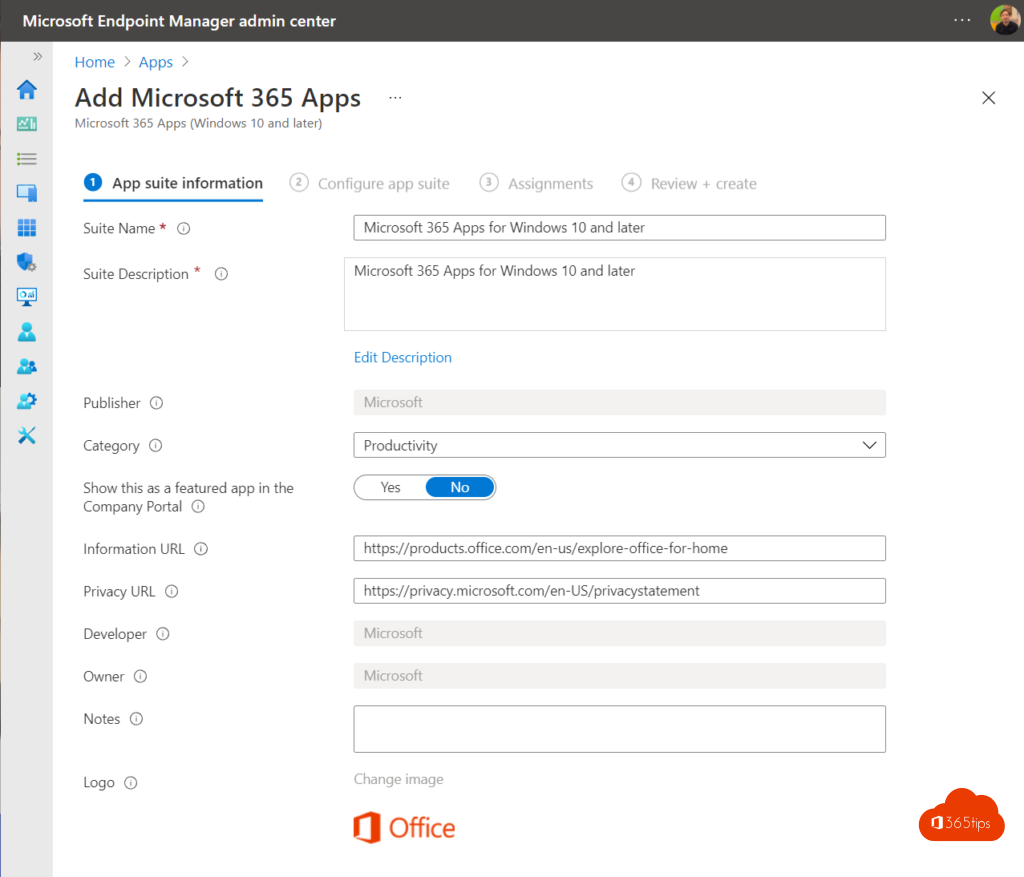
- Go to intune.microsoft.com > Apps > Windows > Add.
- Under Microsoft 365 Apps, choose Windows 10 and later.
- Choose the apps: usually Word, Excel, PowerPoint, Outlook, OneNote and Teams. Leave out Access and Publisher if nobody uses them.
The key settings
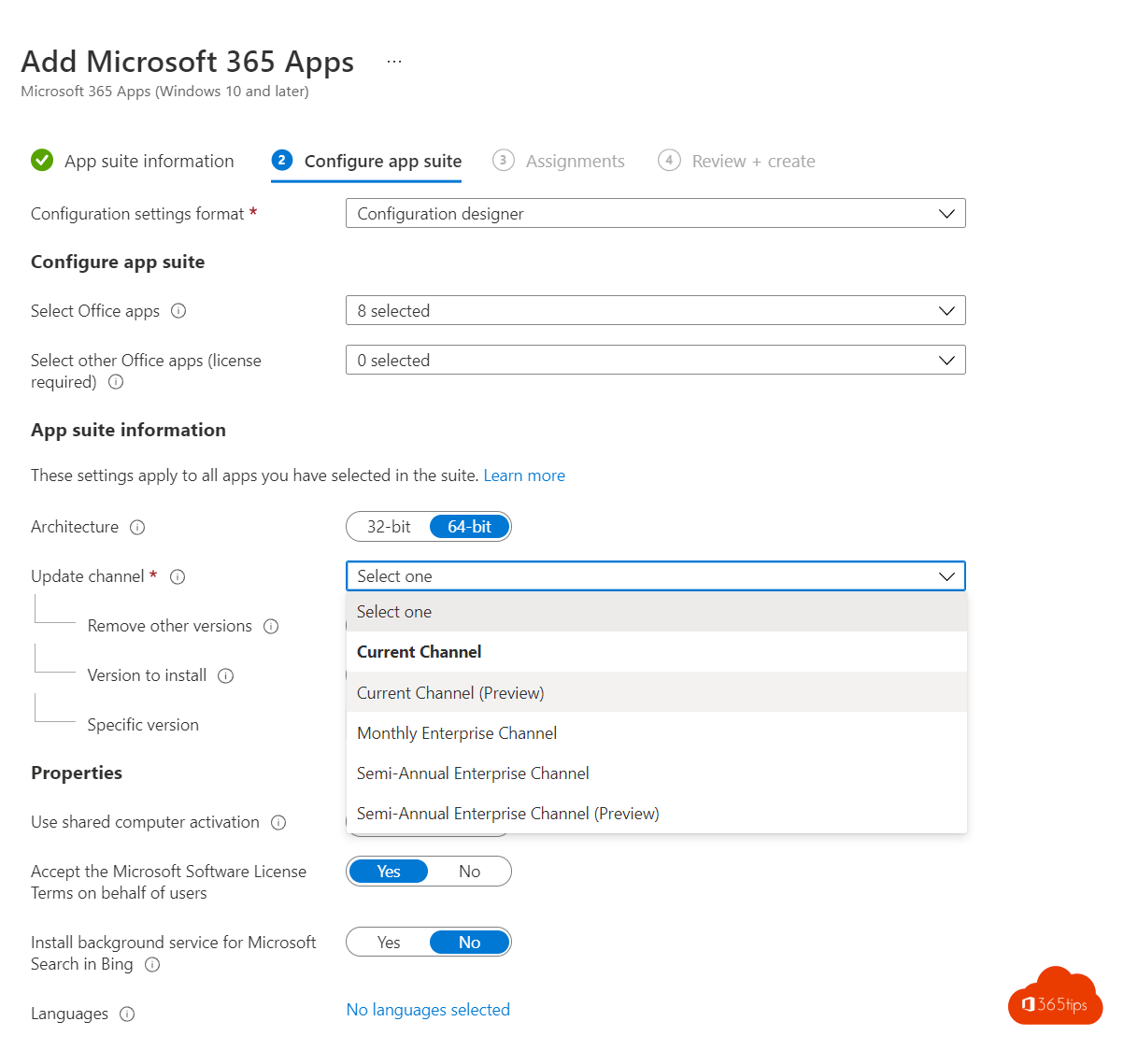
- Architecture: 64-bit. Only choose 32-bit if an old add-in requires it.
- Update channel: Current Channel for the newest features, or Monthly Enterprise Channel for predictable updates once a month.
- Remove other versions: on, so old MSI versions of Office are removed.
- Automatically accept the app end user license agreement: on.
- Languages: choose, for example, Dutch and English, or Same as the operating system.
For advanced options you can use an XML configuration built with the Office Customization Tool at config.office.com.

Assign
Assign the app as Required to a group of devices or users. Installation runs in the background; users see the apps in the Start menu after a while.
Tips
- Using Autopilot? Add the Microsoft 365 apps to the Enrollment Status Page blocking apps so they're ready at first sign-in.
- Manage the apps' own settings (such as OneDrive as default save location) with the settings catalog or Cloud Policy.
- Deploying other software? Read deploy Win32 apps. Installing yourself? See install Microsoft 365 apps.
Read also
Package and deploy Win32 apps with Microsoft Intune
Windows Autopilot: what it is and how to set it up in 4 steps
Install the Microsoft 365 apps (Office) on your Windows PC
Nederlandstalige versie: Microsoft 365-apps uitrollen met Microsoft Intune