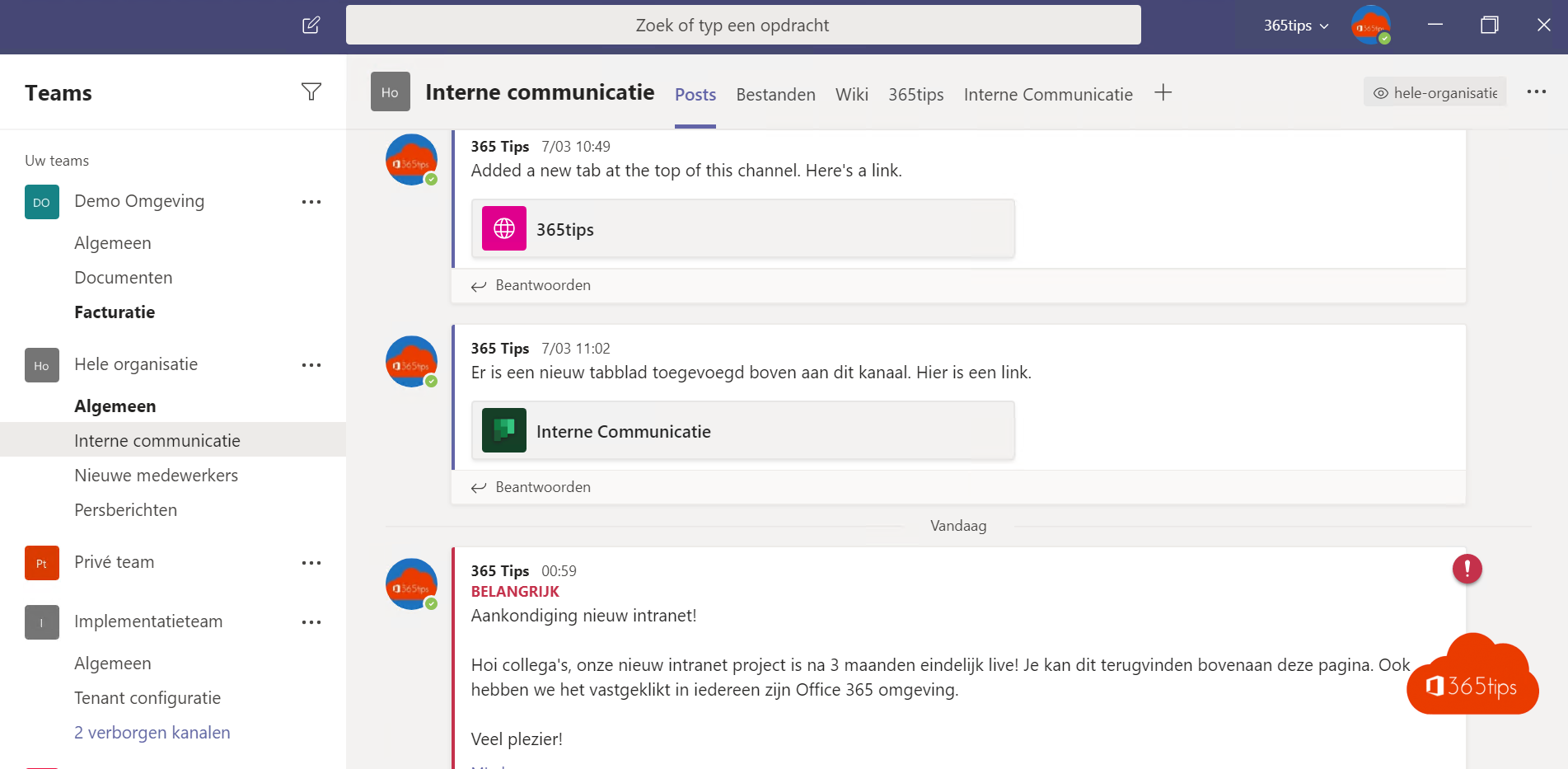
Microsoft Teams is the place in Microsoft 365 where you chat, meet, call and work on files together. Still deciding whether to start, or trying to convince colleagues? These are the five main reasons, and the first steps to get going.
Five reasons to use Teams
- Everything in one place. Chat, meetings, files and apps live in one app, instead of spread across email, shared drives and separate tools.
- Less email. Quick questions go through chat, project discussions into a channel. Your inbox stays calm.
- Work on files together. Everyone edits the same version of a Word, Excel or PowerPoint file. No more attachments called version_final_2.
- Meet wherever you are. On your laptop, phone or in a meeting room, with recordings, transcripts and Copilot.
- Secure and managed. Teams uses Microsoft 365 security and compliance, such as MFA, sensitivity labels and retention policies.
How to start
- Download and install Teams and sign in with your work account.
- Set your profile picture and status.
- Start a chat with a colleague.
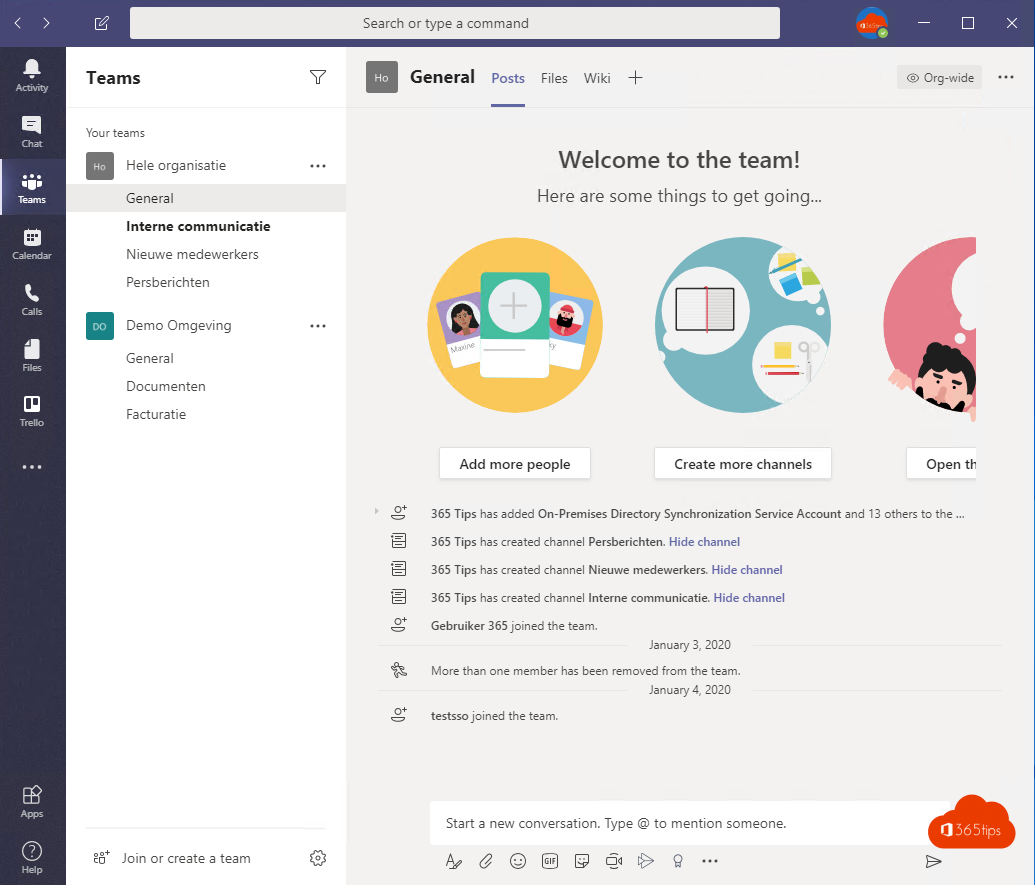
- Create a team for your department or project and add channels.
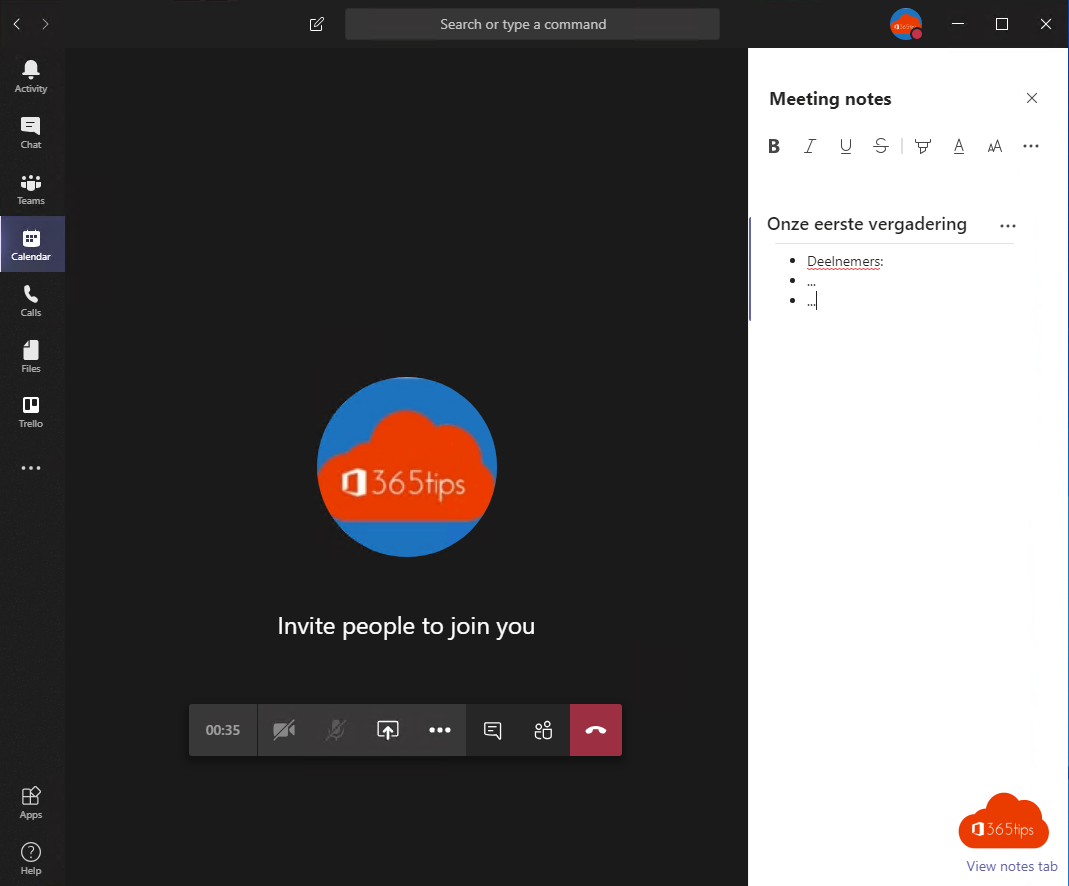
- Schedule your first meeting from the calendar.
Tip
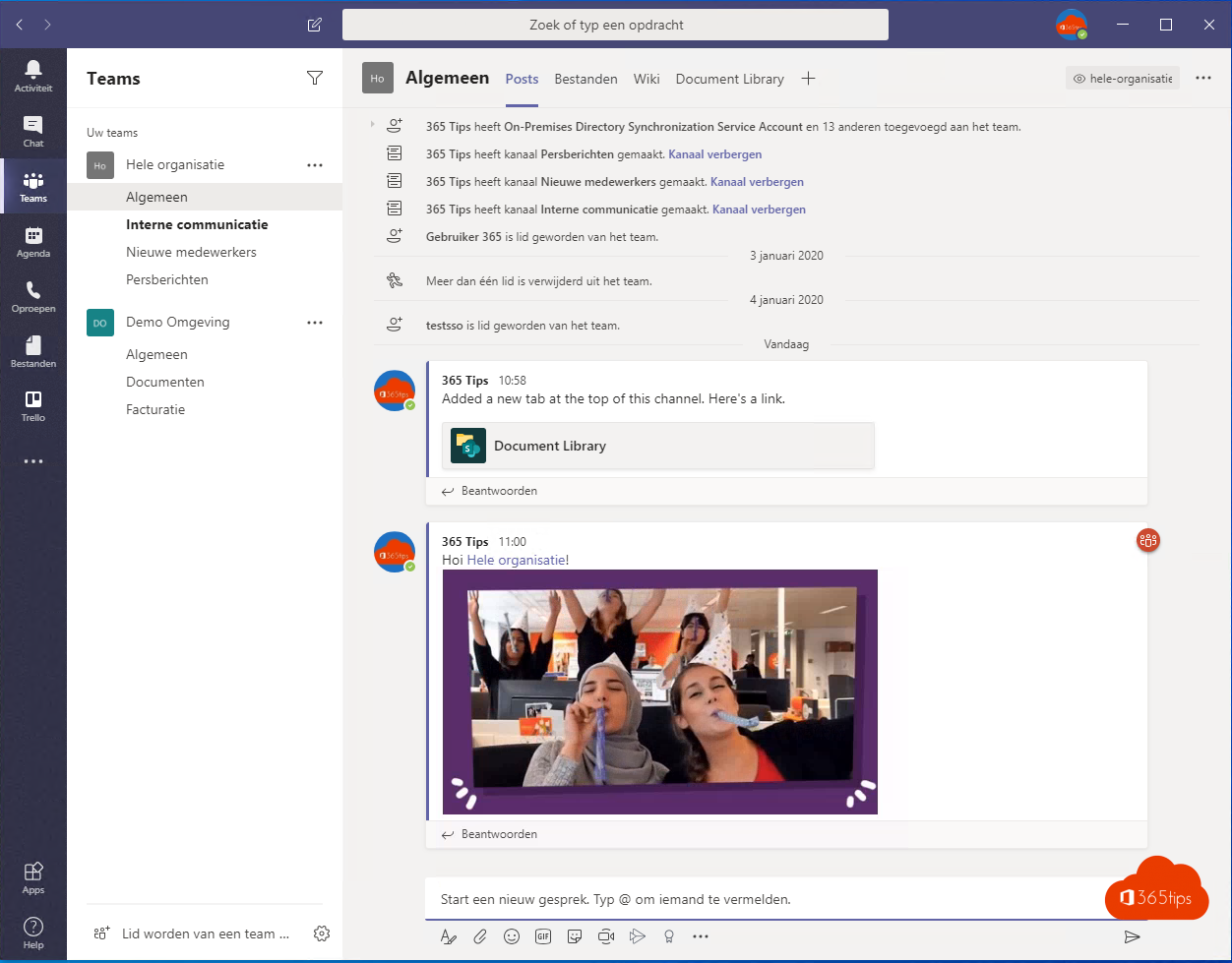
Agree with your team what goes in chat, what goes in a channel and what still goes by email. That way everyone knows where to look. Next, read the most useful Teams tips and tricks.
Read also
Download and install Microsoft Teams on Windows, Mac and mobile
Create and organise a team in Microsoft Teams
The most useful Microsoft Teams features in one list
Nederlandstalige versie: Vijf redenen om met Microsoft Teams te starten, en zo begin je
More in English
▸How to create a free Microsoft Teams accountCreate a free Microsoft Teams account, see what the free version can do (60 minutes, 100 participants, 5 GB)…
▸Set your status in Microsoft Teams: available, busy or do not disturbSet your Teams status to Available, Busy, Do not disturb or Appear away, with a duration, a status message…
▸Schedule a Microsoft Teams meeting in your calendarSchedule a Teams meeting from Teams or Outlook, share the meeting link and choose between a regular meeting,…
▸The most useful Microsoft Teams keyboard shortcuts for Windows and MacThe most useful shortcuts for the new Teams app: navigation, chat, mute, camera, raise hand and screen…