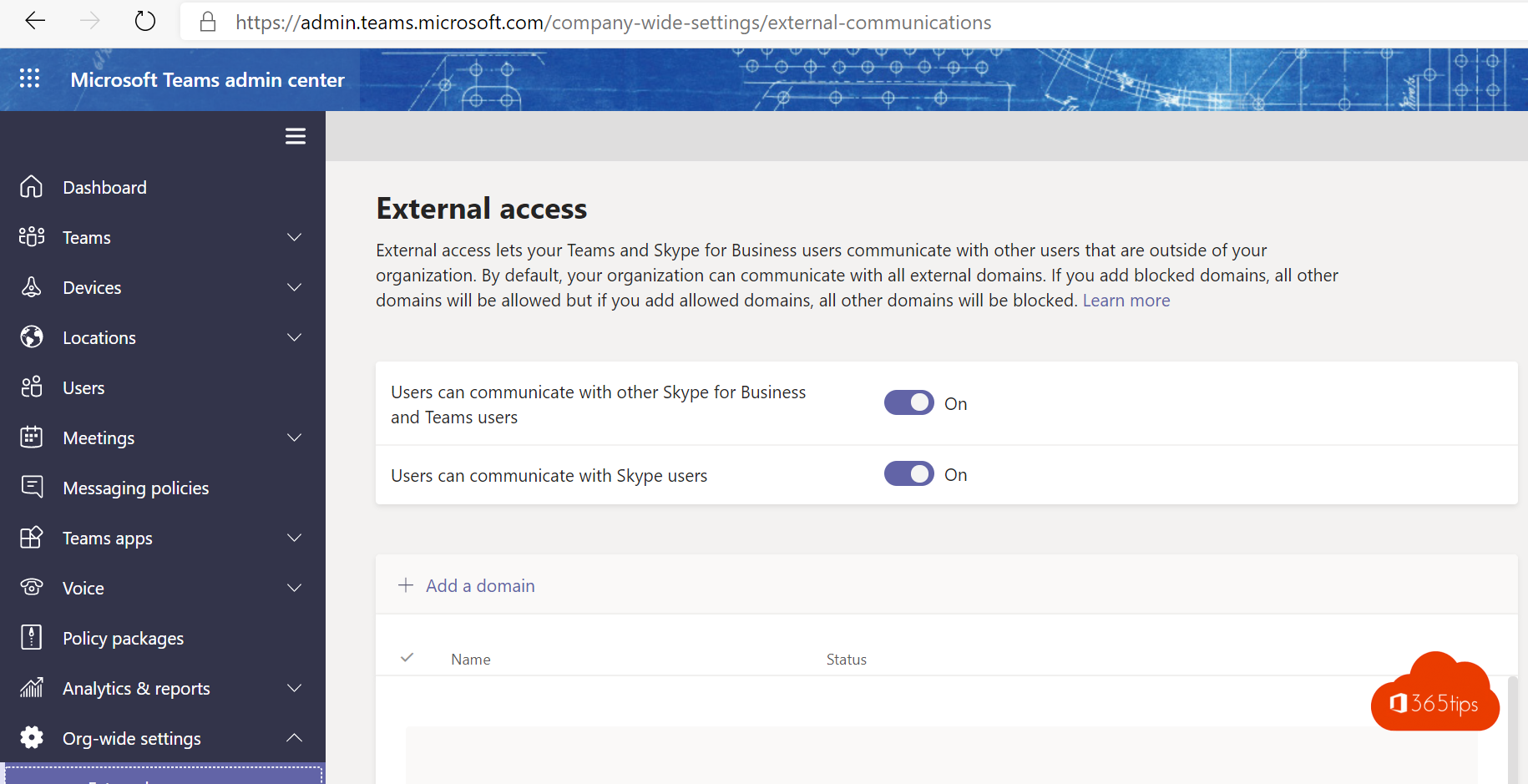
Working with customers, partners or suppliers in Teams? There are several ways, each with different possibilities. Here are the five scenarios side by side, so you pick the right one.
The five scenarios
- External access (chat and calls): chat, call and meet with someone who stays in their own organization. They don't see your teams or files. Read set up external access.
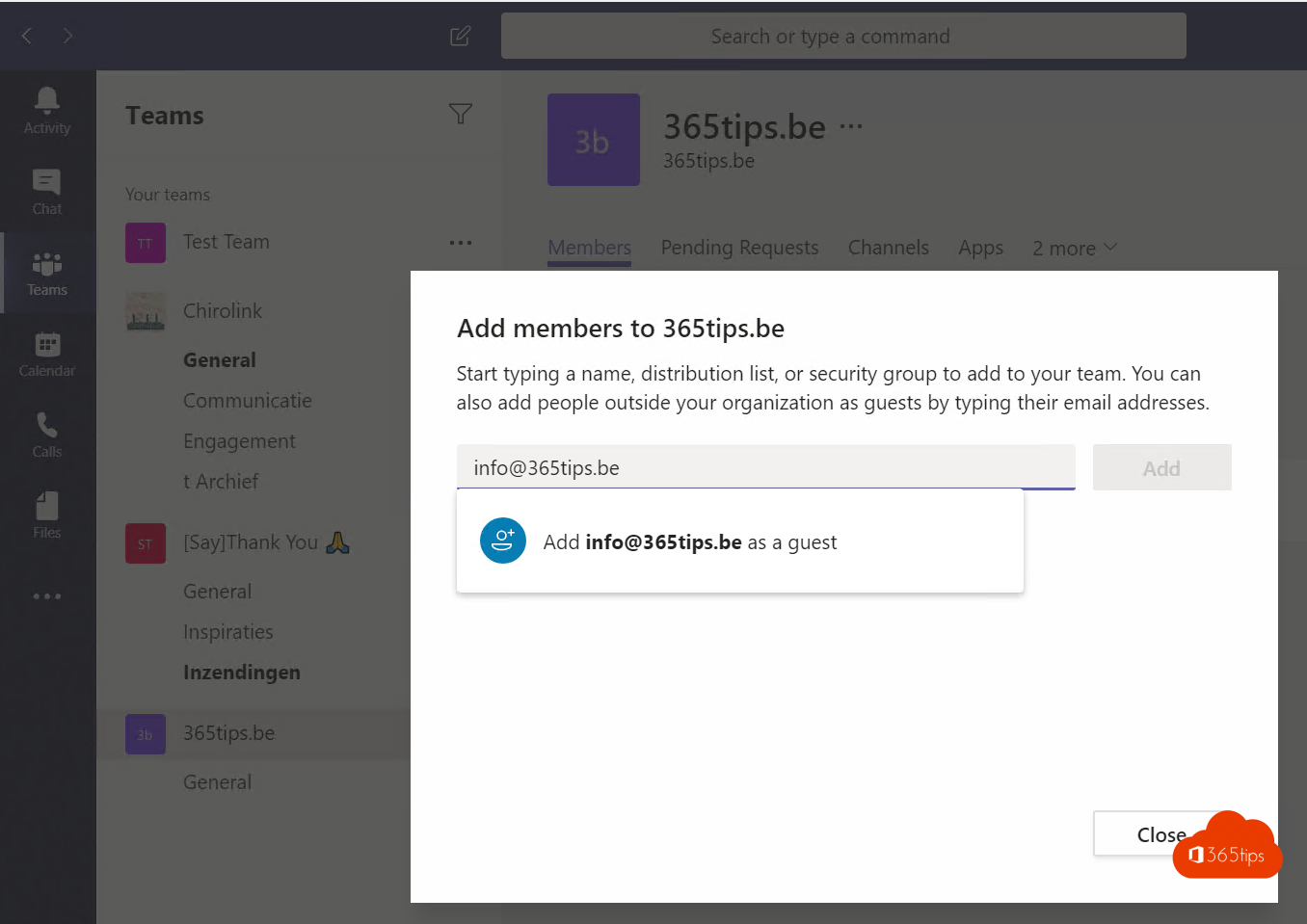
- Guest in a team: the external person becomes a guest in a team and sees that team's channels, files and apps. Read add guests.
- Shared channel: you share one channel with people from another organization, who see it in their own Teams without switching organizations. Both organizations have to set this up.
- Joining a meeting: anyone with the link can join, even without an account, possibly via the lobby. Read join as an external guest.
- Sharing files with a link: share a file or folder from OneDrive or SharePoint without adding anyone to a team.
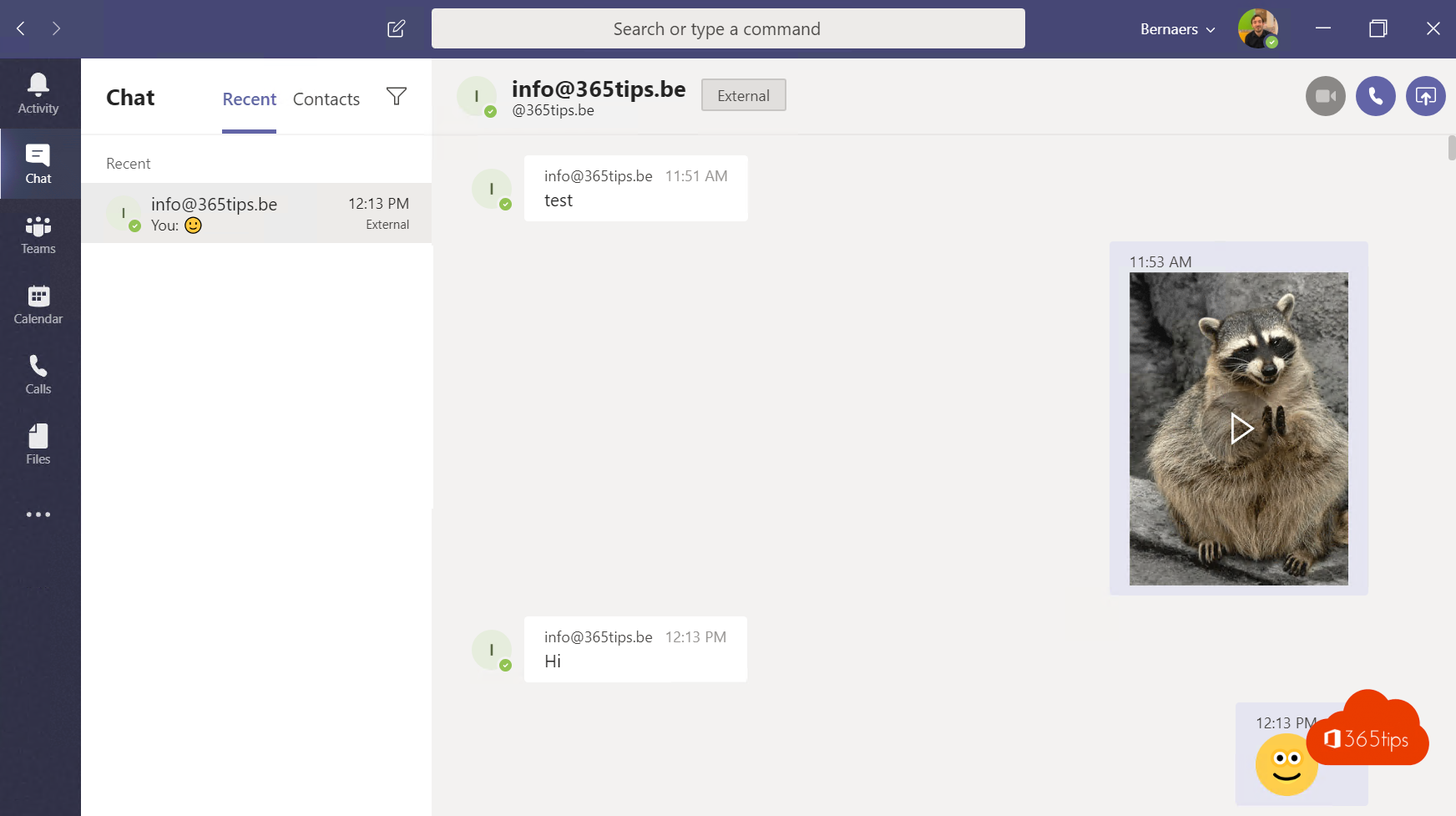

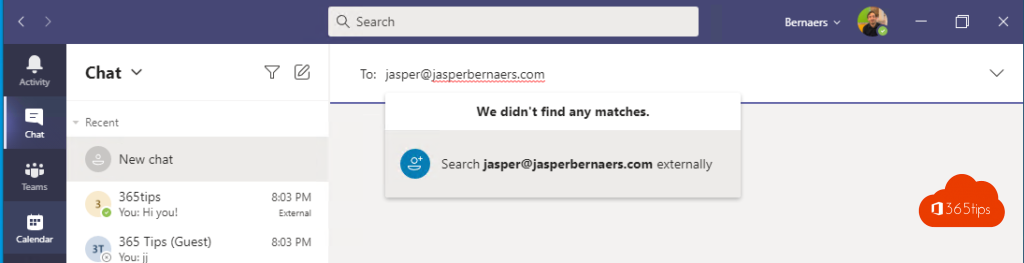
Comparison
| External access | Guest | Shared channel | |
|---|---|---|---|
| Chat | Yes | Yes | Yes, in the channel |
| Team files | No | Yes | Only the channel's |
| Need to switch organization | No | Yes | No |
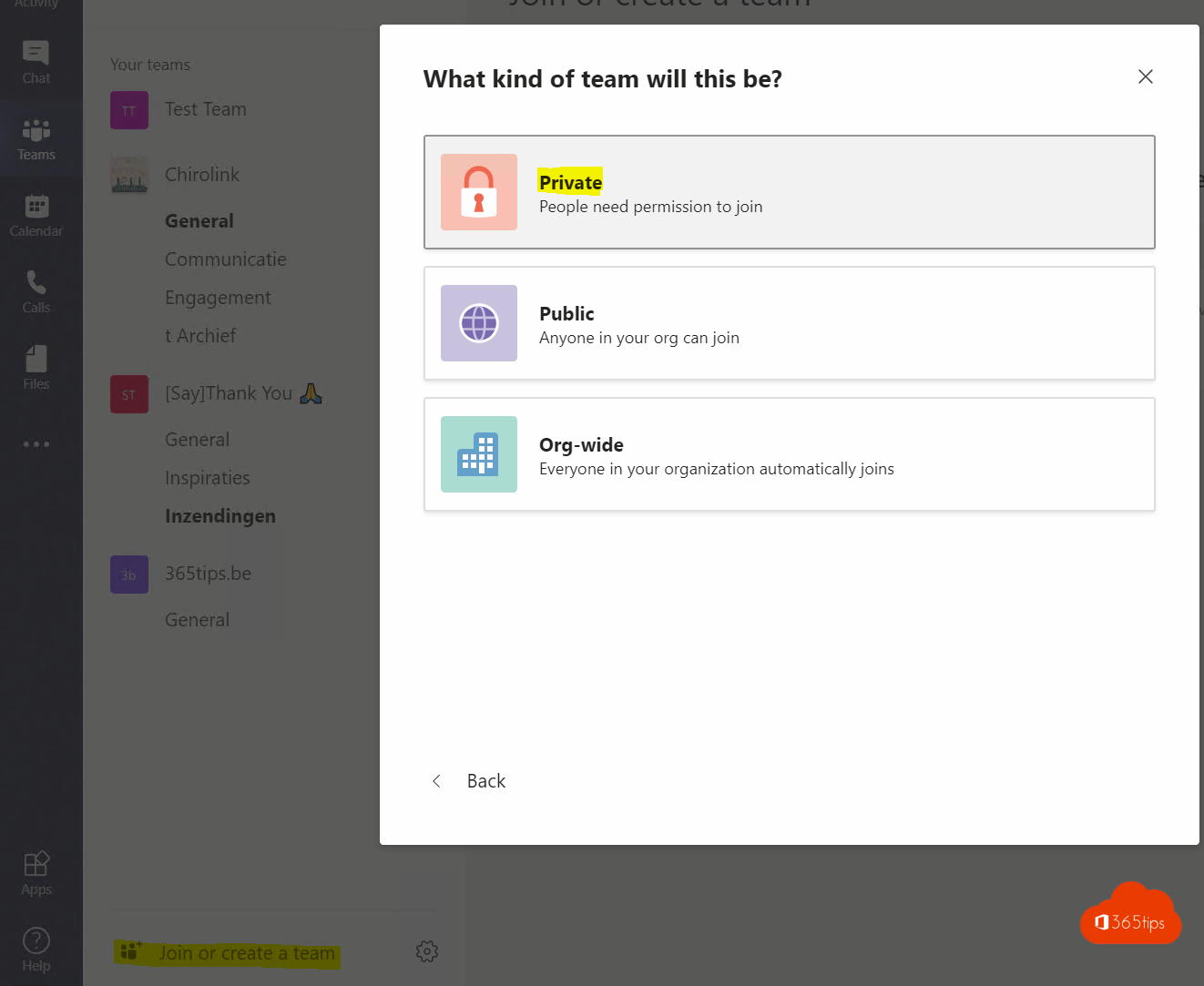
Also see a group chat with internal and external contacts and remove yourself as a guest.
Read also
Set up external access in Microsoft Teams
How to add external guests in Microsoft Teams
Join a Microsoft Teams meeting as an external participant
Nederlandstalige versie: Vijf manieren om met externe gebruikers te werken in Teams
More in English
▸Start a group chat with internal and external contacts in TeamsStart a group chat in Teams with colleagues and people from another organization, without adding them as…
▸Remove yourself as a guest from another Teams organizationLeave an organization where you are a guest through the Teams account settings or via Organizations in My…
▸Disable guest access for one Microsoft Teams teamBlock guests in one team with a sensitivity label in Microsoft Purview, without PowerShell, or per group with…
▸Share files in Microsoft 365 and Teams: all the optionsEvery way to share files in Microsoft 365: links, Teams chats and channels, Outlook and file requests, and…