A team in Microsoft Teams is the permanent place where a group works together: conversations in channels, shared files, meetings and apps. This article shows how to create a new team, choose the right privacy setting and organise it well from day one.
Create a team
- In Teams, select Teams on the left.
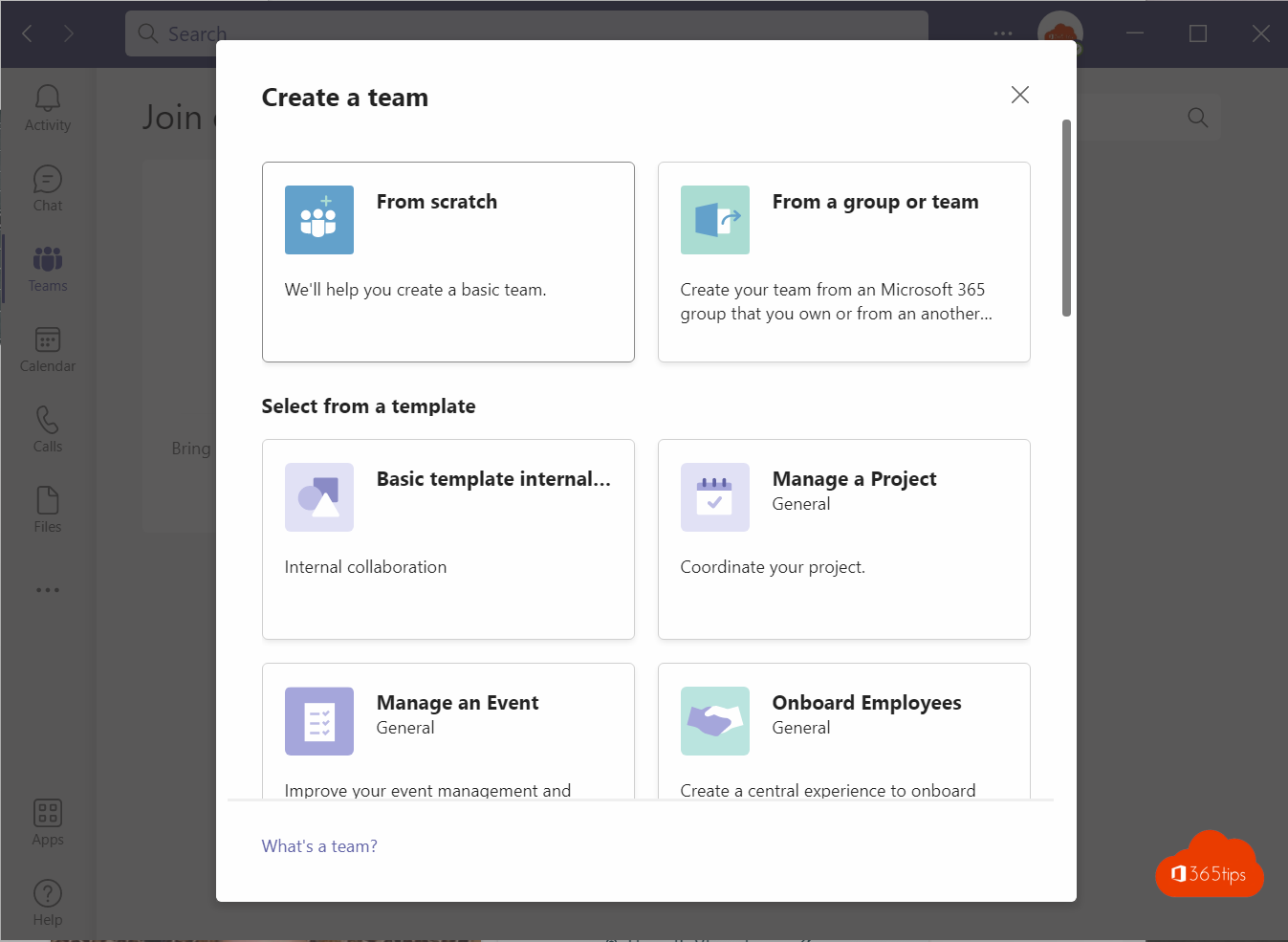
- At the top, select + (Create or join) > Create team.
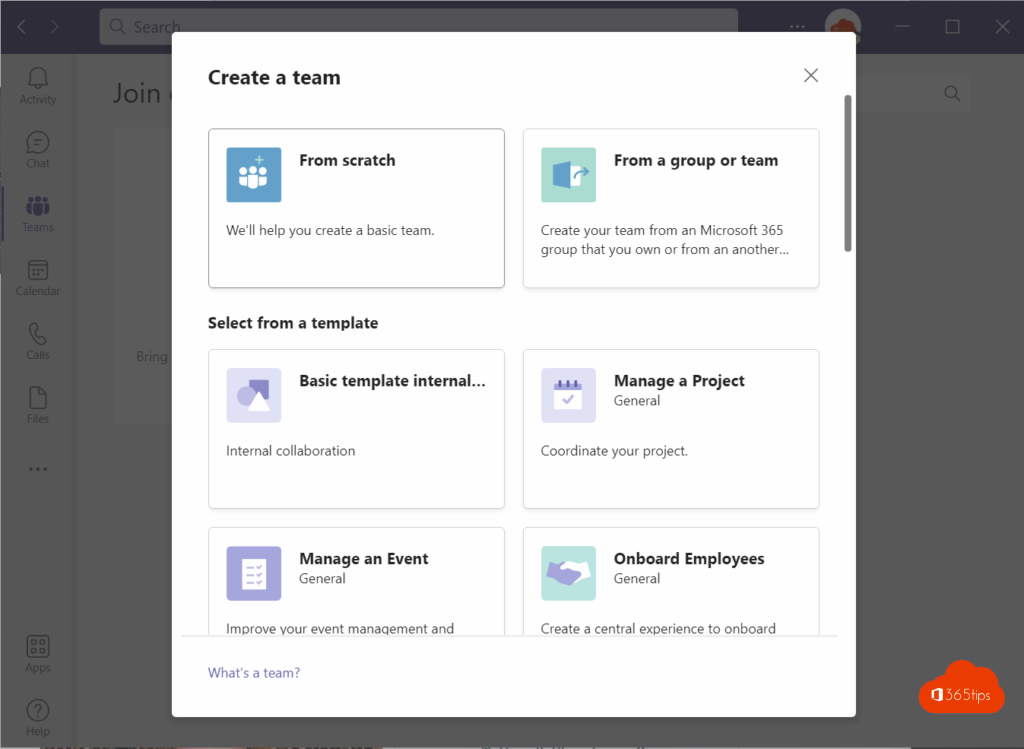
- Choose From scratch, a template (for example Manage a project or Onboard employees) or create a team from an existing Microsoft 365 group.
- Give it a clear name and a short description.
- Choose the privacy and select Create.
- Add members. Make at least one colleague a co-owner.
Private, public or org-wide?
- Private: only owners add members. The best choice for most teams.
- Public: anyone in your organisation can join.
- Org-wide: everyone becomes a member automatically. Only for small organisations, and only admins can create one.
What gets created?
Every team automatically gets a Microsoft 365 group, a SharePoint site for files, a shared mailbox and calendar, and a plan in Planner. Delete the team and all of that goes too (permanently after 30 days).
Organise it well
- Create channels per topic, not per person.
- Give the General channel a clear name. Read rename the General channel.
- Add tabs for what the team uses daily, such as a SharePoint page or a Planner board.
- Agree on what goes in Teams and what still goes by email.
For admins
Don't want everyone creating teams freely? Limit it to a group. With an expiration policy you clean up unused teams automatically. Need outside people? See add guests to a team.
Read also
Create a standard, private or shared channel in Microsoft Teams
How to add external guests in Microsoft Teams
Use Microsoft Whiteboard in Teams channels and meetings
Nederlandstalige versie: Een team maken en organiseren in Microsoft Teams