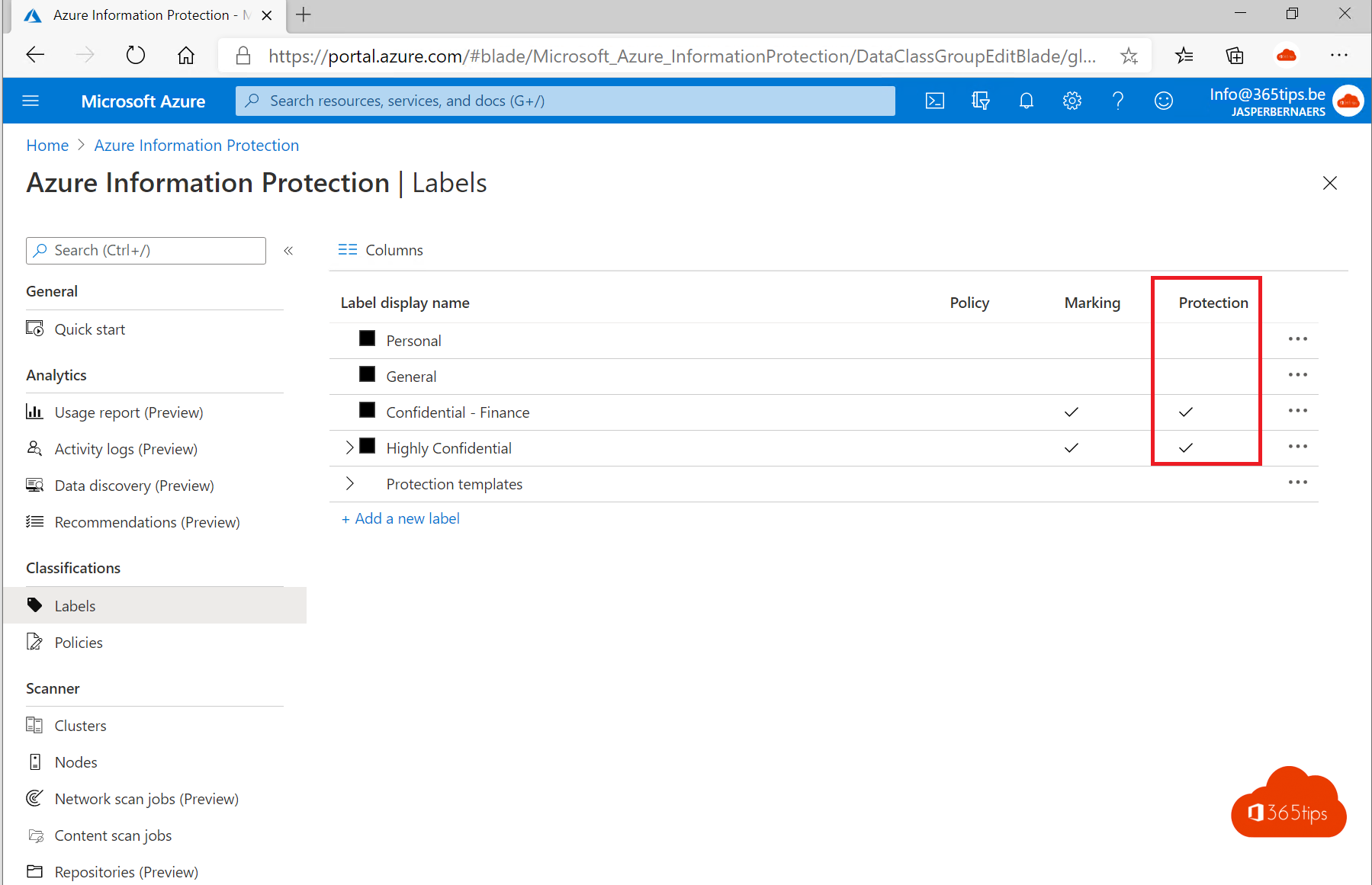
You want confidential documents and emails to reach only the right people. With sensitivity labels in Microsoft Purview you give a file or email a label such as Internal or Confidential. A label can also encrypt the content, so only authorized people can open it, even if the file ends up outside your organization.
What are sensitivity labels?
A label is a tag on a document or email. You can apply it in three ways:
- Manually: the user picks a label.
- Recommended: Office suggests a label when the file contains sensitive data, such as credit card numbers.
- Automatically: the label is applied based on rules. This usually needs a higher license, such as Microsoft 365 E5 or a compliance add-on.
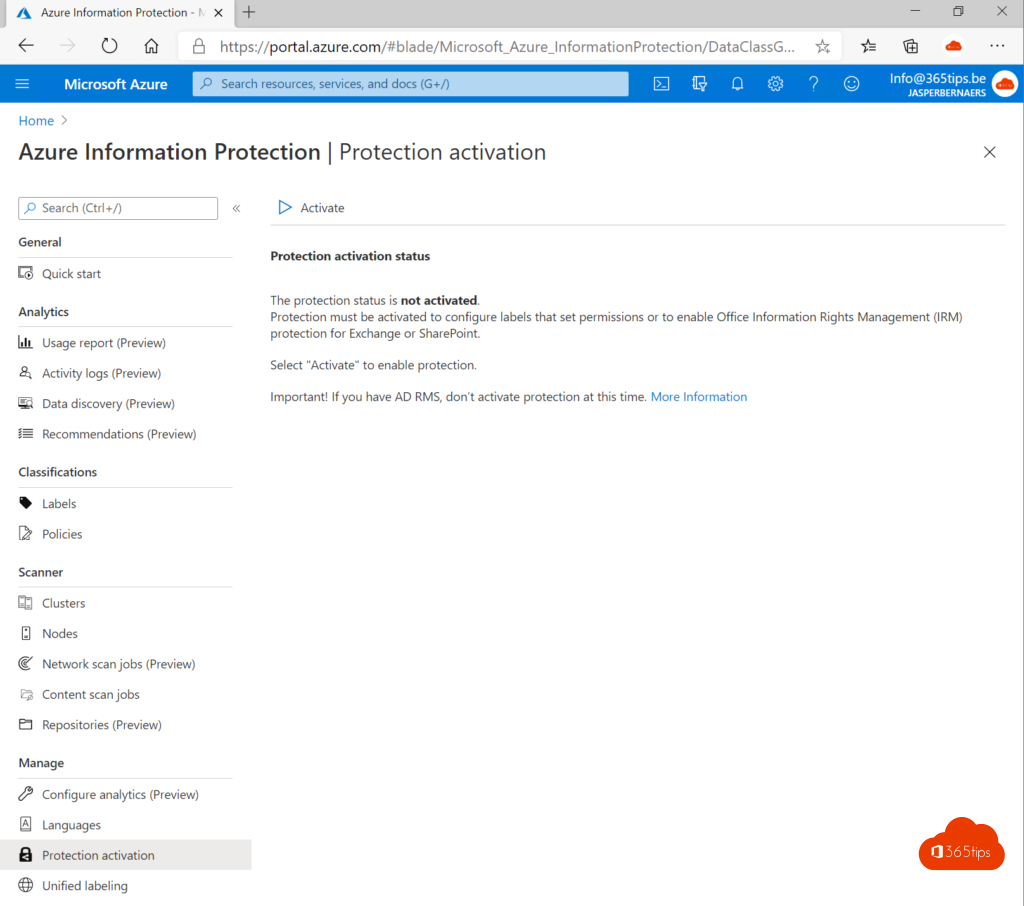
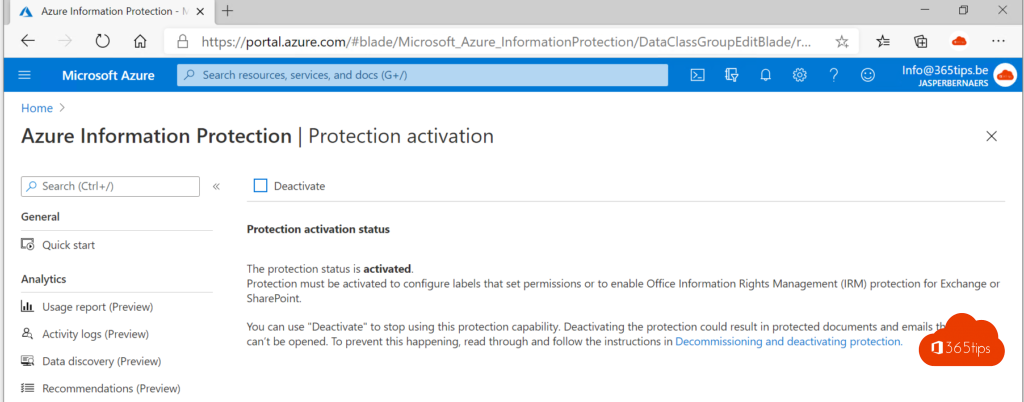
A label can add a header or watermark and encrypt the content. Encryption uses the Azure Rights Management service, which is already active by default in most tenants.
Tip: test first
Labels with encryption can lock people out of their own files if configured wrongly. Try everything in a test tenant or with a small pilot group first.
1. Create labels
- Go to the Microsoft Purview portal (purview.microsoft.com).
- Select Information Protection > Sensitivity labels.
- Select Create a label. Enter a name and a short description for users.
- Choose the scope: Files & other data assets and/or Emails.
- Configure protection: encryption, who gets which permissions, and optionally a watermark or footer.
- Repeat for each label. Start small, for example with Public, Internal, Confidential and Highly confidential.
2. Publish labels
- Select Information Protection > Policies > Label publishing policies.
- Select the labels and the users or groups who may use them.
- Optionally choose a default label and whether users must justify lowering a label.
- Save the policy. It can take a while before the labels show up in the Office apps.

3. Enable labels in SharePoint and OneDrive
Turn on sensitivity label support for SharePoint and OneDrive. Users can then co-author encrypted files, and search can find their content. You can do this in the Purview portal or with PowerShell:
Connect-SPOService -Url https://yourtenant-admin.sharepoint.com
Set-SPOTenant -EnableAIPIntegration $true
4. Test in Outlook
- Open Outlook on the web or the new Outlook.
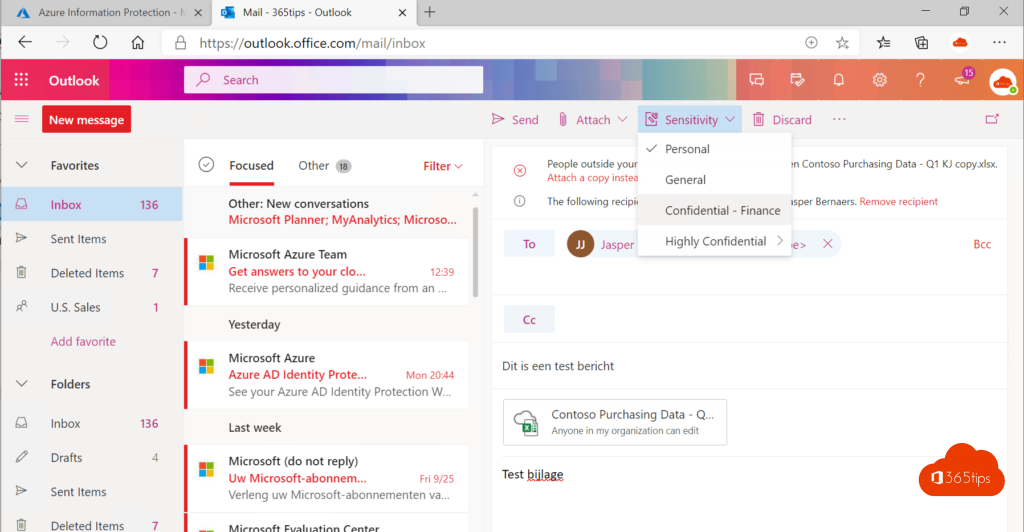
- Create a new email and choose a label with encryption via Sensitivity.
- Send it to a colleague and to an external address. Check who can open it.
For files outside Office, such as PDFs in File Explorer, there is the Microsoft Purview Information Protection client.
Also see data loss prevention in Microsoft Teams and encrypt email in Outlook.
Read also
Set up Data Loss Prevention (DLP) in Microsoft Teams with Purview
How to encrypt or protect an e-mail in Outlook and Microsoft 365
Create a Microsoft 365 tenant for testing
Nederlandstalige versie: Van Azure Information Protection naar vertrouwelijkheidslabels in Microsoft Purview