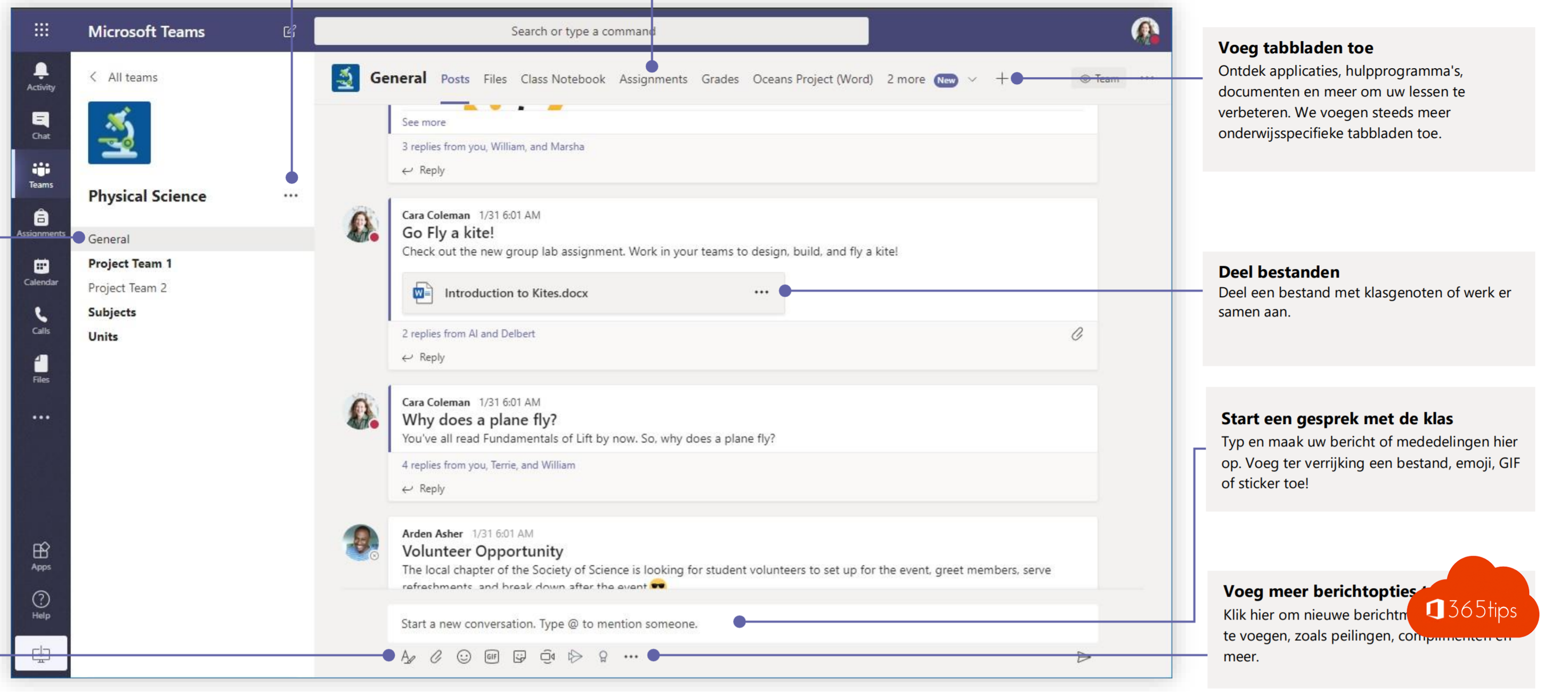
New to Microsoft Teams? This guide explains the basics in plain language: how the app is laid out, how to chat, work with teams and channels, and meet. Ideal for helping new colleagues get started.
Navigating Teams
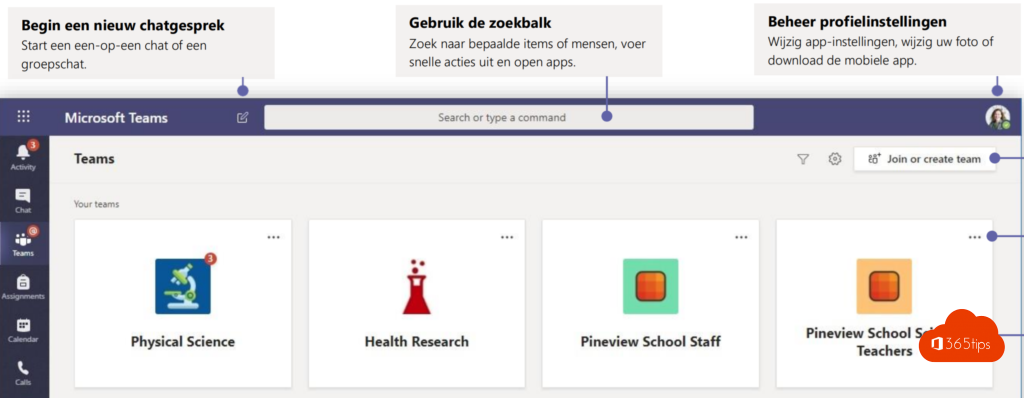
On the left you see the app bar. Use it to switch between:
- Activity: mentions, reactions and notifications.
- Chat: conversations with people and groups. In recent versions your channels can appear here too.
- Teams: your teams and channels.
- Calendar: your meetings, linked to Outlook.
- Apps: extra apps such as Planner, OneDrive and Lists. Right-click an app to pin it.

The top bar
At the top is the search box (Ctrl + E) to find messages, people and files. On the right you find your profile picture, where you set your status, and Settings and more.
Teams and channels
A team is a group of people working together, such as a department or project. Within a team you create channels per topic. Each channel has posts, files and tabs.
- Create or join a team: click Teams and then +.
- Add a channel: click More options next to the team > Add channel.
- Add a tab: click + at the top of the channel.


Meetings
- Meet now: in Calendar, click Meet now for an instant meeting.
- Schedule: click New meeting, invite people and pick a time. Invite external people with their email address.
- Join: click Join in your calendar or in the invitation.
- Chat during the meeting: click Chat in the meeting toolbar.

Keep learning
In Teams, click Settings and more > Help for training and videos. On this site you'll also find handy Teams tips.
Also see Microsoft Teams keyboard shortcuts and schedule a Teams meeting.
Read also
Five reasons to start with Microsoft Teams, and how to begin
The most useful Microsoft Teams features in one list
The most useful Microsoft Teams keyboard shortcuts for Windows and Mac
Nederlandstalige versie: Basishandleiding voor Microsoft Teams in het Nederlands