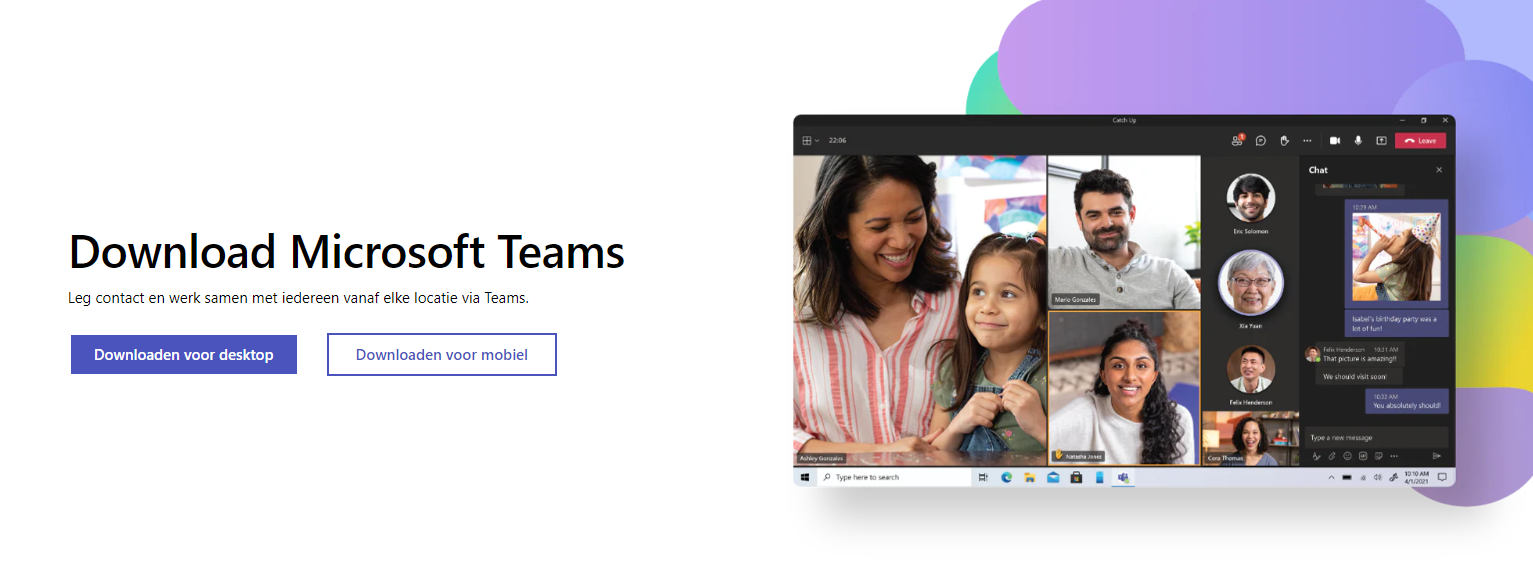
You use Microsoft Teams on your computer, in the browser or on your phone. For work or school you use the app with your work account; for family and friends there's Teams (free). This article shows how to download and install the right Teams app on Windows, Mac and mobile.
On Windows
- Go to microsoft.com/microsoft-teams/download-app.
- Choose Download Teams for work/school.
- Open the downloaded file and follow setup.
- Sign in with your work or school account.
Windows 11 also includes the Microsoft Teams (free) app, for personal use. You can use both. Read multiple accounts in Teams.
On a Mac
Download Teams from the same page and open the .pkg file. Teams runs natively on Apple silicon Macs. Or install it from the Mac App Store.
On your phone or tablet
Install Microsoft Teams from the App Store or Google Play and sign in. Your organisation may also ask you to install the Authenticator or Company Portal app.
In the browser
Can't install anything? Go to teams.microsoft.com in Edge or Chrome. Most features work, though the app is better for some meeting features. External people can join meetings in the browser too. Read join as an external guest.
For admins
Deploy Teams to all PCs with the Teams bootstrapper (teamsbootstrapper.exe -p), with Intune or your own software distribution. On new PCs with the Microsoft 365 apps, Teams is often already included. Read deploy Microsoft 365 apps with Intune.
Tips
- Teams starting automatically? Read stop Teams starting automatically.
- Teams slow or odd errors? Clear the cache.
Read also
Use multiple accounts at once in Microsoft Teams
How to create a free Microsoft Teams account
Clear the Microsoft Teams cache on Windows and Mac
Nederlandstalige versie: Microsoft Teams downloaden en installeren op Windows, Mac en mobiel