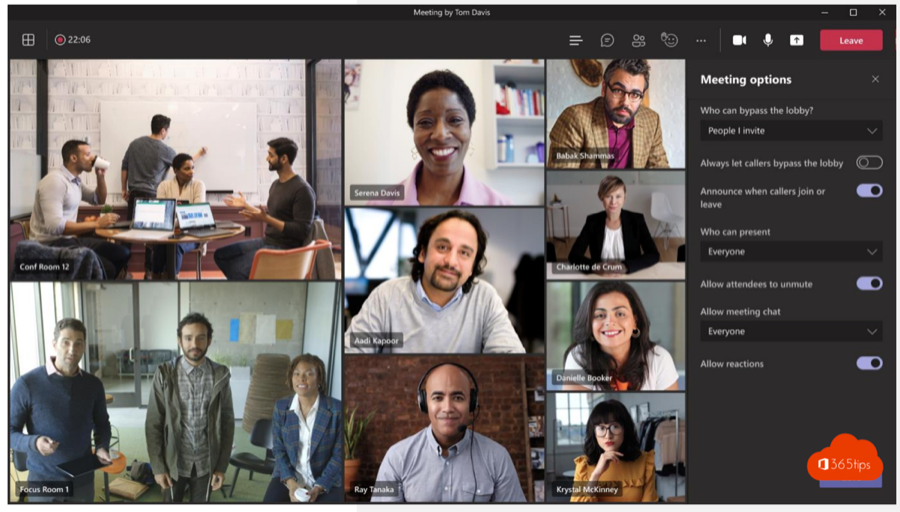
Want only the people you invited to join your Teams meeting directly, while everyone else waits in the lobby until you let them in? That's what the setting Who can bypass the lobby? does. This article explains every option, how to set it for one meeting, what an admin can set as the default and how to admit people from the lobby.
The choices under "Who can bypass the lobby?"
| Option | Who gets in directly? | Good for |
|---|---|---|
| Only organizers and co-organizers | Only you and your co-organizers | Job interviews, exams, confidential conversations |
| People who were invited | Only people in the invitation (also through an invited group) | Customer meetings, recurring meetings with fixed attendees |
| People in my organization | Colleagues with an account in your tenant; guests and externals wait | Internal meetings (often the default) |
| People in my organization, trusted organizations and guests | Also guests and users from organizations you set up external access with | Projects with regular partners |
| Everyone | Anyone with the link, including anonymous participants | Open sessions, webinars without registration |
Note with People who were invited: someone who received a forwarded invitation isn't on the list and has to wait. That's exactly the point.
Set it for one meeting
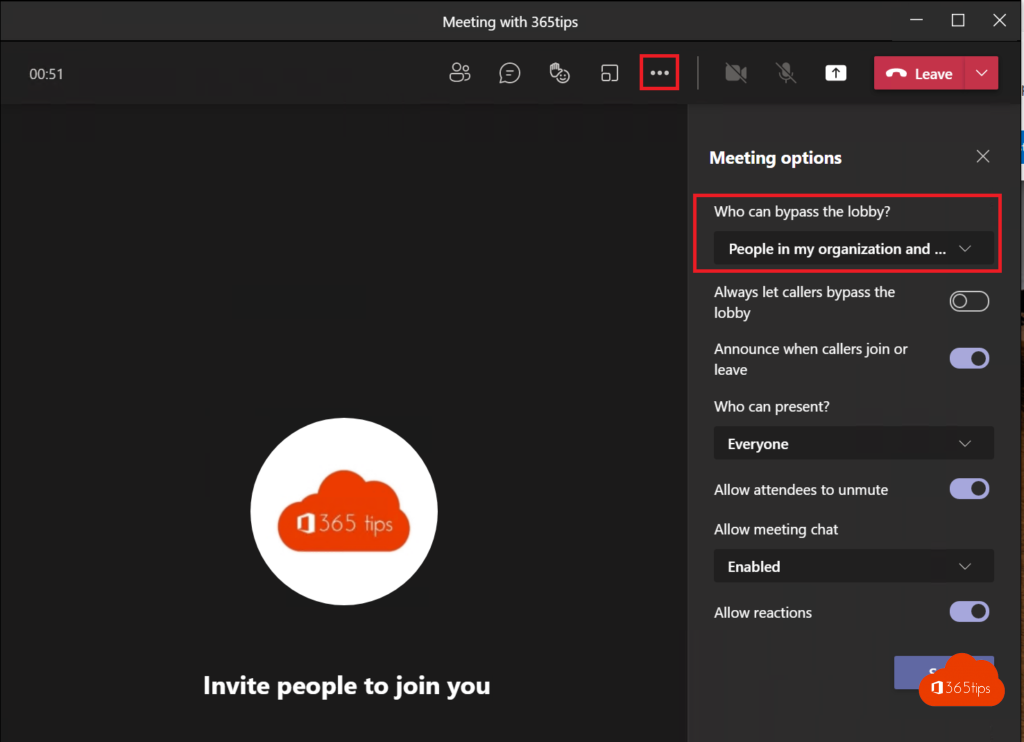
- Open the meeting in your Teams calendar and select Edit > Options. During the meeting: More > Settings > Meeting options.
- Under Lobby, pick an option for Who can bypass the lobby?
- Also decide whether people dialing in can bypass the lobby.
- Select Save.
Admit people from the lobby
When someone lands in the lobby, the organizer and presenters get a notification. Select Admit, or View lobby to see the list and let people in one by one or all at once. Under People you see who is still Waiting in lobby, and with lobby chat you can send them a message.
Nobody in the lobby can start the meeting. If you're late yourself, the others wait until you or a co-organizer joins, depending on the setting.
For admins: set the default
- Open the Teams admin center > Meetings > Meeting policies.
- Pick the policy and, under Meeting join & lobby, find Who can bypass the lobby.
- Choose the default value and save. Organizers can still change it per meeting unless you restrict that.
With PowerShell, for example to make People who were invited the default:
Set-CsTeamsMeetingPolicy -Identity Global -AutoAdmittedUsers InvitedUsers
Other values are OrganizerOnly, EveryoneInCompanyExcludingGuests, EveryoneInSameAndFederatedCompany and Everyone. The same policy controls whether anonymous users can join.
Tips for sensitive meetings
- Combine the lobby with limiting presenters, so not everyone can share their screen.
- Turn off chat or reactions when the meeting is formal.
- Use a watermark for confidential presentations (Teams Premium).
- Check the attendance report afterwards to see who was let in and when.
Read also
Use a watermark in Microsoft Teams meetings
How to add external guests in Microsoft Teams
Turn live reactions on or off in Microsoft Teams meetings
Nederlandstalige versie: Wie kan de lobby overslaan in Microsoft Teams: alle opties uitgelegd