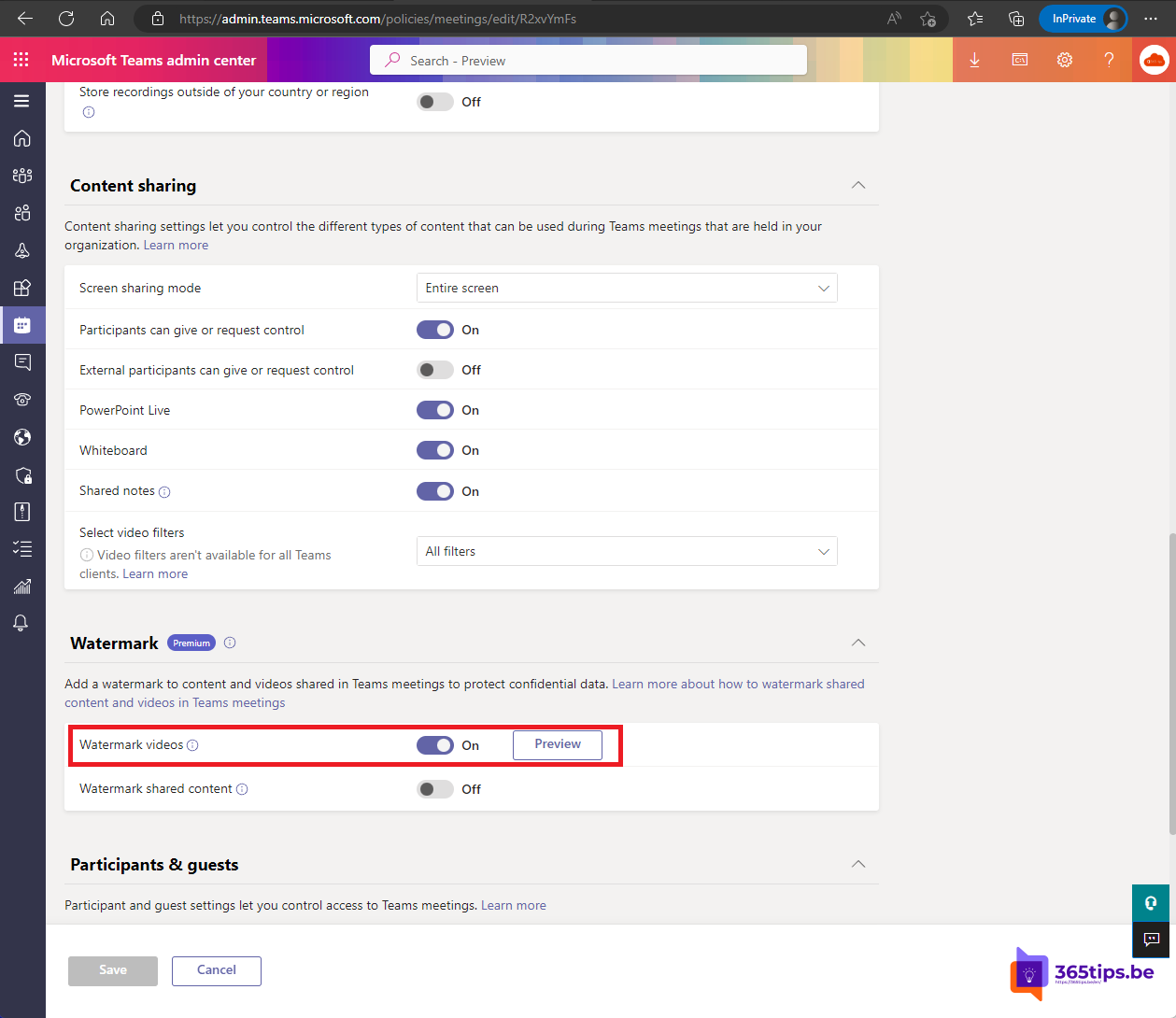
Showing confidential figures, a product plan or personal data in a Teams meeting? With a watermark, the email address of each viewer appears across the shared screen and the video. If someone takes a photo or screenshot, you know straight away where the leak came from. This article covers what you need, how an admin allows watermarks, how to turn them on for a meeting and which features stop working.
What does the watermark do?
- Each participant sees their own email address diagonally across the content. The watermark is different for every person.
- You choose whether it appears on shared content (screen, window, presentation), on participants' video, or both.
- Participants can't turn the watermark off.
What do you need?
- A Teams Premium license for the organizer. Attendees don't need Premium.
- A meeting policy that allows watermarks.
- Attendees on the Teams app for Windows, Mac, iOS or Android, or a supported browser. People joining from an unsupported device, such as some meeting room systems or older clients, get audio only.
For admins: allow watermarks
- Go to the Teams admin center > Meetings > Meeting policies.
- Open the policy, for example Global (Org-wide default).
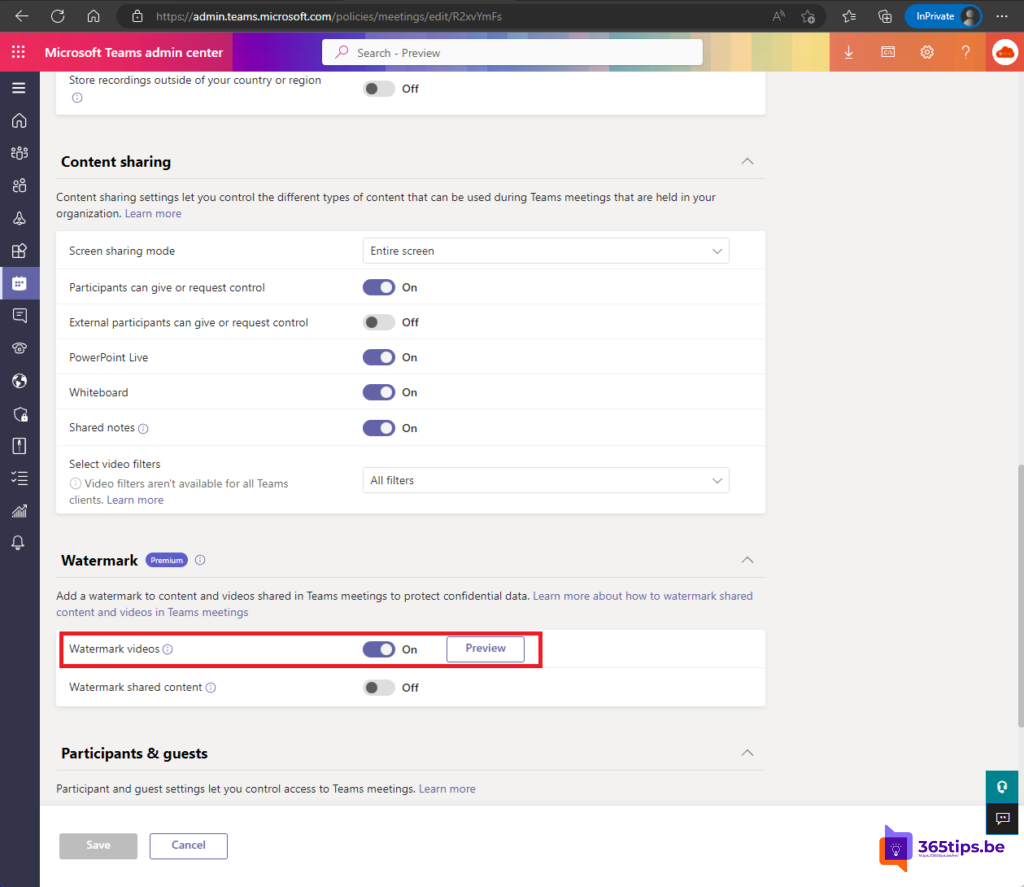
- Under Watermark, turn on the settings for shared content and video feed.
- Save. It can take a few hours for the policy to apply everywhere.
Turn the watermark on for a meeting
- Create a new meeting in your Teams calendar and save it, or open an existing one.
- Select Options (Meeting options).
- Under Security, turn on Apply a watermark to shared content and/or Apply a watermark to everyone's video feed.
- Select Save.

You can also change it during the meeting via More > Settings > Meeting options. Preferably do it beforehand: people who already joined only notice the change after reconnecting.
What doesn't work in a watermarked meeting?
- Recording isn't available.
- PowerPoint Live and sharing Whiteboard don't work; share your screen or window instead.
- Views such as Together mode and large gallery are turned off.
- Attendees on unsupported clients get audio only.
If you need a recording, you'll have to choose between recording and watermarking. You can't have both.
Enforce it automatically
With Teams Premium, admins can create a meeting template, for example Confidential meeting, with the watermark already on and locked. Organizers pick that template when scheduling. A Microsoft Purview sensitivity label can also apply the watermark and other settings, such as the lobby and blocking recording, automatically. Combine it with a strict lobby setting so only invited people get in directly.
Nederlandstalige versie: Een watermerk gebruiken in Microsoft Teams-vergaderingen