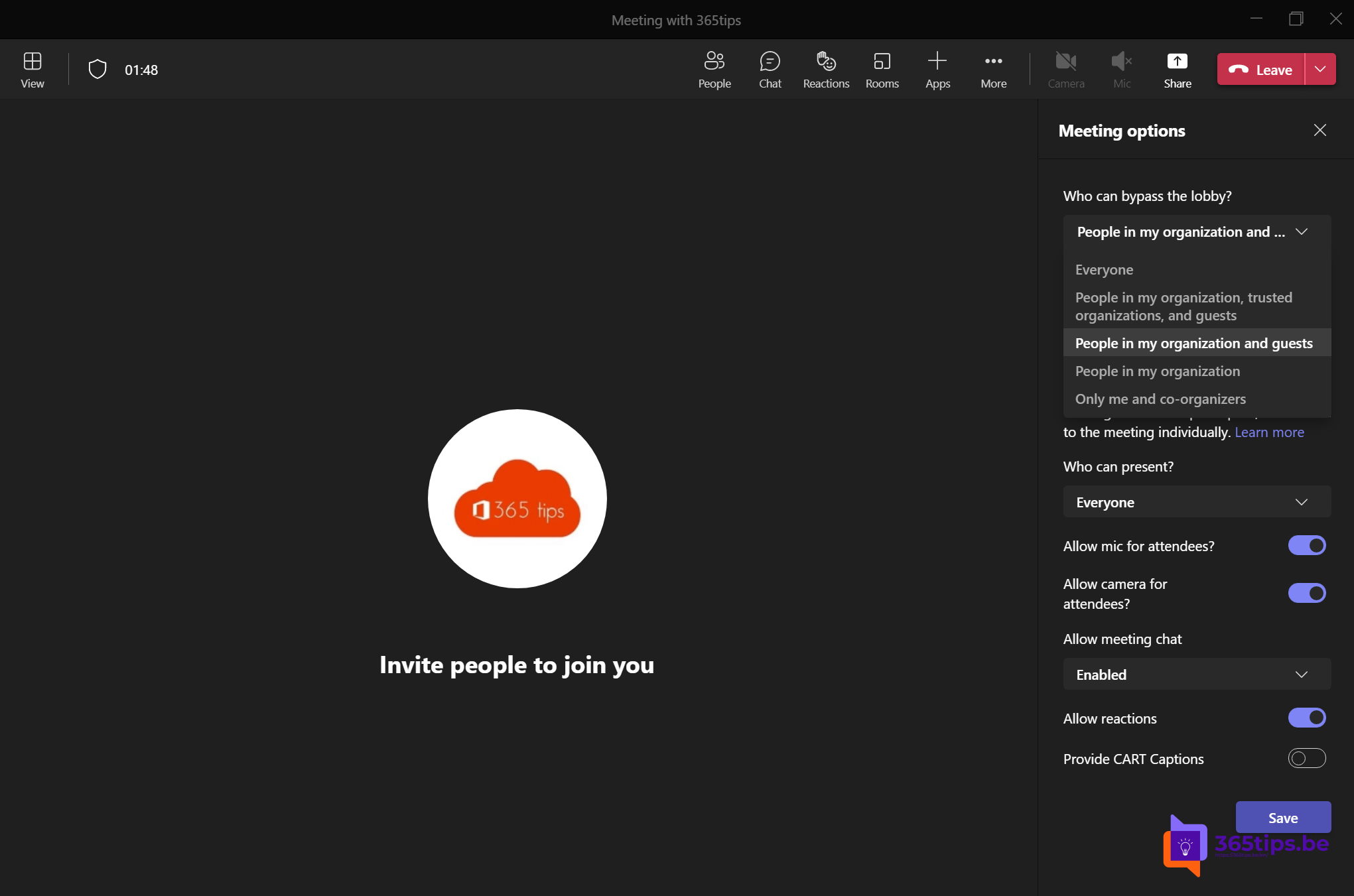
The lobby of a Teams meeting is a waiting room: attendees wait there until you let them in. Useful for a confidential conversation or a presentation with external people. But sometimes you want everyone to come straight in. With the lobby settings you decide who waits and who doesn't.
Set the lobby before the meeting
- Open the meeting in your Teams Calendar.
- Click Meeting options.
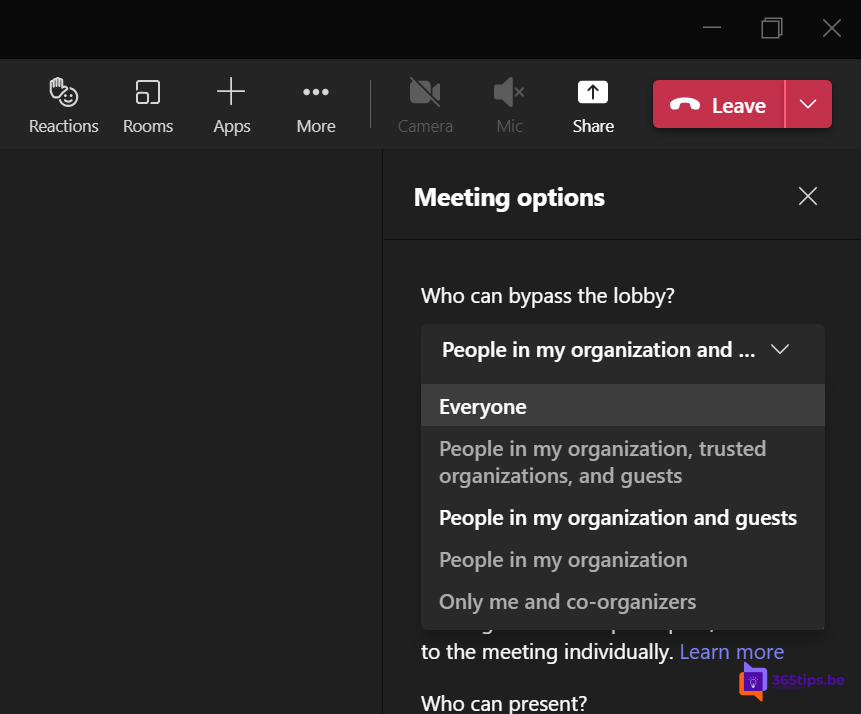
- Under Who can bypass the lobby? choose one of the options (exact names may vary slightly):
- Everyone: nobody waits, the lobby is effectively off.
- People in my org, trusted orgs, and guests
- People in my org and guests
- People in my org
- People I invite
- Only organizers and co-organizers: everyone else waits.
- Also choose whether people dialing in can bypass the lobby.
- Click Save.

Change the lobby during the meeting
- In the meeting, click More (the three dots) > Settings > Meeting options.
- Change Who can bypass the lobby? and save.

People already waiting? You see them at the top of the People list. Click Admit or Admit all.
For admins: set the default
The default for new meetings comes from the meeting policy:
- Open the Teams admin center.
- Go to Meetings > Meeting policies and open a policy (for example Global).
- Under the participant and guest settings, adjust Who can bypass the lobby and People dialing in can bypass the lobby.
- There is also a separate setting that controls whether anonymous users or dial-in callers can start a meeting without the organizer.

Organizers can still deviate from the default per meeting, unless you enforce the choice in the policy.
Also see who can bypass the lobby and lock a Teams meeting.
Read also
Who can bypass the lobby in Microsoft Teams: every option explained
Lock a Microsoft Teams meeting
Join a Teams meeting without a Microsoft account
Nederlandstalige versie: Wachten in de lobby in- of uitschakelen in Microsoft Teams