Who was in your Teams meeting or class, when did they join and how long did they stay? You no longer need a paper list for that. Teams automatically creates an attendance report that you can view during and after the meeting and download as an Excel file. This article shows where to find the report, what's in it, who can see it and what to do when it's missing.
Who can see the report?
- The organizer and the co-organizers of the meeting.
- For a channel meeting: the person who started or scheduled it.
- Regular attendees don't see the report.
During the meeting
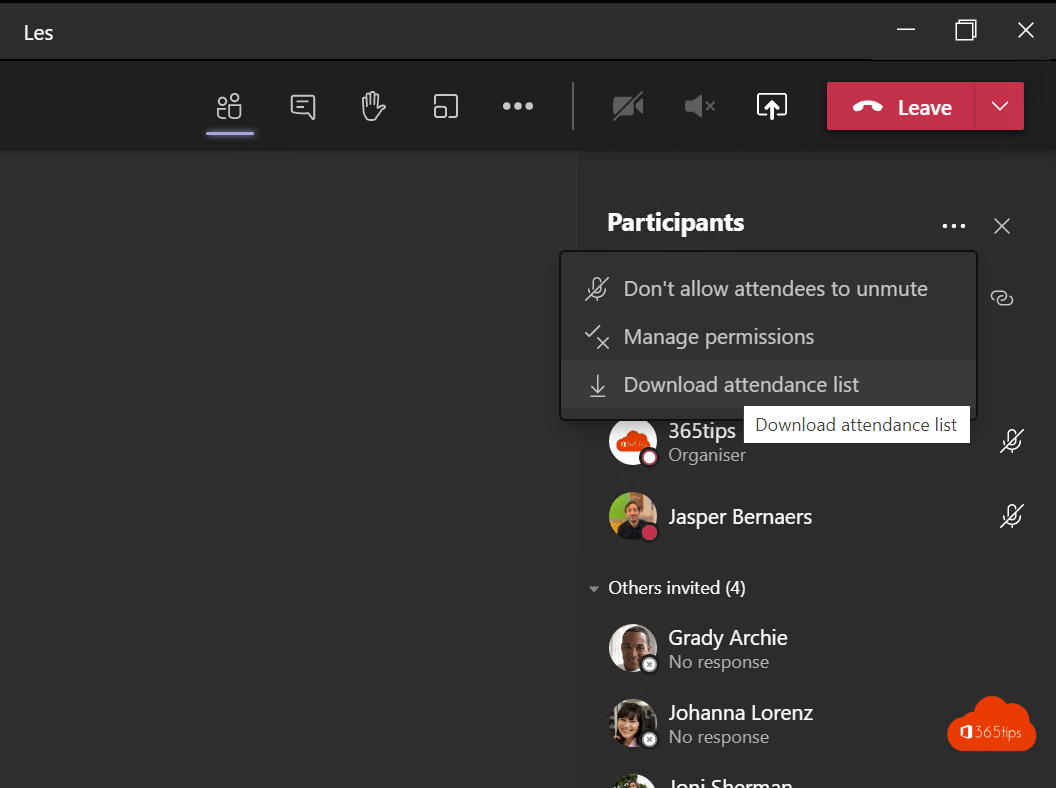
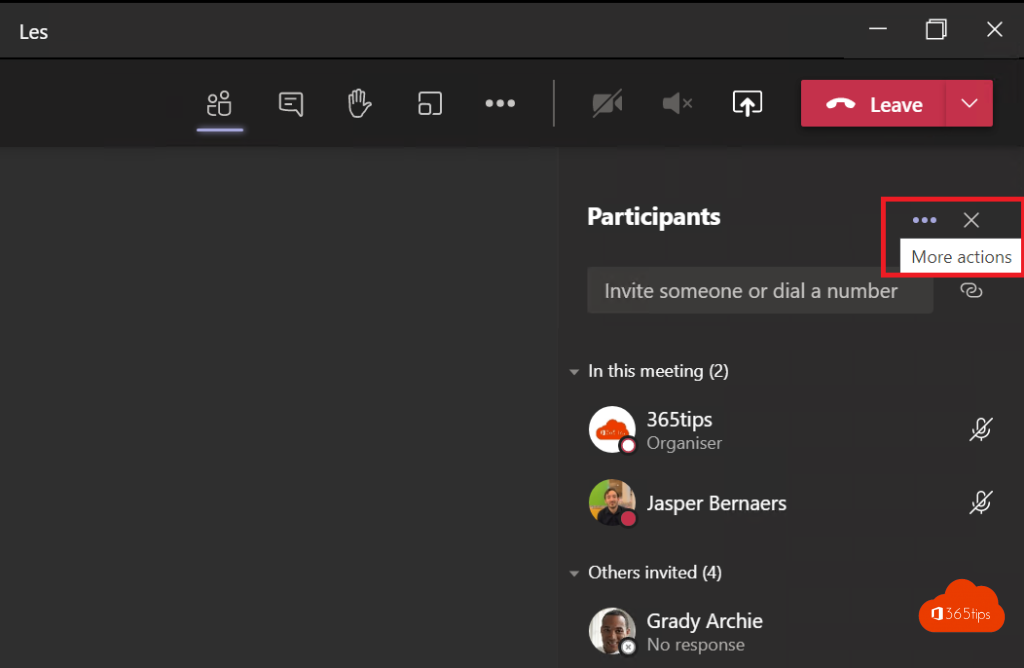
- Select People at the top to open the participant list.
- Select ... (More actions) at the top of that list.
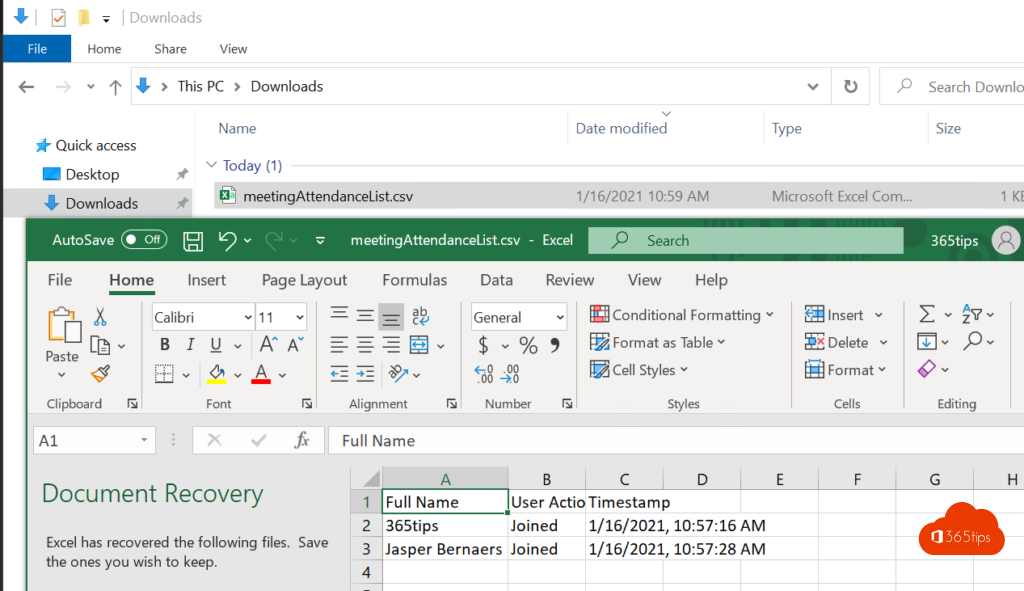
- Choose Download attendance list. The file goes to your Downloads folder.
That's a snapshot: people who join later aren't in it. Download the full report afterwards.
After the meeting
There are two places:
- The meeting chat: after the meeting an Attendance report card appears. Select it to open the report.
- The calendar: open the meeting in your Teams calendar and select the Attendance tab. For a recurring meeting, pick the right date first.
On that tab, select Download for an Excel (.csv) file.
What's in the report?
| Section | Contents |
|---|---|
| Summary | Number of participants, start and end time, average attendance time |
| Participants | Name, email, first join, last leave, total duration, role (organizer, presenter, attendee) |
| In-meeting activities | Every join and leave, including people who reconnected several times |
| Registration (webinars) | Who registered and their answers to the registration form |
People who dial in by phone appear with their (partly hidden) number. Anonymous participants appear with the name they typed in.
For admins: report not available?
- Open the Teams admin center > Meetings > Meeting policies.
- Pick the organizer's policy and find Attendance and engagement report.
- Choose On. With On, but organizers can't control it the organizer can't turn the report off per meeting.
With PowerShell:
Set-CsTeamsMeetingPolicy -Identity Global -AllowEngagementReport Enabled
Organizers can also turn the report off themselves in meeting options (Allow attendance report). If it's off there, nothing is recorded.
Tips for schools and training
- Schedule classes as meetings in the calendar, so the report stays available per date under Attendance.
- Save the Excel file in the class or training folder as proof of attendance.
- The report shows presence, not attention: someone can be connected without following along.
Read also
Who can bypass the lobby in Microsoft Teams: every option explained
How to record and transcribe a Teams meeting automatically from the start
Turn live reactions on or off in Microsoft Teams meetings
Nederlandstalige versie: Aanwezigheden bijhouden met het aanwezigheidsrapport in Microsoft Teams