A confidential board meeting, a job interview or a paid training: you don't want the invite forwarded freely. In Outlook you can turn off forwarding of a meeting request. But anyone with the link can still join. This article shows how to cover both.
Turn off forwarding in Outlook
- New Outlook and Outlook on the web: open the meeting, select Response options and untick Allow forwarding.
- Classic Outlook: Meeting tab > Response Options > untick Allow Forwarding.
Attendees using Outlook no longer see a Forward button. This only works within Exchange and Outlook; someone using another mail app may still be able to forward the invite.


The real protection: the lobby
A link can always be copied. So decide in meeting options who gets in directly:
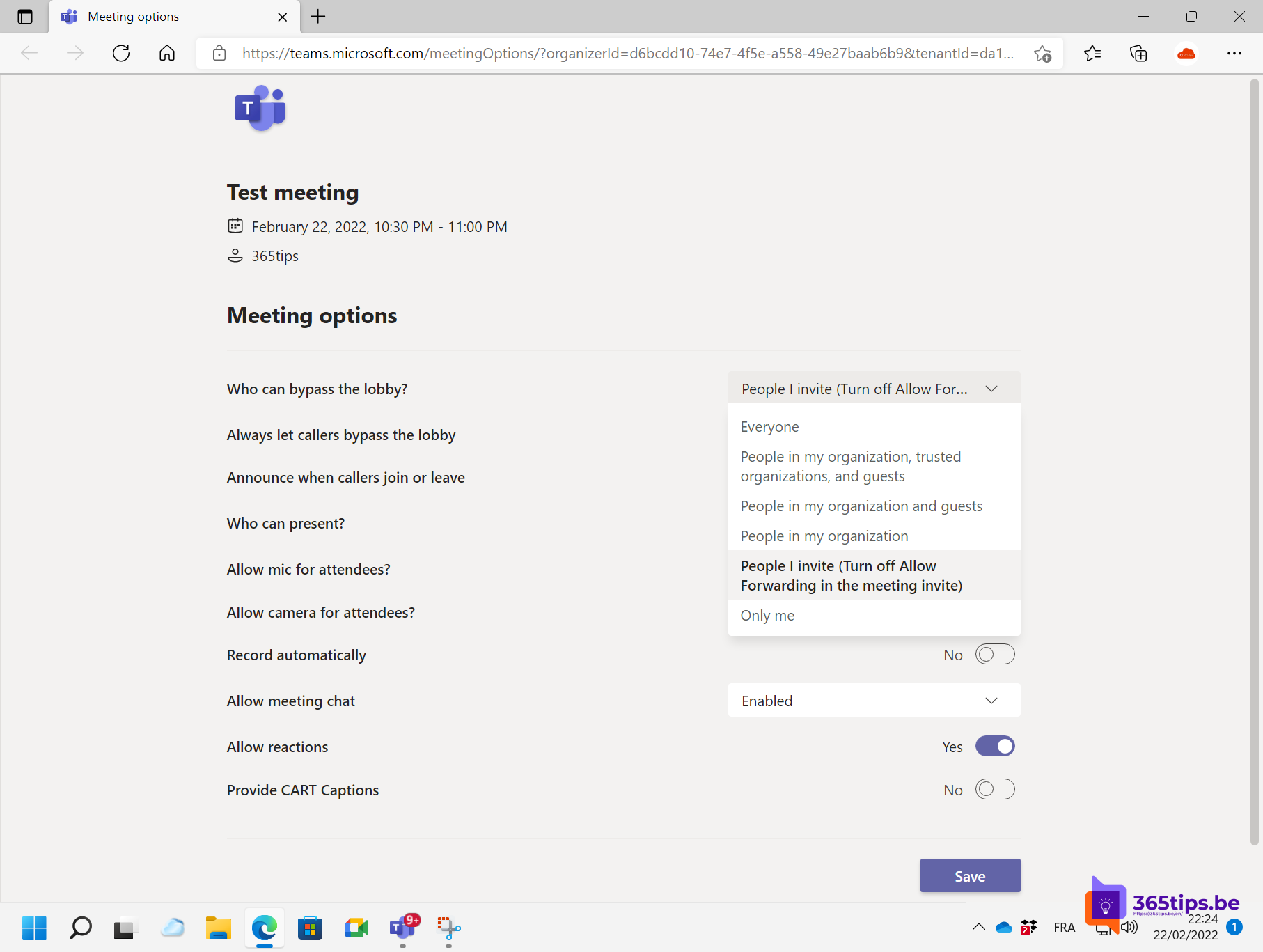
- Open the meeting in your Teams calendar and select Options.
- Set Who can bypass the lobby? to People I invited or Only me and co-organizers.
- Turn off People dialing in can bypass the lobby.
Anyone using a forwarded link then waits in the lobby, and you decide whether they get in. Read who can bypass the lobby.

Extra security
- Lock the meeting once everyone has joined.
- With Teams Premium you can add a watermark, block copying of the chat and use a sensitivity label that locks the options.
- Turn off recording for attendees if it isn't needed.
Nederlandstalige versie: Het doorsturen van een Teams-vergadering voorkomen
Related articles
▸Turn waiting in the lobby on or off in Microsoft TeamsChoose in meeting options who can bypass the lobby of your Teams meeting, and set the default in the meeting…
▸Who can bypass the lobby in Microsoft Teams: every option explainedLet only invited people join your Teams meeting directly. Every Who can bypass the lobby option, per meeting…
▸Lock a Microsoft Teams meetingLock a Teams meeting so nobody else can join. How to lock and unlock, what happens to latecomers and dropped…
▸Join a Teams meeting without a Microsoft accountJoin a Teams meeting from your browser without the app or an account, use a meeting ID, and see what admins…
▸Give every Outlook meeting a Teams link automaticallyTurn on Add online meeting to all meetings in the new or classic Outlook, so every invite gets a Teams link.