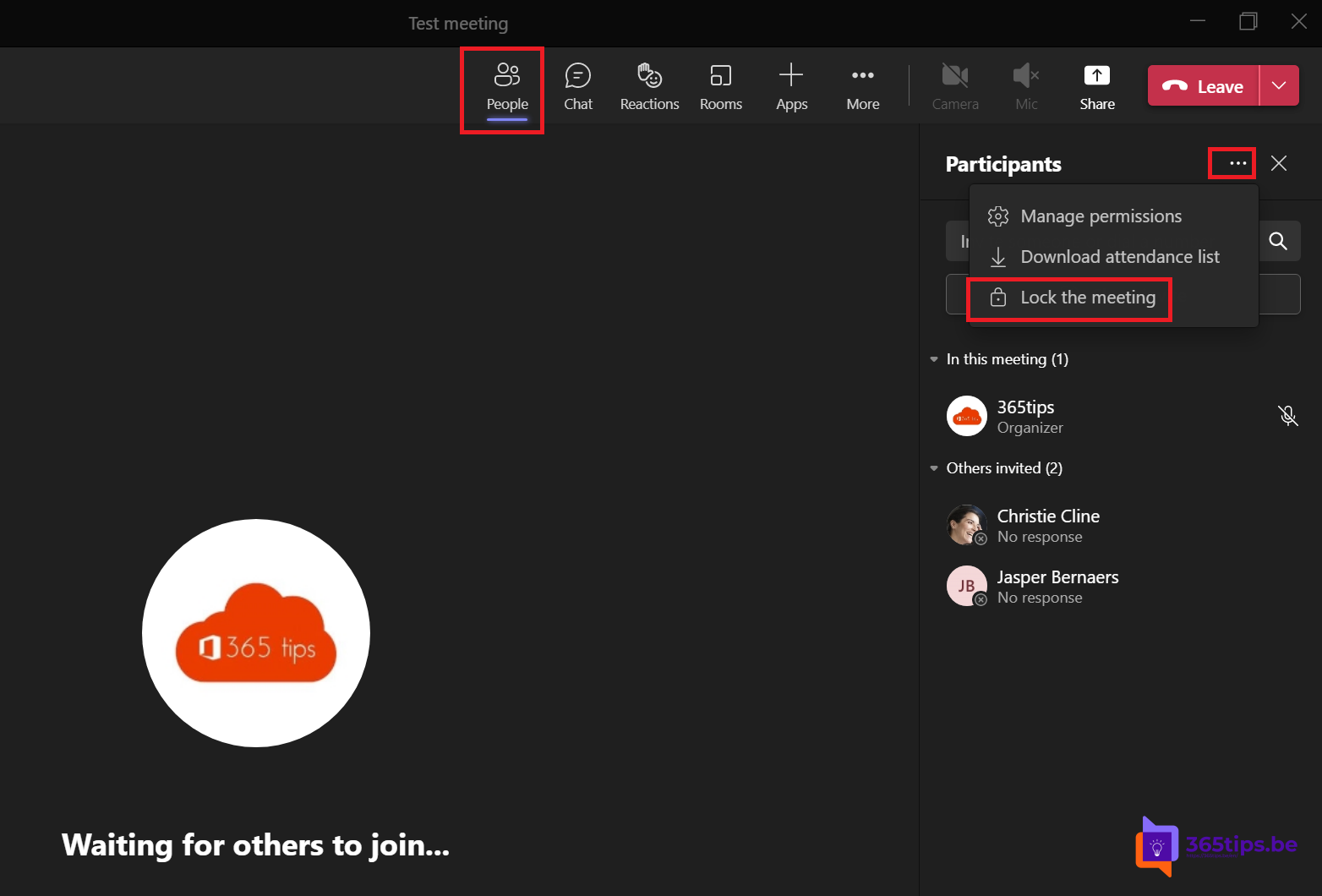
Discussing something confidential in a Teams meeting? Then you want to be sure nobody slips in unnoticed. At the end of 2020 a journalist got into a secret video call of European defence ministers that way. With Lock the meeting you close the door once all participants are in: nobody else can join. This article shows how to lock a meeting, what happens to latecomers and which other settings to combine it with.
Lock a meeting
- Wait until everyone you expect is in the meeting.
- Select People at the top.
- Select ... (More options) at the top of the participants pane.
- Choose Lock the meeting and confirm with Lock.
All participants see a notice that the meeting is locked. Only the organizer and co-organizers can lock and unlock.

What happens when a meeting is locked?
- Nobody else can join, not even invited colleagues. Anyone who tries sees that the meeting is locked.
- People who drop out can't rejoin until you unlock. Keep that in mind on a poor connection.
- Dialing in by phone isn't possible either.
- Admit or deny anyone waiting in the lobby before you lock.
- The meeting chat stays available to invitees, so they can send a message if they can't get in.
Unlock the meeting
Go to People > ... > Unlock the meeting again. Everyone can then join according to the normal lobby settings. You can lock and unlock as often as you like, for example to let someone who dropped out back in.
Lock or use the lobby?
| Setting | Effect | When |
|---|---|---|
| Who can bypass the lobby | People not invited wait until you admit them | Beforehand, for every meeting with externals |
| Lock the meeting | After a certain moment nobody else can get in | During the meeting, for the confidential part |
| Prevent forwarding | Recipients can't forward the invitation | Beforehand, for sensitive invitations |
For truly confidential meetings, combine them: only invitees bypass the lobby, no forwarding, and lock once everyone is in. With Teams Premium, add a watermark.
The option is missing
- You're not the organizer or a co-organizer. Ask the organizer to give you that role.
- In webinars and town halls locking works differently or not at all; use registration and the lobby there.
- Channel meetings can't always be locked.
Read also
Who can bypass the lobby in Microsoft Teams: every option explained
Use a watermark in Microsoft Teams meetings
Track attendance with the Microsoft Teams attendance report
Nederlandstalige versie: Een Microsoft Teams-vergadering vergrendelen