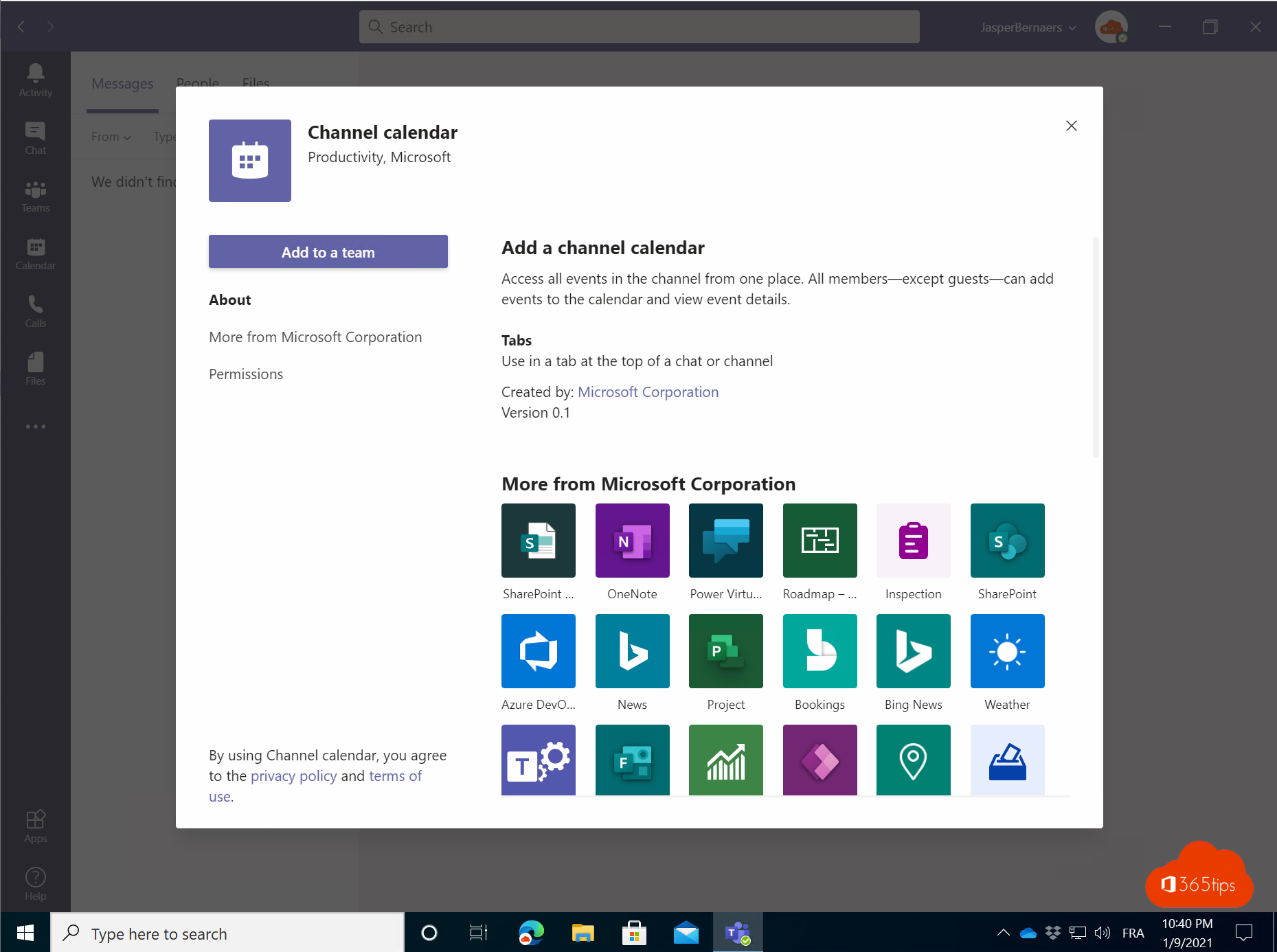
Want to see all appointments for a project or department in one place, right inside Teams? With the Channel calendar app you add a shared calendar as a tab in a channel. Team members see the channel's meetings there and can add events themselves. Microsoft regularly changes the calendar features in Teams: if you can't find the Channel calendar app, check the Message center or ask your admin whether an alternative is provided.
Add a channel calendar
- Open the channel where you want the calendar.
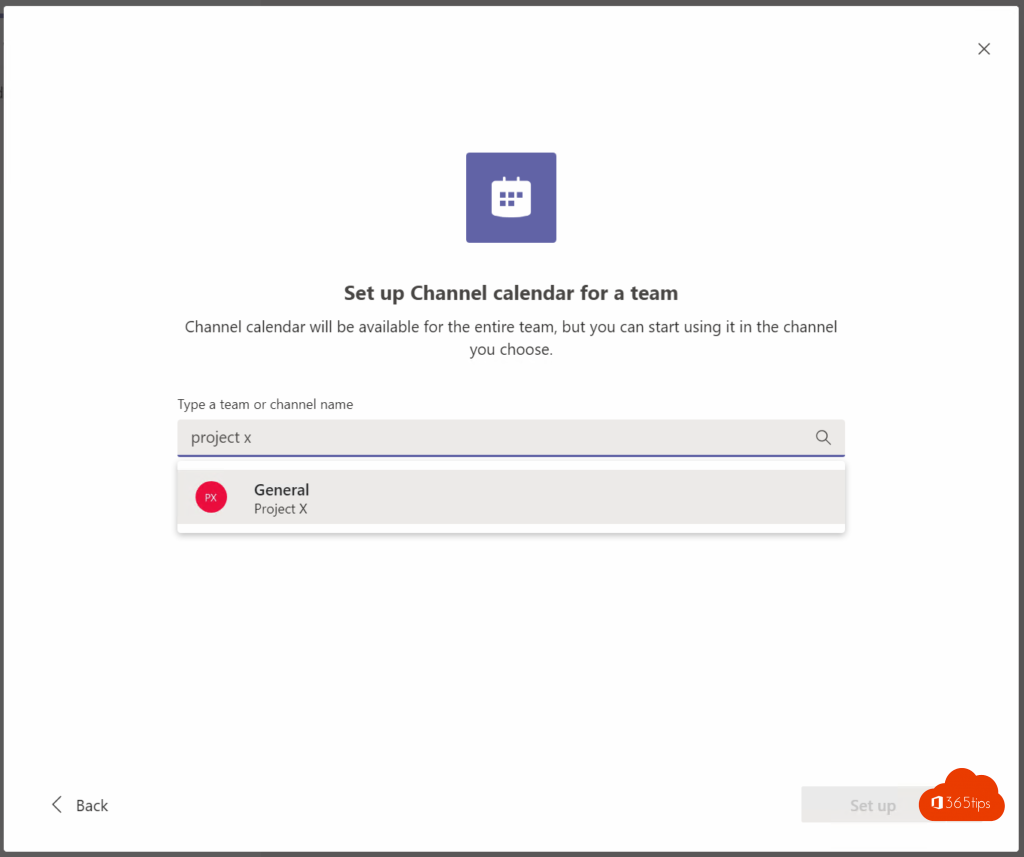
- Click + (Add a tab) at the top.
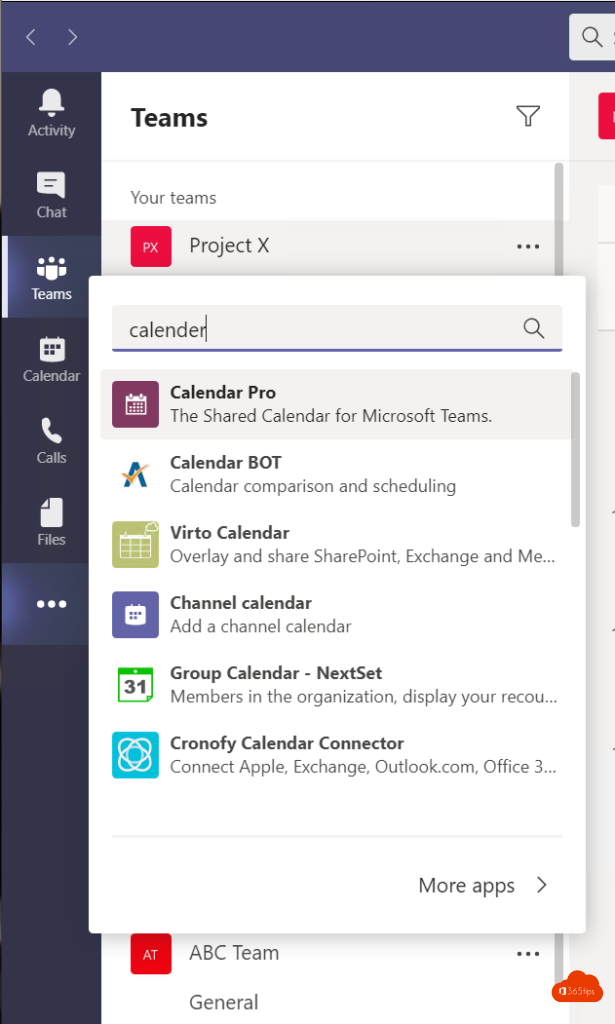
- Search for Channel calendar and select the app.

- Give the tab a clear name, for example "Project X planning".
- Choose whether to post about the new tab in the channel.
- Click Save.
Add events
In the channel calendar, click Add new event or a time slot. This creates a channel meeting: the channel is invited automatically and the meeting appears in the calendar.

Who can do what?
| Who | What |
|---|---|
| Team members | View events and add new ones |
| Organizer of an event | Edit or cancel that event |
| Other members | Join, but not change someone else's event |
| Guests | Can't add events |
What about Outlook?
By default, channel meetings don't automatically appear in every member's personal calendar. Anyone who wants to attend can open the meeting and choose Add to calendar. That also gives them a reminder.
Tips
- Use categories and colors to tell types of events apart.
- Don't want everyone starting channel meetings? See block channel meetings.
Also see schedule a Teams meeting and set up Teams to manage projects.
Read also
Schedule a Microsoft Teams meeting in your calendar
Use categories and colors in your Teams and Outlook calendar
Block or allow channel meetings in Microsoft Teams
Nederlandstalige versie: Een kanaalkalender toevoegen en gebruiken in Microsoft Teams