Someone invited you to a Teams meeting, but you don't have Teams or a Microsoft account? No problem. You simply join from your browser, without installing anything. This article explains how, and what an admin should check if external people can't get in.
Join from your browser
- Click the Join the meeting now link in the invitation.
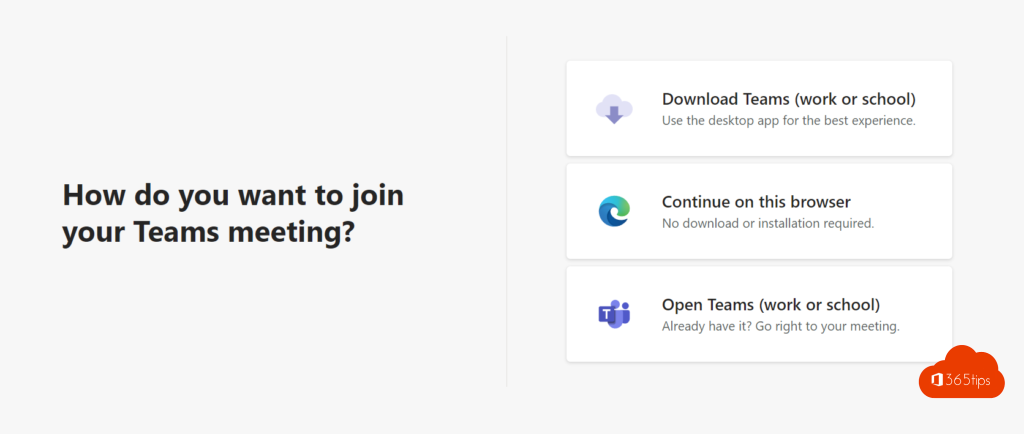
- Choose Continue on this browser. You don't need to install the app. A recent version of Edge or Chrome works best.
- Allow your browser to use your microphone and camera.
- Type your name so the others know who you are.
- Click Join now. Often you wait briefly in the lobby until someone lets you in.
Join with a meeting ID
No link, but you do have a meeting ID and passcode? Go to Microsoft's join page and enter both. If you use Teams yourself, go to Calendar and choose Join with an ID. More in join a Teams meeting with an ID and passcode.

Inviting external people as an organizer
You invite external people just like colleagues: type their email address in the invitation in Teams or Outlook. Whether they use Gmail, Outlook.com or a company address doesn't matter.
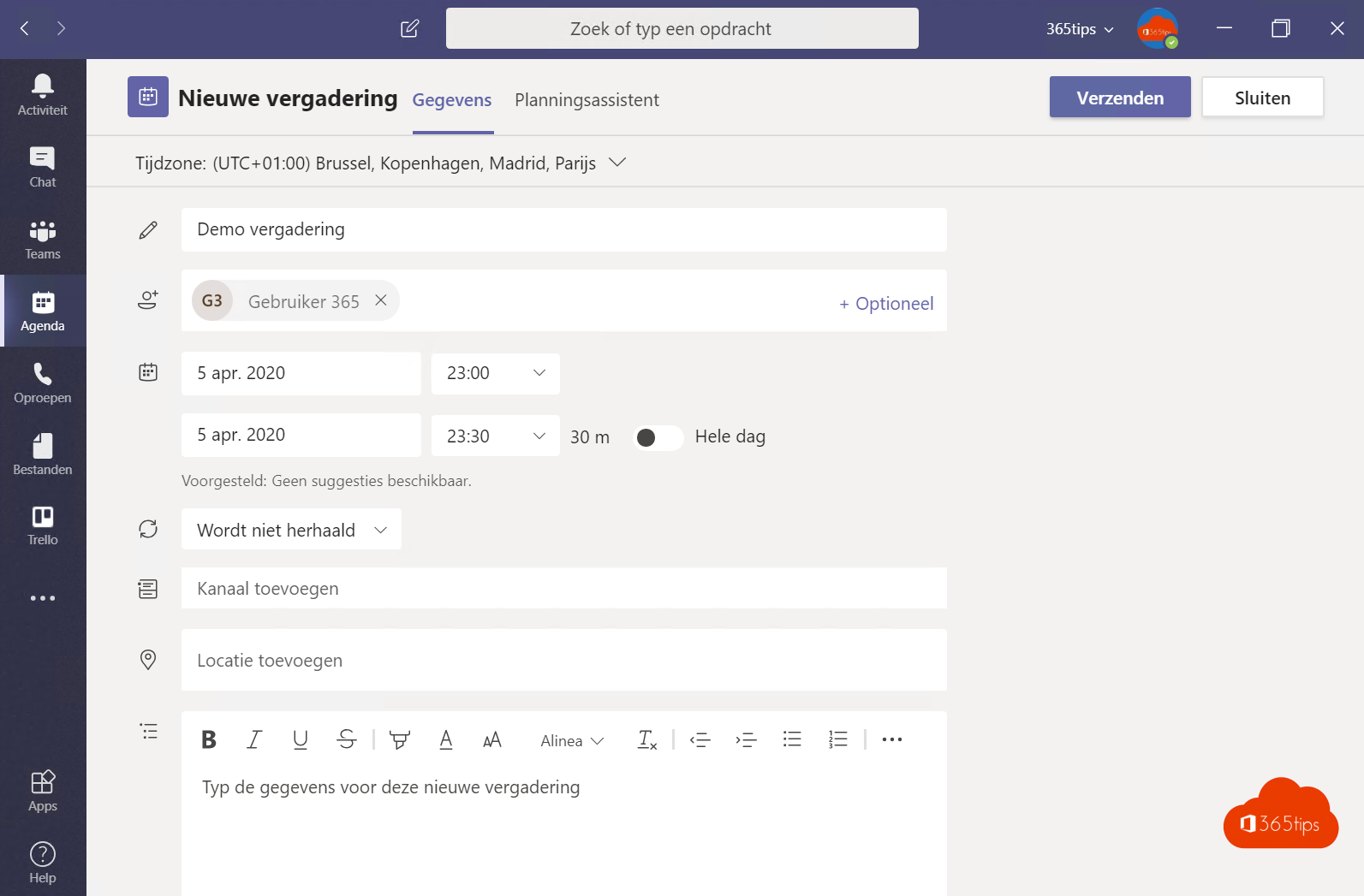
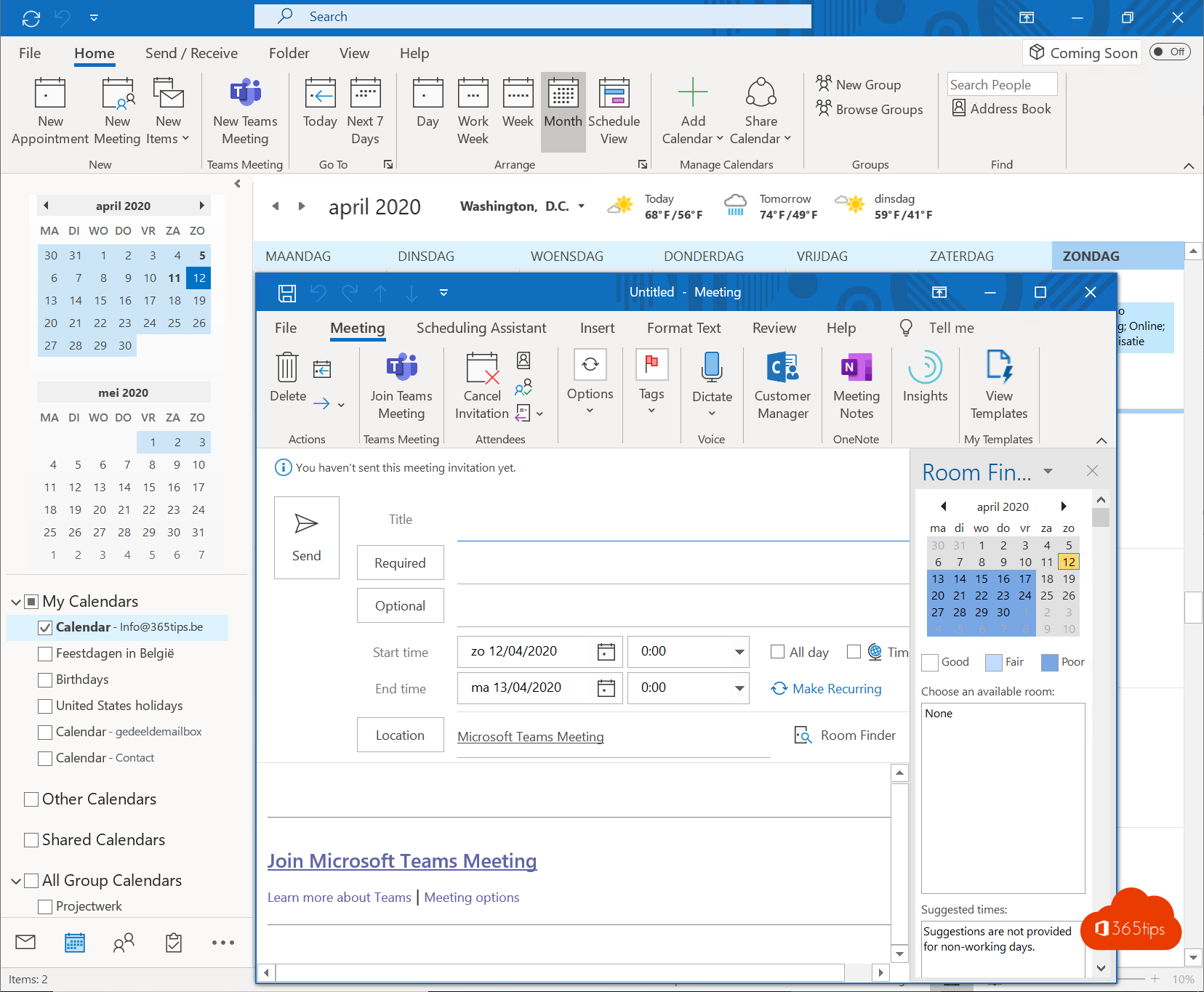
In Meeting options you decide who can bypass the lobby, so external people either come straight in or wait in the lobby first.
For admins: allow anonymous join
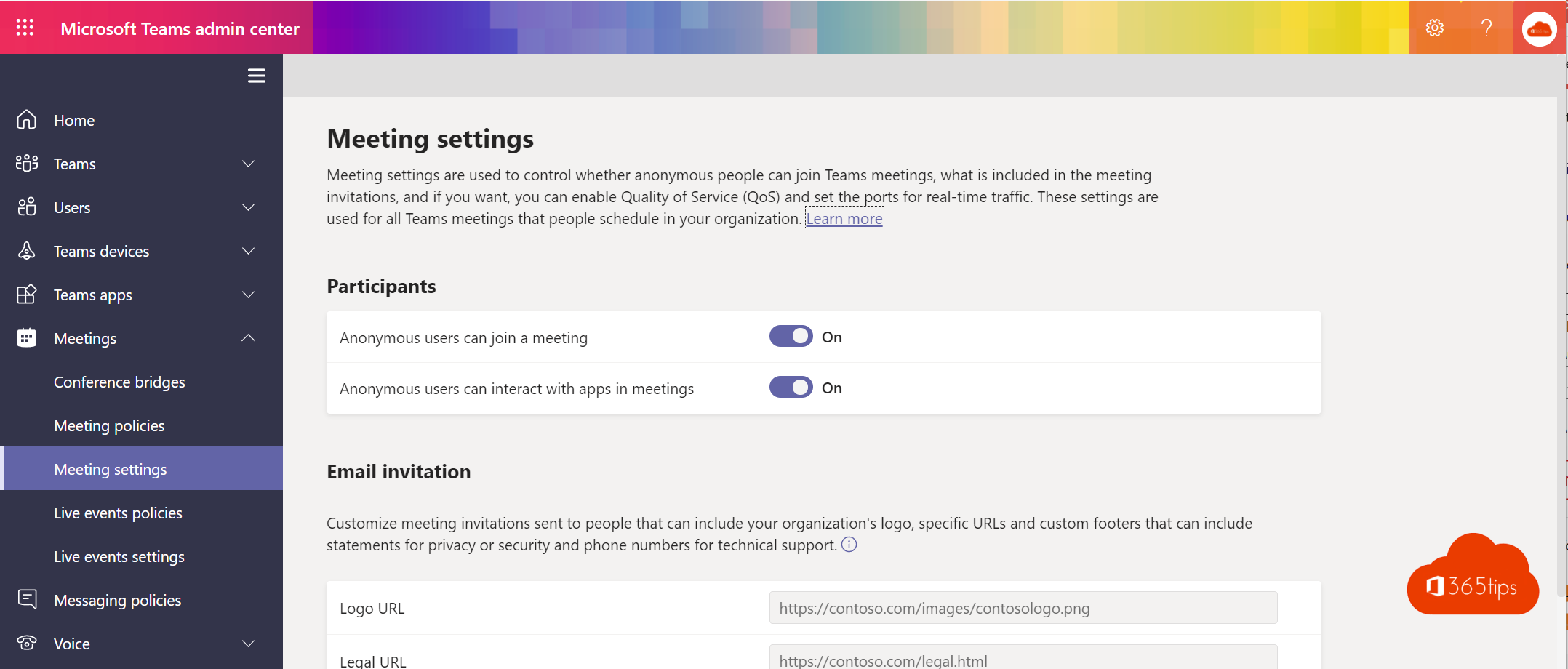
People without an account can't get in? Check the Teams admin center:
- Go to Meetings > Meeting settings and make sure Anonymous users can join a meeting is on.
- Go to Meetings > Meeting policies and check the same setting in the organizer's policy. In recent versions it's set per policy there.
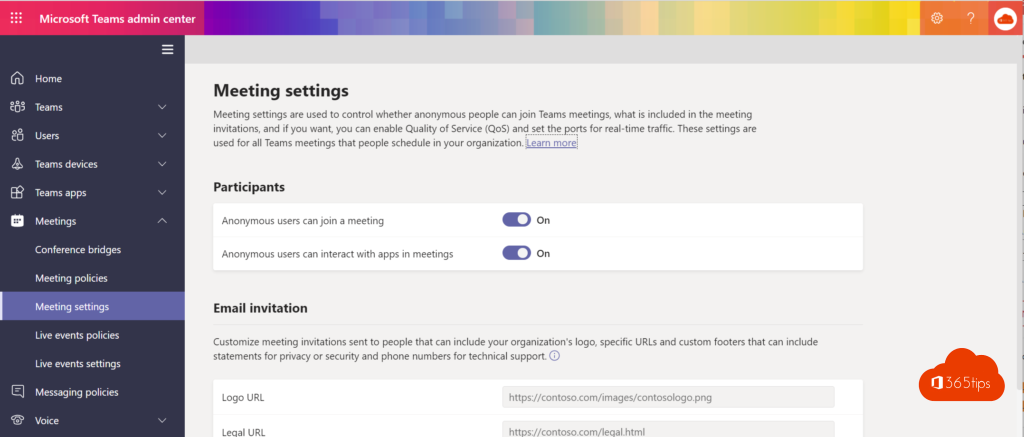
A change can take a few hours to take effect.
Also see join a Teams meeting as an external guest and Teams lobby settings.
Nederlandstalige versie: Deelnemen aan een Teams-vergadering zonder Microsoft-account