With live reactions, participants in a Teams meeting send a thumbs up, heart, applause, laugh or surprised face that floats across the screen for a moment. Fun in a team meeting, distracting in a formal presentation, an exam or a webinar with hundreds of attendees. This article shows how to turn reactions off for one meeting, during a meeting, just for yourself, or for the whole organization.
Which option do you need?
| Who | Where | Effect |
|---|---|---|
| Organizer | Meeting options, beforehand | No reactions in this meeting |
| Organizer, co-organizer | Meeting options, during | Reactions off immediately for everyone |
| Any participant | Own view | You no longer see reactions |
| Admin | Meeting policy | Default for users or the whole organization |
Before the meeting
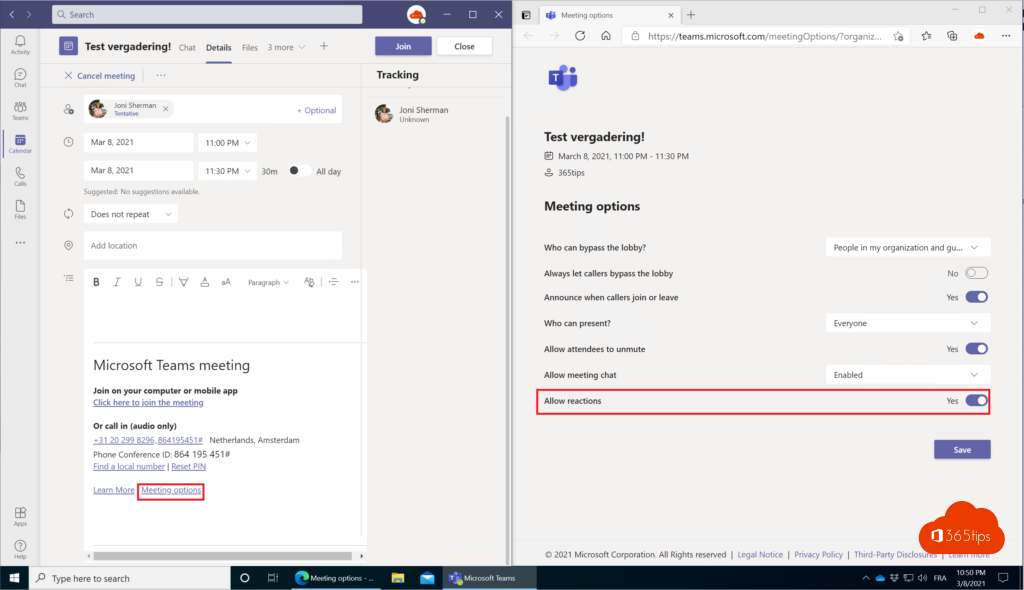
- Open the meeting in your Teams calendar and select Edit.
- Select Options (Meeting options) at the top. In Outlook you'll find that button in the invitation too.
- Under Engagement, turn off Allow reactions.
- Select Save.
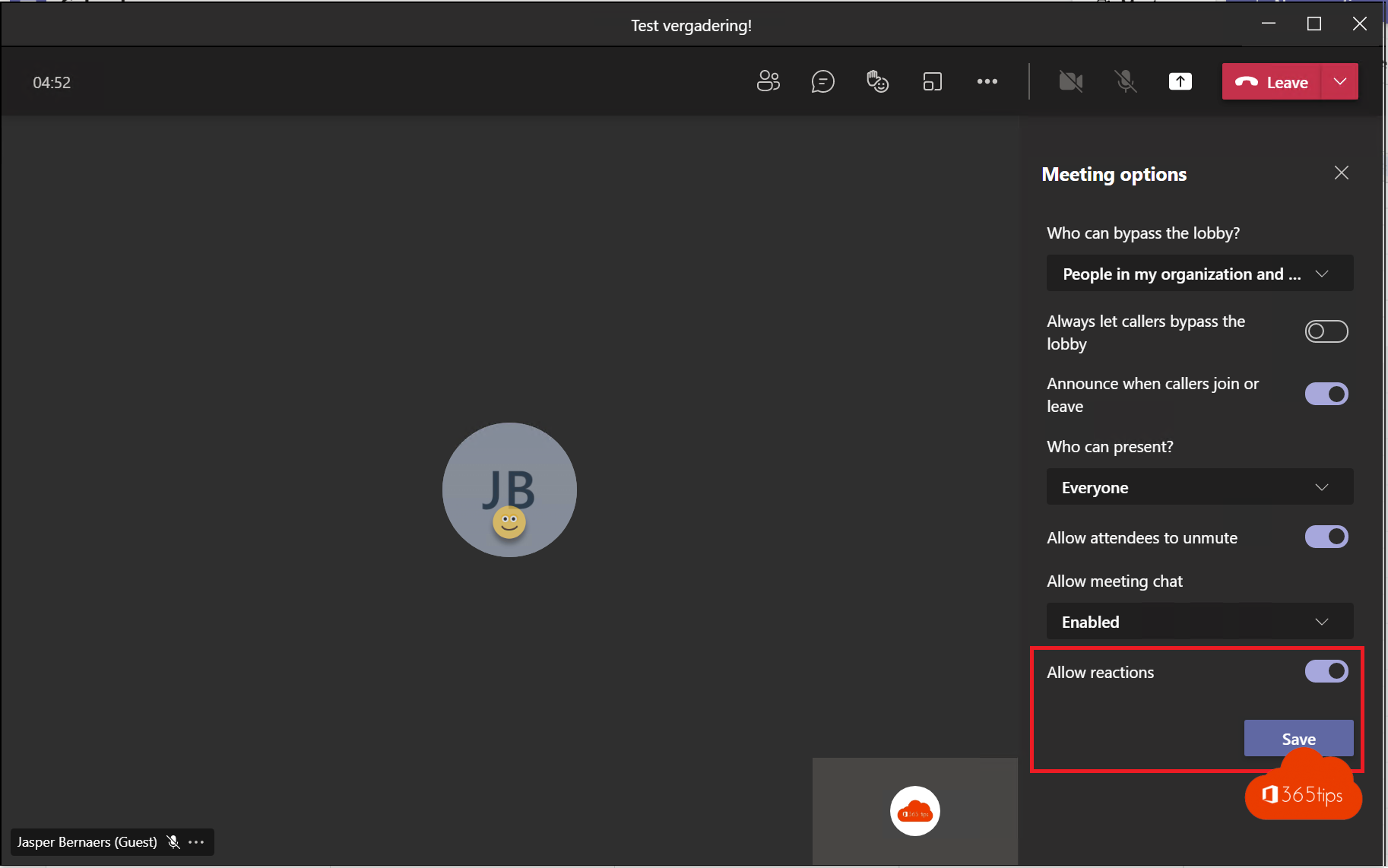
During the meeting
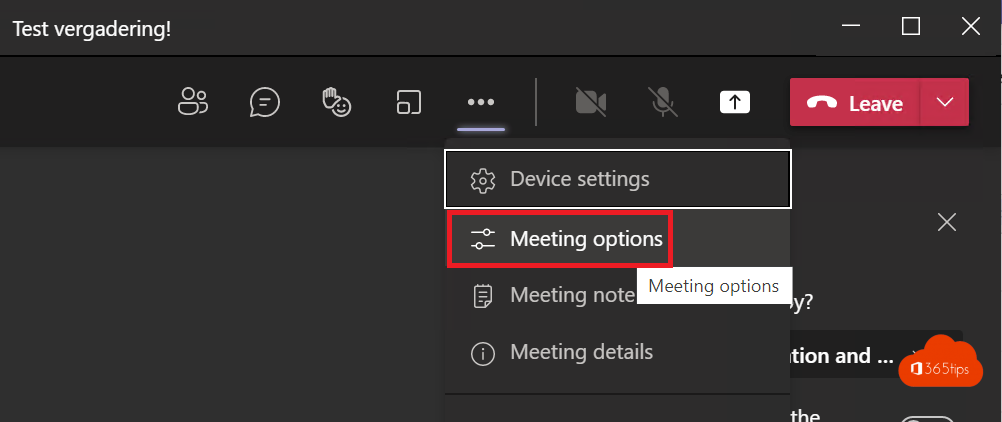
- Select More (...) > Settings > Meeting options at the top.
- Turn off Allow reactions and select Save.
The React button disappears for all participants. You can turn reactions back on later in the same meeting.
What about raise hand?
Raise hand isn't a reaction and stays available when reactions are off. That's deliberate: it's how people ask to speak. If you don't want attendees to talk at all, restrict their microphone or camera in the same meeting options (Allow mic for attendees).
Turn them off just for yourself
The organizer leaves reactions on, but they distract you while presenting? In the meeting, look under More > Settings for Show reactions from others and turn it off. You no longer see the floating emoji; everyone else still does.
For admins: set the default
- Open the Teams admin center > Meetings > Meeting policies.
- Choose the policy (for example Global (Org-wide default)) or create a new policy for a group, such as students.
- Under Meeting engagement, turn off Reactions and save.
Or with PowerShell:
Set-CsTeamsMeetingPolicy -Identity Global -AllowMeetingReactions $false
A policy change can take a few hours to apply everywhere. Organizers then can no longer turn reactions on in their meeting options.
Tips
- In a webinar or town hall with many attendees, reactions keep engagement high without flooding the chat.
- For lessons and exams, turn reactions off in advance with a separate meeting policy for students.
- Reactions aren't included in the recording and aren't kept after the meeting.
Read also
Who can bypass the lobby in Microsoft Teams: every option explained
Track attendance with the Microsoft Teams attendance report
Use a watermark in Microsoft Teams meetings
Nederlandstalige versie: Live reacties in- of uitschakelen in Microsoft Teams-vergaderingen