Want to try new Microsoft Teams features before they reach everyone? That's what Public preview is for. You turn it on for one user, a test group or the whole organization. You and your pilot users see what's coming, so you can prepare your colleagues in time.
What is Public preview?
Public preview gives users early access to features that aren't generally available yet. They're nearly finished, but can still change. So use it mainly for IT staff, key users and a small pilot group, not the whole organization.
- It's a per-user setting, controlled by an update policy.
- The user then chooses to switch the preview on.
- You can turn it off again at any time.
Step 1: adjust the update policy
- Go to the Teams admin center at
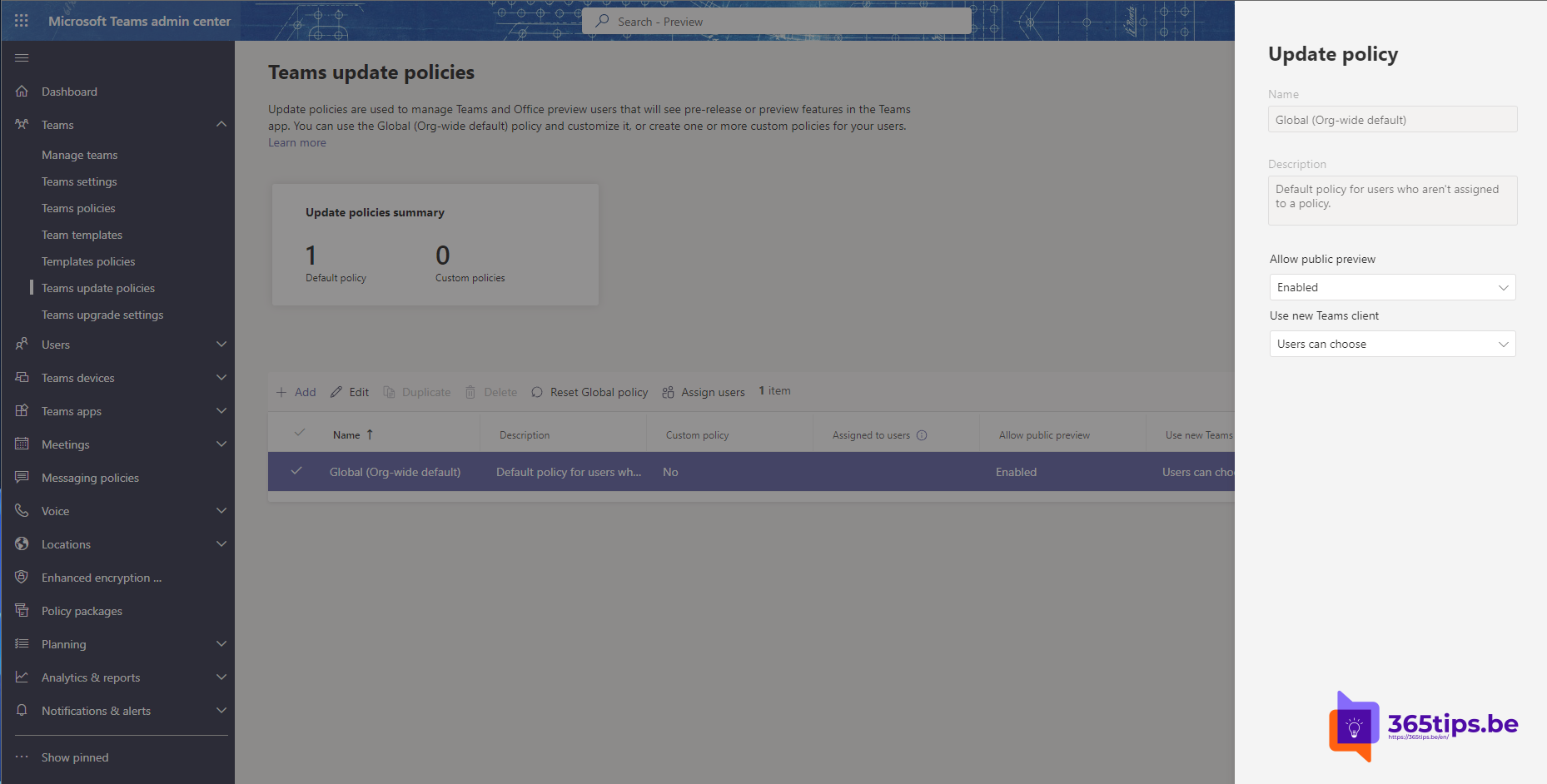
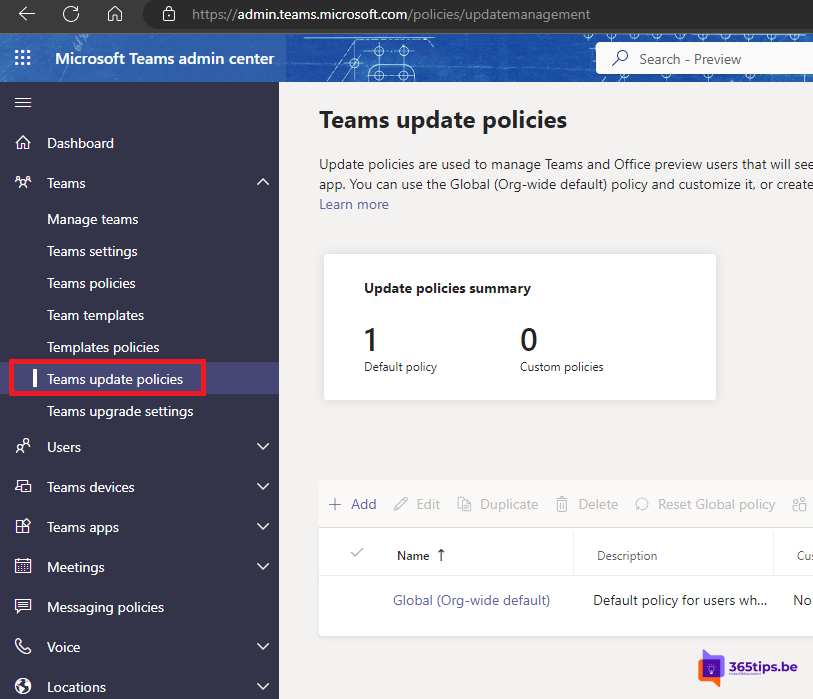
https://admin.teams.microsoft.com. - Open Teams > Teams update policies.
- Edit the Global (Org-wide default) policy, or better: create a new policy for your test group.
- Set Show preview features to Enabled. In recent versions you can also choose to follow the Office preview setting.
- Save and assign the policy to the right users.
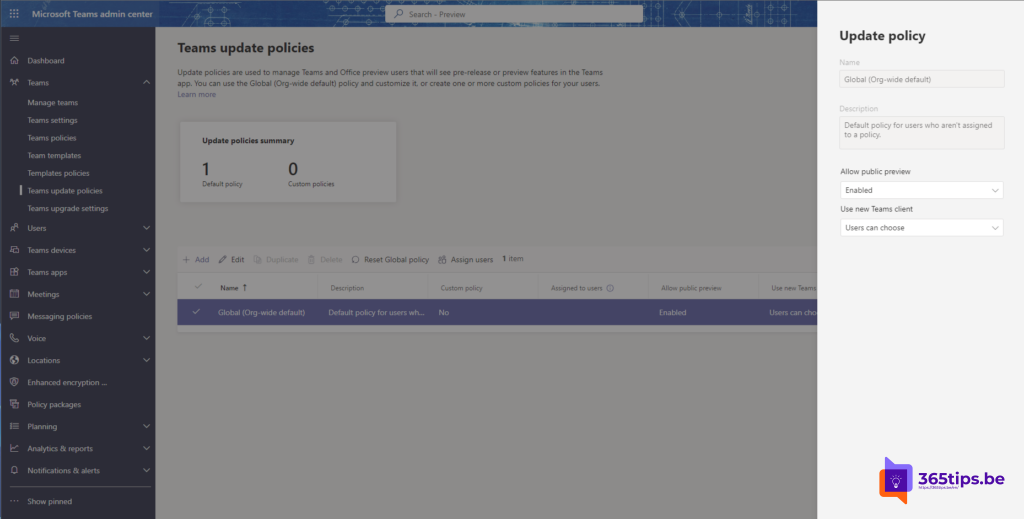
It can take a few hours before a new policy is active for the user.
The same with PowerShell
With the Teams PowerShell module:
Connect-MicrosoftTeams
New-CsTeamsUpdateManagementPolicy -Identity "PublicPreview" -AllowPublicPreview Enabled
Grant-CsTeamsUpdateManagementPolicy -Identity "jan@yourdomain.com" -PolicyName "PublicPreview"
Step 2: the user turns on the preview
- In Teams, click Settings and more (...) next to your profile picture.
- Choose About and then Public preview. The exact name can vary by version.
- Confirm. Teams restarts.
You'll recognize the preview by the P label on your profile picture.
What about Developer preview?
Developer preview is meant for developers who want to test apps, bots and extensions against new APIs. It's in the same menu, but possibly only when your app policy allows uploading custom apps. For regular users, Public preview is the right choice.
Get new Microsoft 365 features early too
Public preview only applies to the Teams app. To see changes earlier in other Microsoft 365 services as well, turn on Targeted release in the Microsoft 365 admin center.
Tips for a good test
- Work with a fixed pilot group and its own policy.
- Follow the Message center in the Microsoft 365 admin center, where Microsoft announces new features.
- Collect feedback via Help > Give feedback in Teams.
Also see when Microsoft Teams updates and the Teams admin center.
Read also
How the Microsoft Teams update mechanism works
A tour of the Microsoft Teams admin center
Install and use the Microsoft Teams PowerShell module
Nederlandstalige versie: Public preview in Microsoft Teams inschakelen voor nieuwe functies