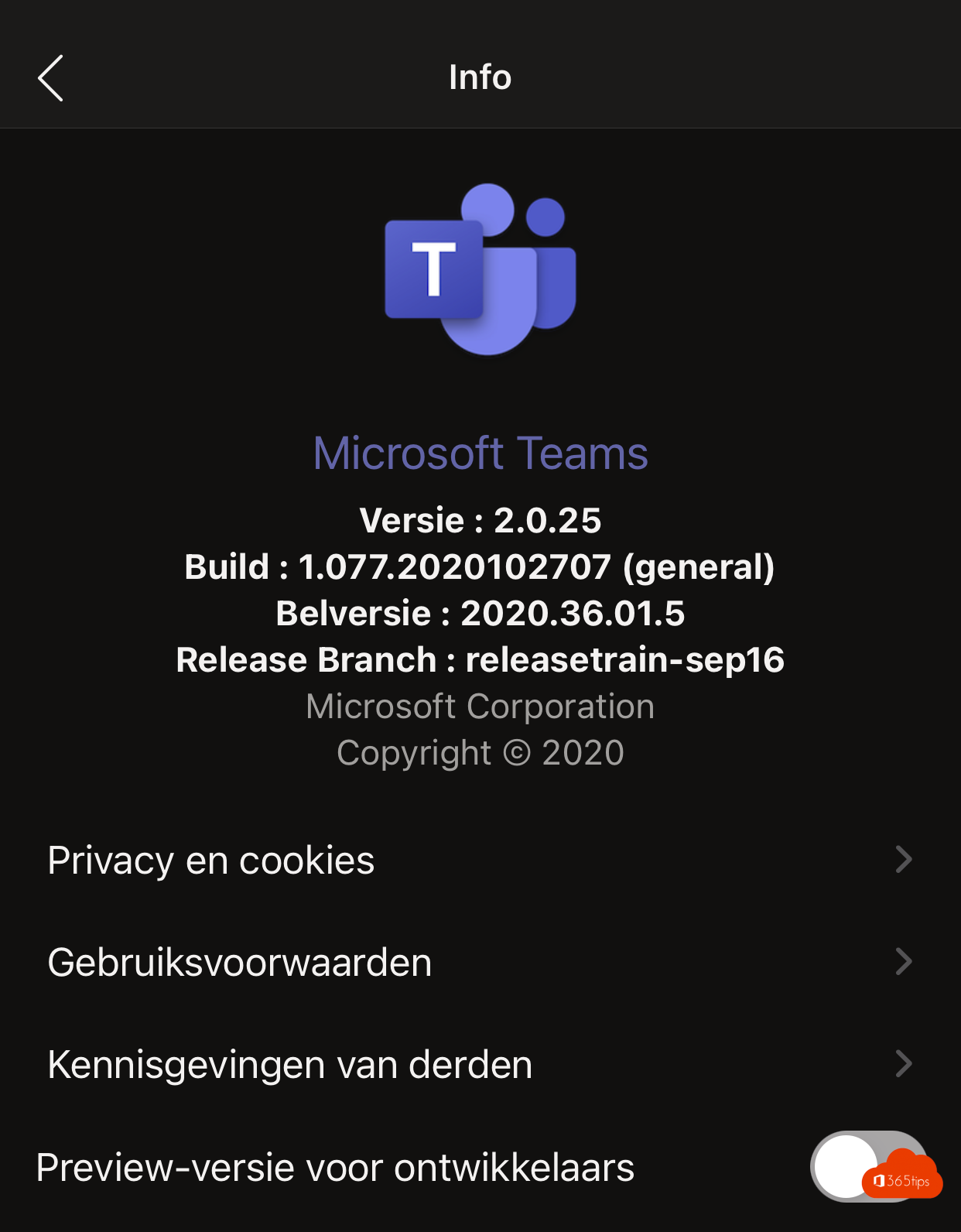
Want to try new Microsoft Teams features first? Microsoft has preview programs for that. The old Developer preview toggle in the mobile app is no longer the usual route: today you mostly work with the Teams Public preview and Targeted release in Microsoft 365. Here is what's available, how to turn it on and what to expect on iPhone or Android.
Which preview programs are there?
- Teams Public preview: early access to features that are nearly finished. Your admin must allow it with an update policy in the Teams admin center.
- Targeted release: in the Microsoft 365 admin center you choose users, or the whole organization, to get updates earlier.
- Microsoft 365 Developer Program: for developers building Teams apps who need a test environment. Terms may change.
Turn on Public preview on your computer
- In Teams, click ... > Settings > About Teams.
- Choose Public preview if the option is visible.
- Teams restarts. You recognize the preview by a P label on your profile picture.
Don't see the option? Then your admin hasn't allowed it yet.
What about iPhone or Android?
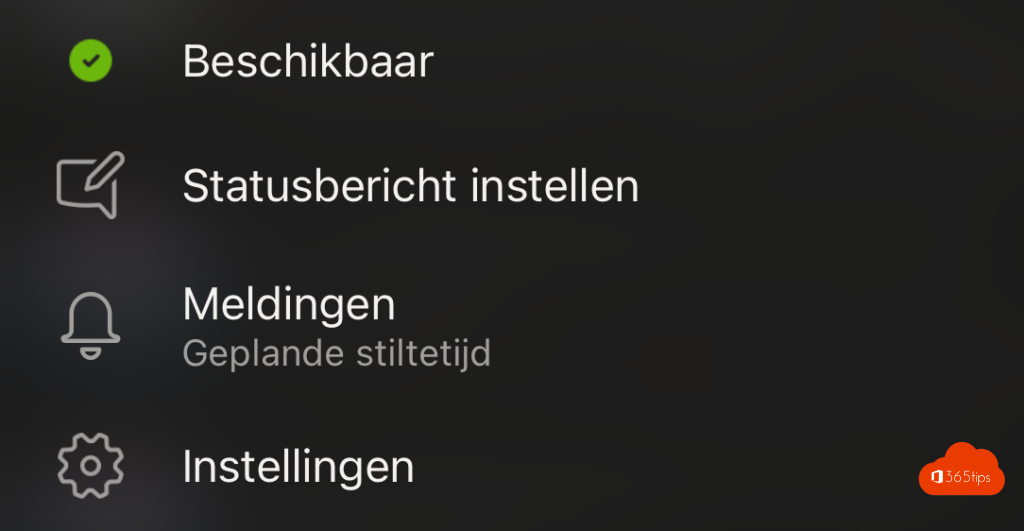
In the past you could enable a developer preview in the mobile app under Settings > About. That option isn't always present in recent versions. Mobile preview features now usually arrive through your organization's preview and release programs. Check the app settings to see what's available to you.
Things to keep in mind
- Preview features can contain bugs or disappear again.
- Use preview mainly for IT staff and keen testers, not the whole organization.
Also see enable Teams Public preview and Teams on iPhone and iPad.
Read also
Enable Public preview in Microsoft Teams for new features
Get started with Microsoft Teams on iPhone and iPad
How the Microsoft Teams update mechanism works
Nederlandstalige versie: Nieuwe Teams-functies vroeg proberen: previewprogramma's op desktop en mobiel