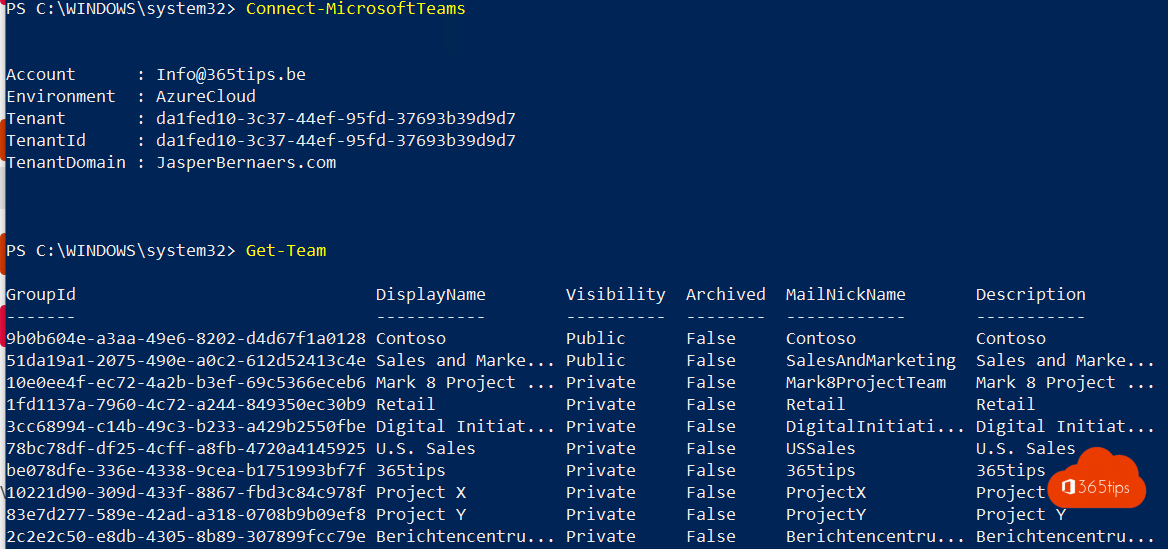
With the Microsoft Teams PowerShell module you manage Teams faster than in the admin center: create teams, add members in bulk, assign policies or build reports. This article shows how to install the module, connect and use a few handy commands.
Install the module
- Open PowerShell 7 (recommended) or Windows PowerShell 5.1. Read install PowerShell 7.
- Type: Install-Module -Name MicrosoftTeams -Scope CurrentUser
- Confirm the PSGallery prompt with Y (or A for all).
Update later with Update-Module MicrosoftTeams.
Connect
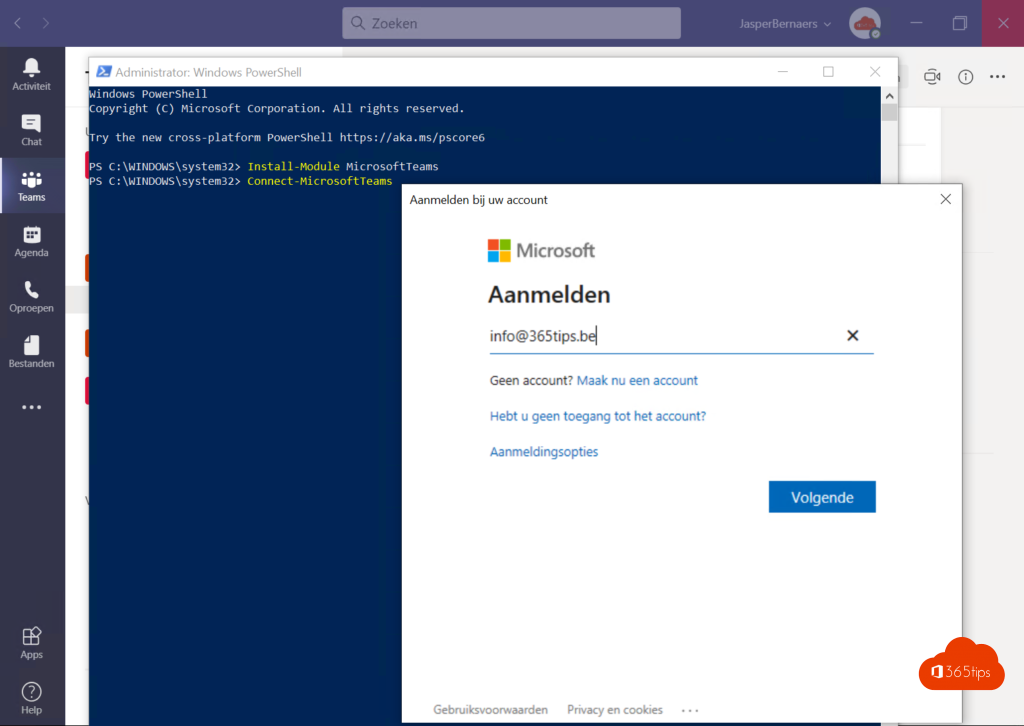
Type Connect-MicrosoftTeams. A sign-in window opens; sign in with an admin account and confirm with MFA. You need at least the Teams Administrator role. Disconnect with Disconnect-MicrosoftTeams.
Handy commands
| Command | What it does |
|---|---|
| Get-Team | List all teams |
| New-Team -DisplayName "Sales" -Visibility Private | Create a private team |
| Add-TeamUser -GroupId <id> -User john@contoso.com | Add a member |
| New-TeamChannel -GroupId <id> -DisplayName "Quotes" | Create a channel |
| Get-CsTeamsMeetingPolicy | List meeting policies |
| Grant-CsTeamsMeetingPolicy -Identity john@contoso.com -PolicyName "Students" | Assign a policy to a user |
Adding many members? Read add multiple members at once.
Tips
- Find a command with Get-Command -Module MicrosoftTeams *channel*.
- For unattended scripts, use an app registration with a certificate.
- Managing Exchange too? See the Exchange Online PowerShell module.
Read also
Install the Exchange Online PowerShell module (ExchangeOnlineManagement)
Install, update and use PowerShell 7 on Windows
Add multiple users to a team at once in Microsoft Teams
Nederlandstalige versie: De Microsoft Teams PowerShell-module installeren en gebruiken