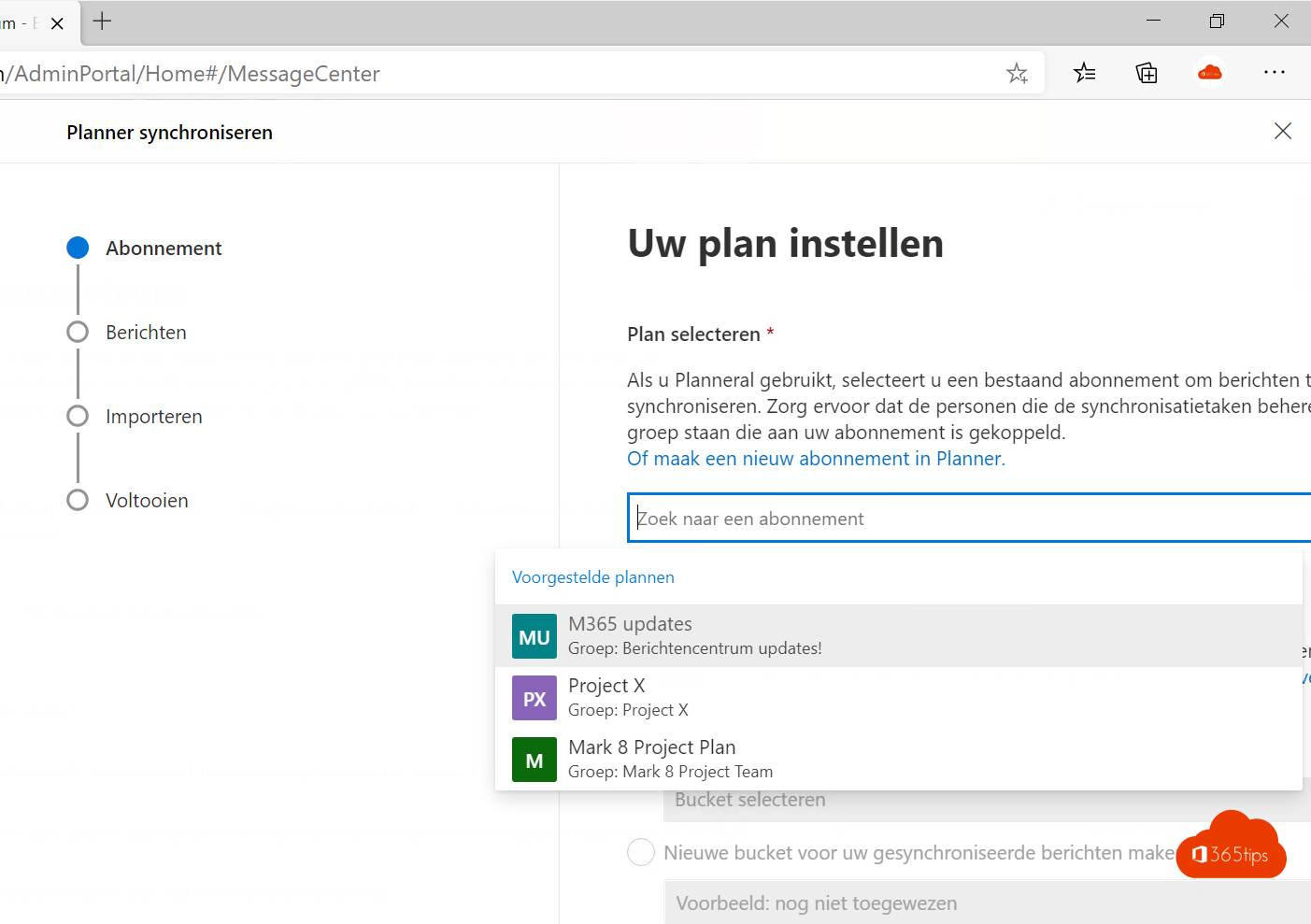
Something changes in Microsoft 365 almost every week. The message center in the admin center announces all those changes. With sync to Planner, every message becomes a task in a plan, so you can divide them across your team and follow up until they're done.
1. Prepare a plan
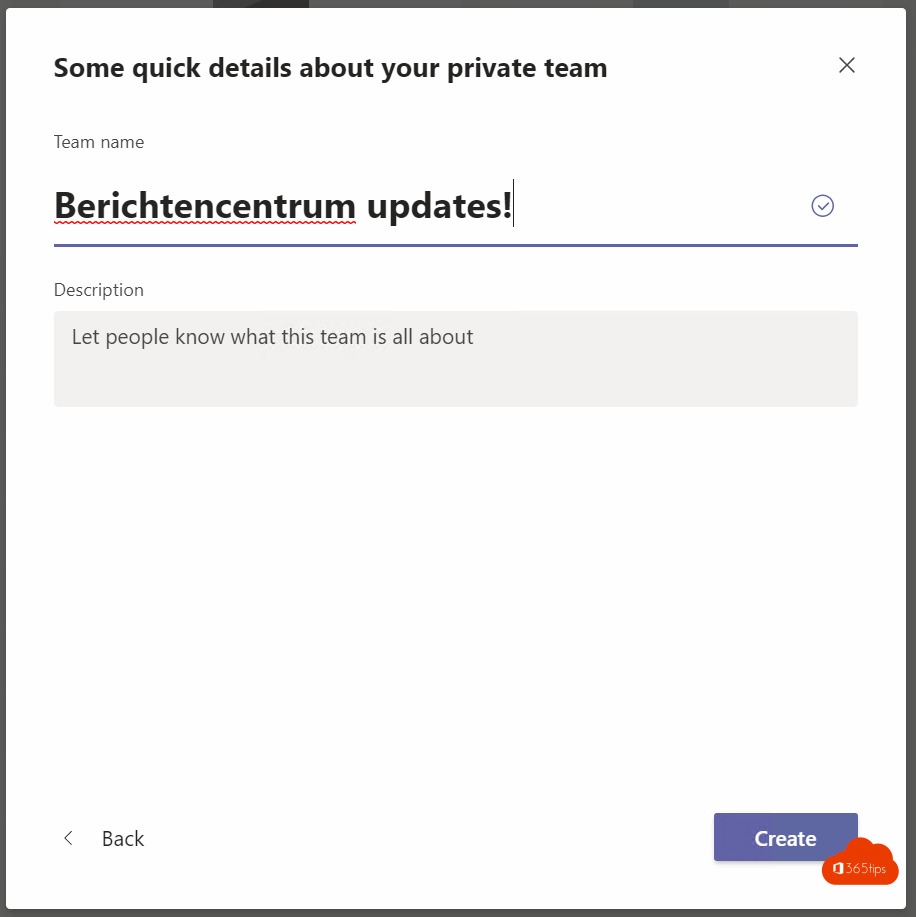
Create a team (or Microsoft 365 group) for your IT colleagues and create a plan in it, for example "Microsoft 365 changes". You can also use an existing plan.
2. Set up sync
- Go to admin.microsoft.com > Health > Message center.
- Select Planner sync and choose Set up sync.
- Select the plan (and optionally the bucket) for the tasks.
- Choose which messages you want: for example only certain services, only major changes or messages that require admin action.
- Select Done.


You need an admin role that can read the message center, and you must be a member of the plan. Button names may vary slightly.
3. Work with it
New messages appear as tasks with the message content. Assign them to the right colleague, set a due date and use labels per service. That way everyone knows who follows up on which change.

4. The plan in Teams
Add the plan as a tab in a channel of your IT team. Select +, choose Planner and pick the plan. That way you discuss changes right in the channel.
Also see Planner in Microsoft Teams and a tour of the Microsoft 365 admin center.
Read also
Manage tasks with the Planner app in Microsoft Teams
A quick guide to the Microsoft 365 admin center for admins
Enable Public preview in Microsoft Teams for new features
Nederlandstalige versie: Berichten uit het Microsoft 365-berichtencentrum synchroniseren met Planner