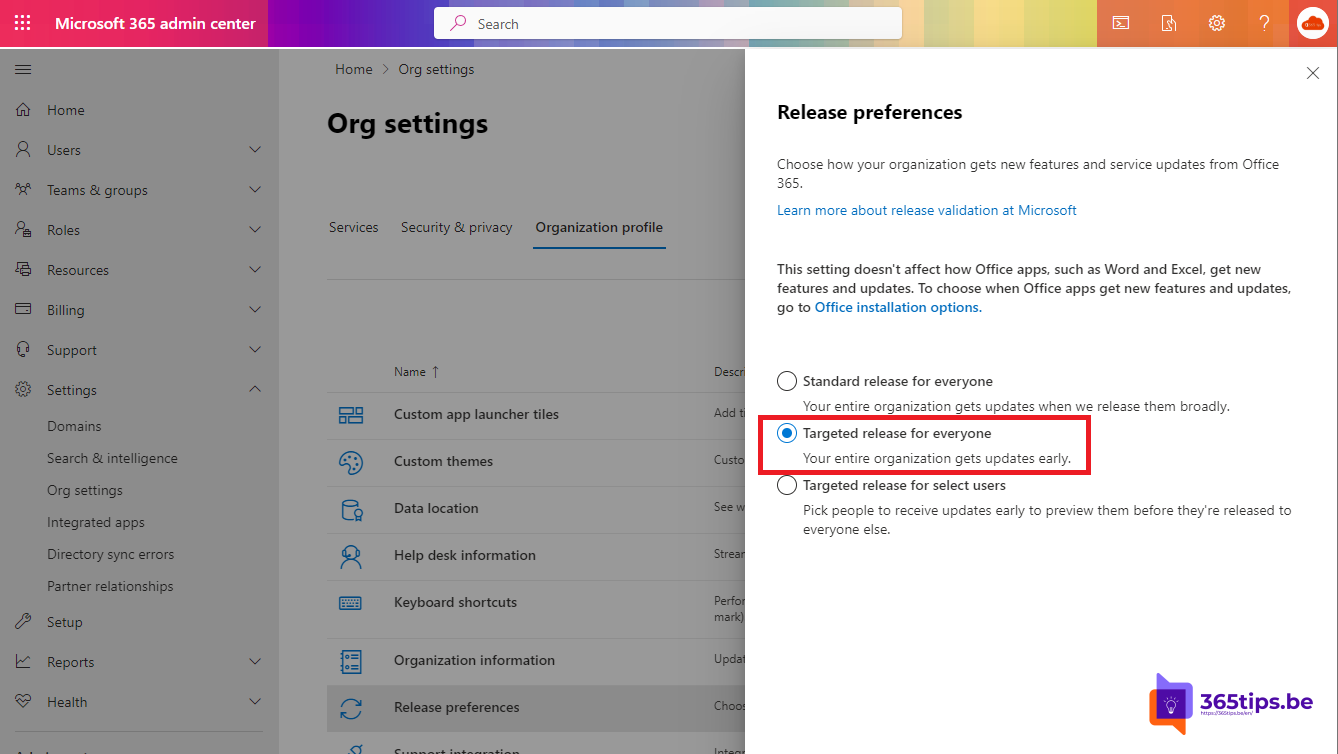
Want to see new Microsoft 365 features before the rest of your organization gets them? Then set up Targeted release (formerly called "First Release"). You and a group of testers can then review changes in time and prepare colleagues. It takes three steps.
The three choices
- Standard release: everyone gets updates when they become generally available. This is the default.
- Targeted release for everyone: the whole organization gets certain updates earlier.
- Targeted release for select users: only the users you pick get them earlier. This is usually the best choice.
1. Open the org settings
Sign in at admin.microsoft.com with a Global Administrator or another role that can change organization settings. Go to Settings > Org settings > Organization profile tab.

2. Choose your release preference
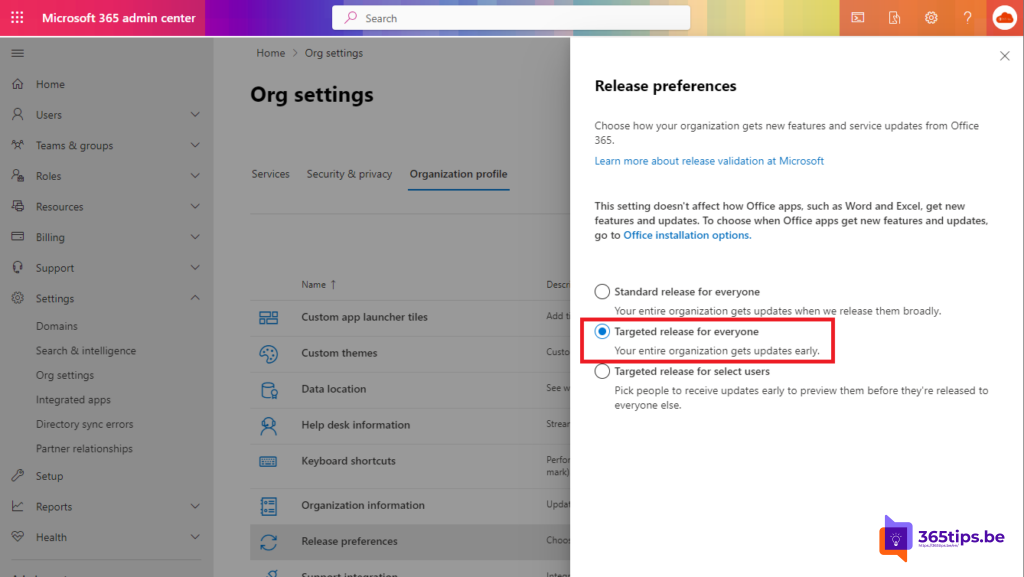
Select Release preferences and choose one of the three options. If you choose select users, add them or upload a list.
3. Save and follow up
Select Save. It can take up to 24 hours before the change takes effect. Then follow the message center and the Microsoft 365 Roadmap to see what's coming.
Tips
- Pick a small group of testers from different departments, such as IT, the helpdesk and a few power users.
- Targeted release doesn't cover everything. Not every feature goes to this group first.
- The Microsoft 365 desktop apps (Word, Excel ...) have separate update channels, such as Current Channel or Monthly Enterprise Channel. You manage those separately.
- Teams also has a Public preview you turn on via an update policy in the Teams admin center.
Also see a tour of the Microsoft 365 admin center and enable Teams public preview.
Read also
A quick guide to the Microsoft 365 admin center for admins
Enable Public preview in Microsoft Teams for new features
Create a Microsoft 365 tenant for testing
Nederlandstalige versie: Targeted release (vroeger First Release) instellen in Microsoft 365