Microsoft Teams gets new features almost every month. How do those updates reach your computer, and can you check whether you have the latest version? This article explains how Teams updates work.
Automatic updates
The Teams app for Windows and Mac updates itself in the background. You don't need to do anything. An update takes effect when you restart Teams. If you leave Teams open for days, restart it now and then.
Check yourself
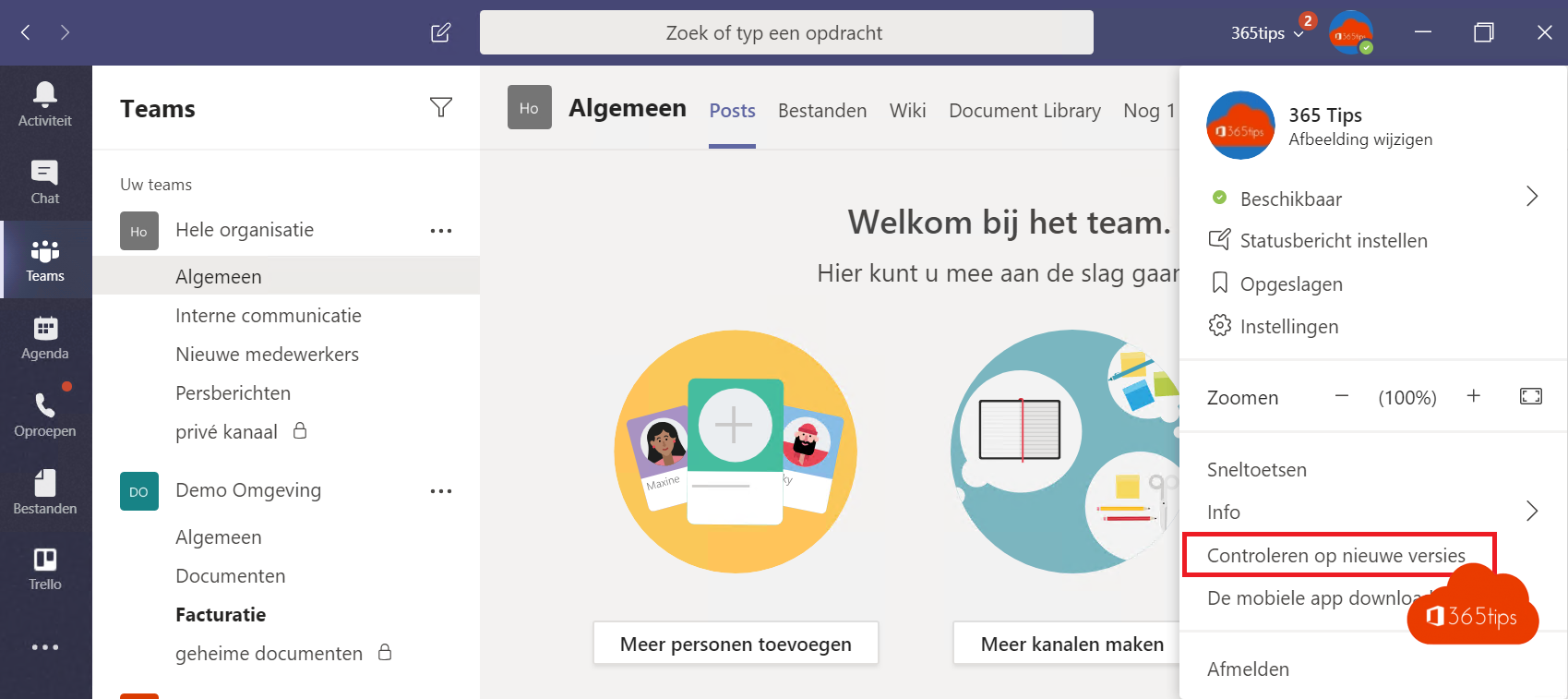
- Select Settings and more (...) at the top right.
- Choose Check for updates, or go to Settings > About Teams to see your version.
- If there's an update, restart Teams when asked.
New features earlier?
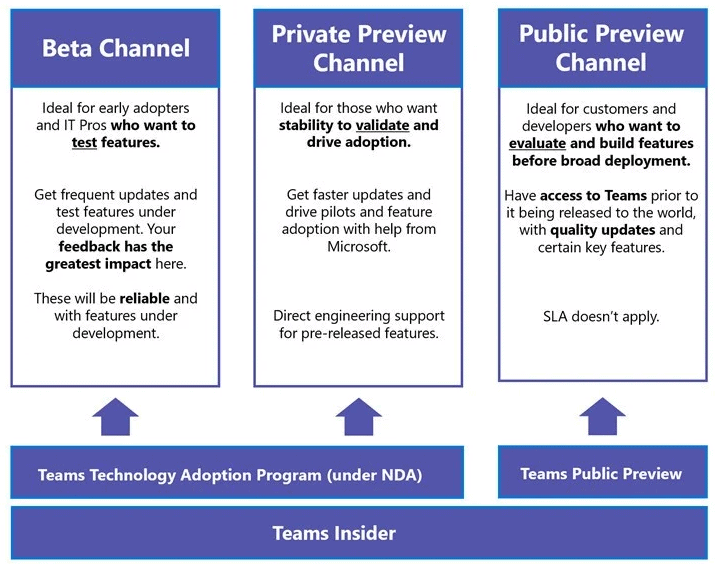
With Public preview you get some features earlier. An admin turns it on in the Teams admin center > Teams > Teams update policies. Then you choose the preview in Teams via About Teams. A group of test users can try new features before the rest of the organization.
What's new?
Microsoft publishes a monthly overview of new features on the Microsoft Teams blog. Admins see announced changes in the Message center of the Microsoft 365 admin center. Also see clear the Teams cache.
Read also
Clear the Microsoft Teams cache on Windows and Mac
Download and install Microsoft Teams on Windows, Mac and mobile
A tour of the Microsoft Teams admin center
Nederlandstalige versie: Hoe het updatemechanisme van Microsoft Teams werkt