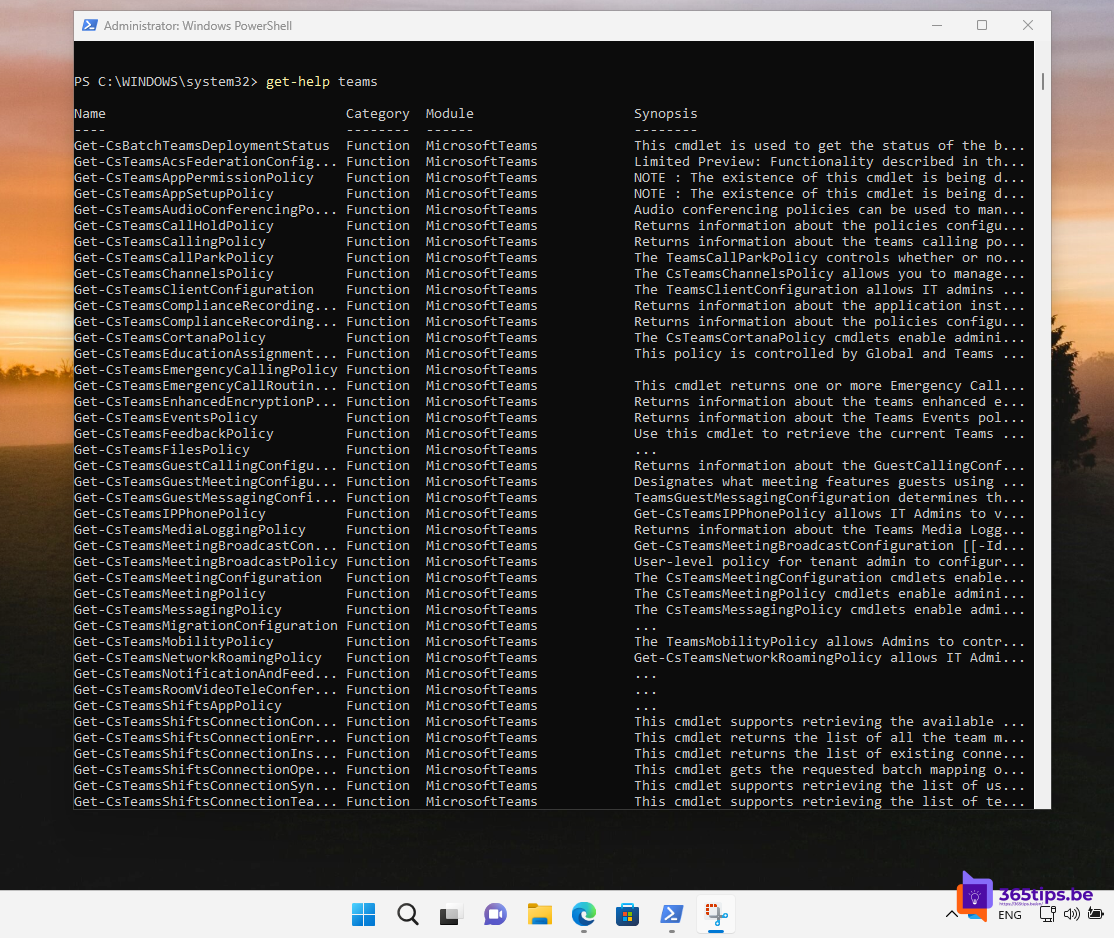
A lot of Teams management is faster in PowerShell than in the admin center: going through dozens of teams, adding members or building a report. Here are 20 short scripts you can use every day, each with a brief explanation. All examples use the current MicrosoftTeams module, which also contains the Cs cmdlets that used to need the Skype for Business Online connector.
Prepare
You need an admin role, such as Teams Administrator. Replace <GroupId> with your team's ID each time (see script 3).
1. Install the module and connect
Install-Module -Name MicrosoftTeams -Scope CurrentUser
Connect-MicrosoftTeams
More info: install the Teams PowerShell module.
2. Update the module
Update-Module -Name MicrosoftTeamsManage teams
3. List all teams with their ID
Get-Team | Select-Object DisplayName, GroupId, Visibility, Archived4. Find one team by name
Get-Team -DisplayName "Marketing"5. Create a new team
New-Team -DisplayName "Project X" -Description "Team for project X" -Visibility Private6. Change the name or description
Set-Team -GroupId <GroupId> -DisplayName "Project X - phase 2"7. Archive a team
Set-TeamArchivedState -GroupId <GroupId> -Archived $true8. Unarchive a team
Set-TeamArchivedState -GroupId <GroupId> -Archived $false9. Show all archived teams
Get-Team -Archived $true | Select-Object DisplayName, GroupId10. Delete a team
Remove-Team -GroupId <GroupId>Careful: this also removes the Microsoft 365 group, the SharePoint site and the mailbox. A deleted group can be restored for 30 days.
Manage members
11. Show members and owners of a team
Get-TeamUser -GroupId <GroupId>12. Add a member
Add-TeamUser -GroupId <GroupId> -User "jan@yourdomain.com"13. Add an owner
Add-TeamUser -GroupId <GroupId> -User "an@yourdomain.com" -Role Owner14. Remove a member
Remove-TeamUser -GroupId <GroupId> -User "jan@yourdomain.com"15. All teams of one user
Get-Team -User "jan@yourdomain.com" | Select-Object DisplayNameManage channels
16. Show all channels of a team
Get-TeamChannel -GroupId <GroupId> | Select-Object DisplayName, MembershipType17. Create a standard or private channel
New-TeamChannel -GroupId <GroupId> -DisplayName "Planning"
New-TeamChannel -GroupId <GroupId> -DisplayName "Management" -MembershipType Private
18. Delete a channel
Remove-TeamChannel -GroupId <GroupId> -DisplayName "Planning"Policies and reports
19. Assign a meeting policy
Get-CsTeamsMeetingPolicy | Select-Object Identity
Grant-CsTeamsMeetingPolicy -Identity "jan@yourdomain.com" -PolicyName "External-Restricted"
20. Export all teams and their owners
Get-Team | ForEach-Object {
  $owners = (Get-TeamUser -GroupId $_.GroupId -Role Owner).User -join "; "
  [PSCustomObject]@{ Team = $_.DisplayName; Owners = $owners; Archived = $_.Archived }
} | Export-Csv -Path ".\teams-owners.csv" -NoTypeInformation -Encoding UTF8
Useful to find ownerless teams, or to prepare a cleanup.
Tips
- Test a script on one team before running it on all teams.
- Don't add
-Confirm:$falsetoRemovecmdlets in scripts until you're sure. - For things outside Teams, such as users and licenses, use Microsoft Graph PowerShell.
Also see PowerShell for Microsoft 365 and automatically clean up Teams.
Read also
Install and use the Microsoft Teams PowerShell module
PowerShell for Microsoft 365: a guide for beginners
Clean up Microsoft Teams automatically with expiration policies and archiving
Nederlandstalige versie: 20 handige PowerShell-scripts voor het beheer van Microsoft Teams