Many admin tasks in Microsoft 365 go faster with PowerShell: changing a hundred users, building a report or changing a setting that isn't in the admin center. This guide covers which modules you need, how to connect and where to read on.
1. Get ready
- Use PowerShell 7. Read install PowerShell 7 and check your PowerShell version.
- Run PowerShell as administrator if you want to install modules for all users.
- The old MSOnline and AzureAD modules are retired; use Microsoft Graph PowerShell instead.
2. The main modules
| Module | Used for | Install |
|---|---|---|
| Microsoft Graph | Users, groups, licenses, Entra ID | Install-Module Microsoft.Graph |
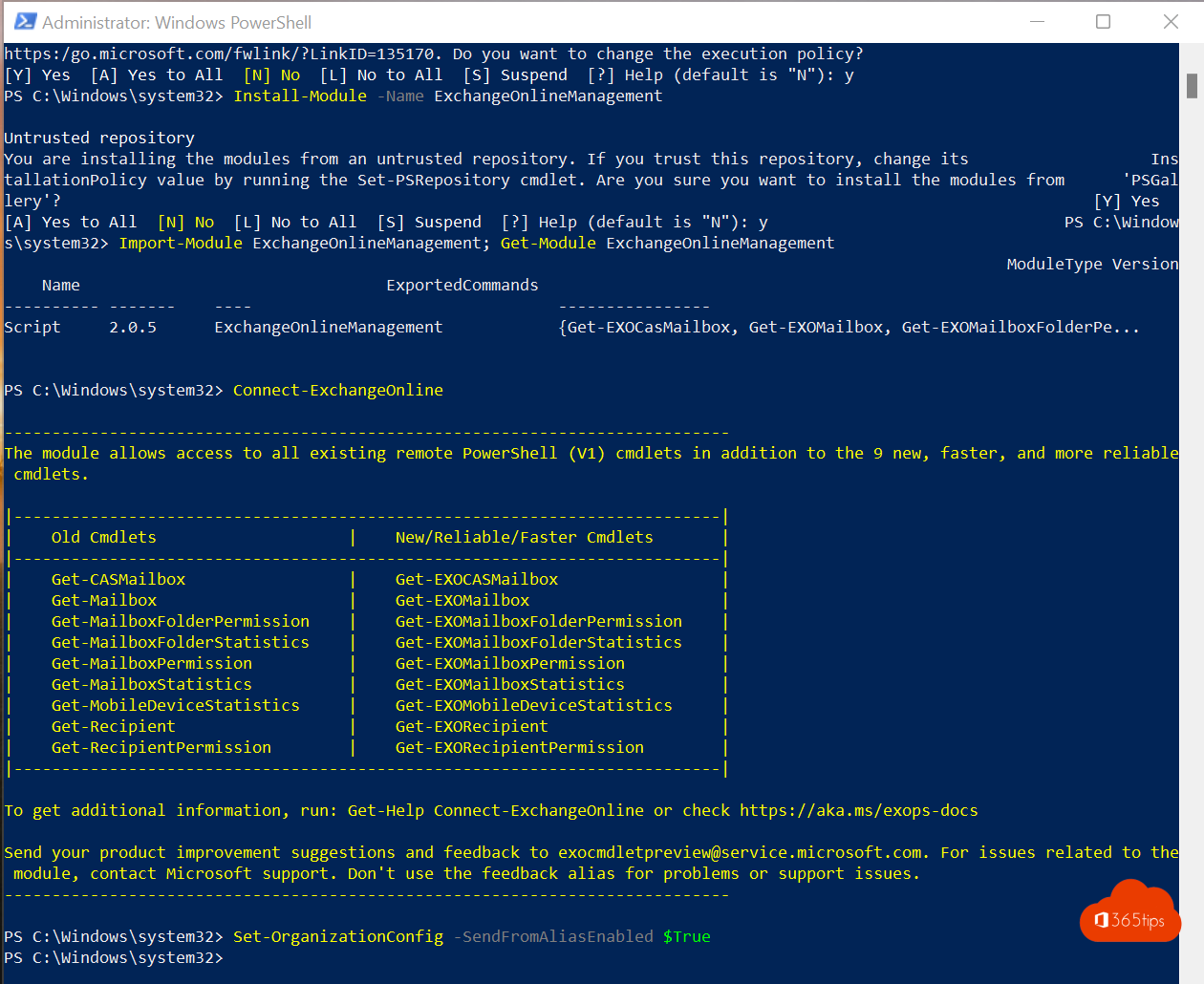
| Exchange Online | Mailboxes, permissions, mail flow | Install-Module ExchangeOnlineManagement |
| Microsoft Teams | Teams, channels, policies | Install-Module MicrosoftTeams |
| SharePoint Online | Sites, storage, sharing | Install-Module Microsoft.Online.SharePoint.PowerShell |
More detail: the Exchange Online module and the Teams module.
3. Connect
Connect-MgGraph -Scopes "User.Read.All","Group.Read.All"
Connect-ExchangeOnline -UserPrincipalName admin@yourdomain.com
Connect-MicrosoftTeams
You sign in in a browser window, with MFA. See connect to Exchange Online PowerShell with MFA.
4. First commands
Get-MgUser -All | Select DisplayName, UserPrincipalName
Get-Mailbox -ResultSize Unlimited | Select DisplayName, RecipientTypeDetails
Get-Team | Select DisplayName, Visibility
Always start with Get- commands to look before you change anything with Set- or Remove-. Add -WhatIf to see what a command would do.
5. Read on
- Change a UserPrincipalName with PowerShell
- Bulk import users into Entra ID
- The most useful CMD commands
Read also
Install, update and use PowerShell 7 on Windows
Install the Exchange Online PowerShell module (ExchangeOnlineManagement)
Install and use the Microsoft Teams PowerShell module
Nederlandstalige versie: PowerShell voor Microsoft 365: een handleiding voor beginners