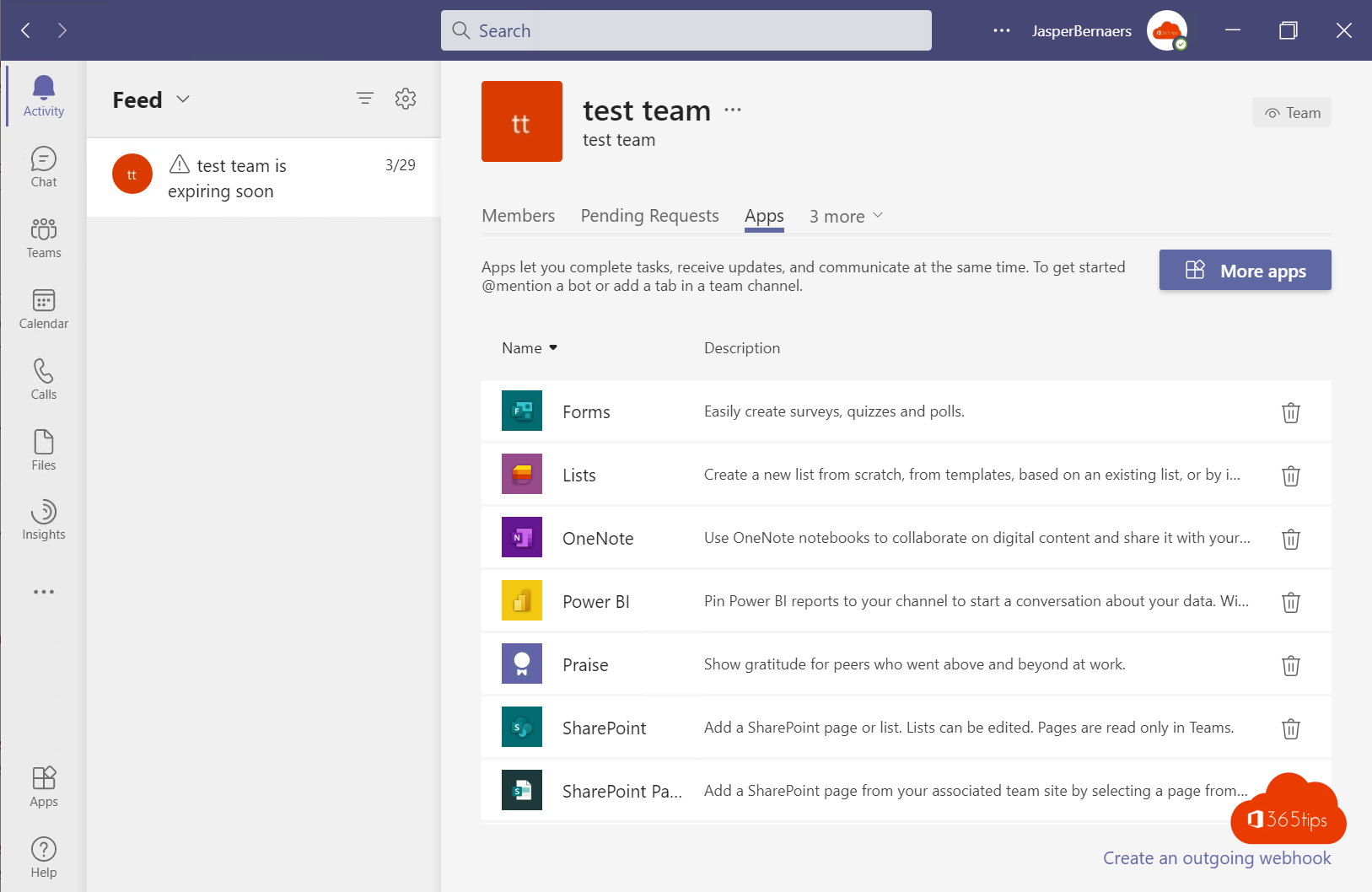
After a few years of Teams, almost every organization has hundreds of teams: long-finished projects, test teams and teams without an owner. That makes searching hard, costs storage and is a security risk. This article shows how to clean up teams automatically with an expiration policy, have owners confirm whether a team is still needed, handle ownerless teams and archive instead of delete.
The options at a glance
| Measure | What it does | License |
|---|---|---|
| Group expiration policy | Inactive teams expire after a period unless an owner renews | Entra ID P1 |
| Access reviews | Owners periodically confirm which members and guests still need access | Entra ID P2 / ID Governance |
| Ownerless groups policy | Asks active members to become owner | Included |
| Archiving | Team becomes read-only but stays findable | Included |
Set up an expiration policy
- Go to the Microsoft Entra admin center > Groups > All groups > Expiration.
- Choose the lifetime: 180 or 365 days, or a custom number.
- Enter an email address for groups without an owner.
- Choose whether it applies to all Microsoft 365 groups or only selected ones.
- Select Save.
Teams in active use renew automatically. For an inactive team, owners get an email 30, 15 and 1 day ahead to renew. If they do nothing, the team is deleted. An admin can still restore an expired team for 30 days.
Access reviews
With an access review, owners are asked, for example every quarter, whether their team's members and guests still need access. Anyone not confirmed can be removed automatically. You can also have reviewers confirm whether the team itself is still needed.
Ownerless teams
When the only owner leaves, nobody can manage or renew the team. With the ownerless groups policy (in the Microsoft 365 admin center, Settings > Org settings > Microsoft 365 groups) Microsoft emails the most active members asking them to become owner. Also agree that every team has at least two owners.
Archive instead of delete
- In the Teams admin center, go to Teams > Manage teams, or in Teams to ... next to the team > Manage team.
- Select the team and choose Archive.
The team becomes read-only: messages and files stay visible and searchable, but nobody can post. You can reactivate a team at any time. Archive finished projects instead of deleting them when you want to keep the information.
Retention policies
If you must keep data for legal reasons, set a retention policy in Microsoft Purview for Teams messages and SharePoint sites. The content is then kept even when a team expires or is deleted. See also remove a guest from SharePoint Online.
Read also
Completely remove a guest or old account from SharePoint Online
How to add external guests in Microsoft Teams
Assign admin roles in Microsoft 365
Nederlandstalige versie: Microsoft Teams automatisch opruimen met vervalbeleid en archiveren