A new team for a department of fifty people? Adding everyone one by one takes ages. In Microsoft Teams you can add multiple users at once: through a group, with PowerShell or automatically with dynamic membership. This article explains which method fits when.
1. Add a group
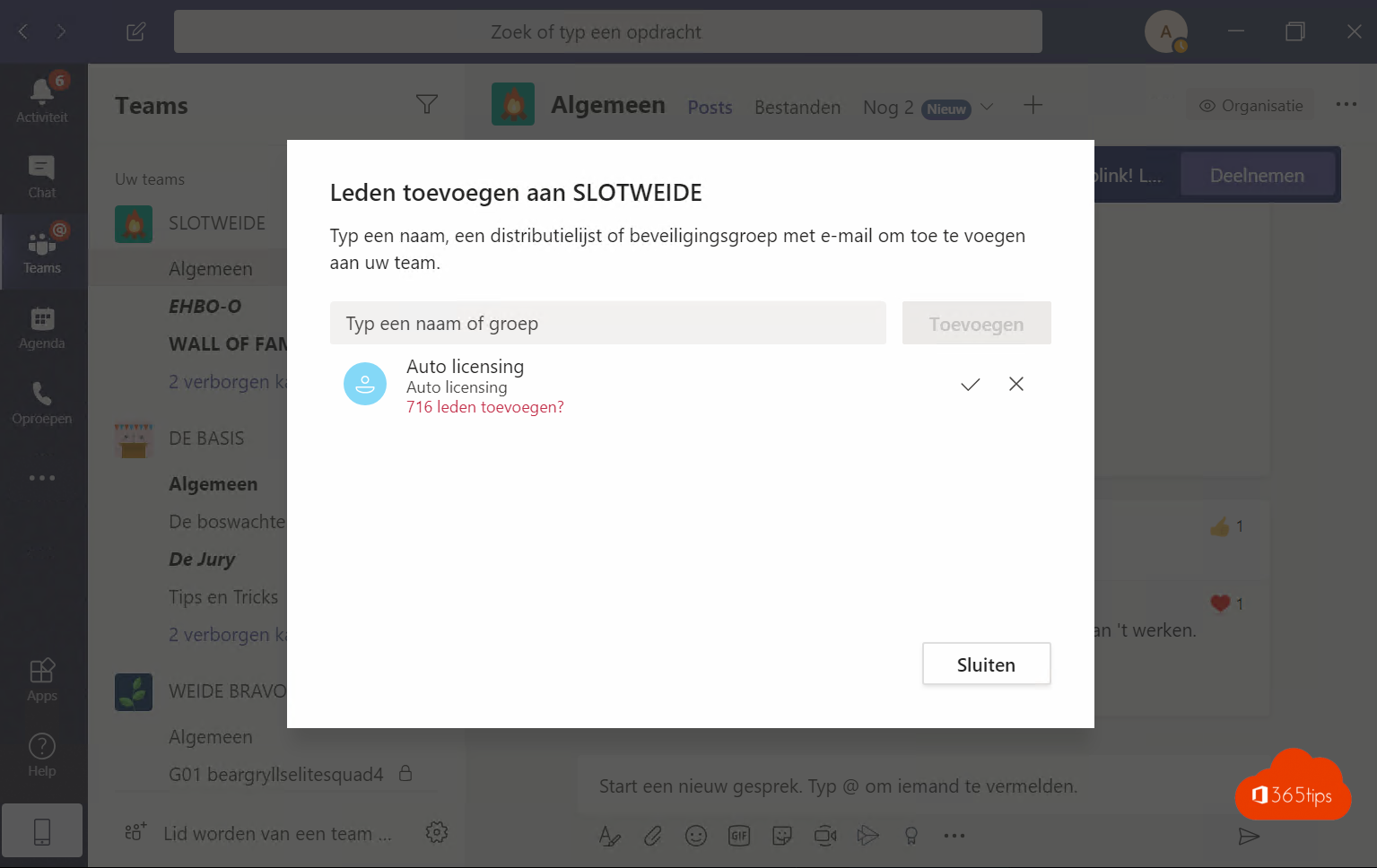
- Hover over the team > More options (...) > Add member.
- Type the name of a distribution list, security group or Microsoft 365 group and select it.
- Select Add.
Teams adds the group's members as they are at that moment. People who join the group later do not automatically become team members.
2. With PowerShell and a CSV
Create a CSV file with an Email column and run:
Connect-MicrosoftTeams
$team = Get-Team -DisplayName "Sales"
Import-Csv members.csv | ForEach-Object { Add-TeamUser -GroupId $team.GroupId -User $_.Email }
Add -Role Owner to make someone an owner.
3. Dynamic membership
Want the team to maintain itself, for example everyone in the Sales department? Switch the Microsoft 365 group behind the team to dynamic membership:
- Go to entra.microsoft.com > Groups and open the team's group.
- Under Properties, set the membership type to Dynamic User.
- Add a rule such as (user.department -eq "Sales") and save.
This requires an Entra ID P1 licence (included in Business Premium or E3, for example). Owners can then no longer add or remove members themselves.
Tips
- Add external people as guests. Read add guests to a team.
- Let colleagues join themselves with a team code.
- For email to a changing group, use a dynamic distribution group.
Read also
Create a team code so colleagues can join your team themselves
Create and organise a team in Microsoft Teams
How to add external guests in Microsoft Teams
Nederlandstalige versie: Meerdere gebruikers tegelijk toevoegen aan een team in Microsoft Teams