Deleted a team by accident? Don't panic. A team is linked to a Microsoft 365 group, and a deleted group is kept for 30 days. Within that period you can bring the team back with its channels, files and conversations. You can do that in the Microsoft 365 admin center, the Entra admin center or with PowerShell.
How a team is deleted
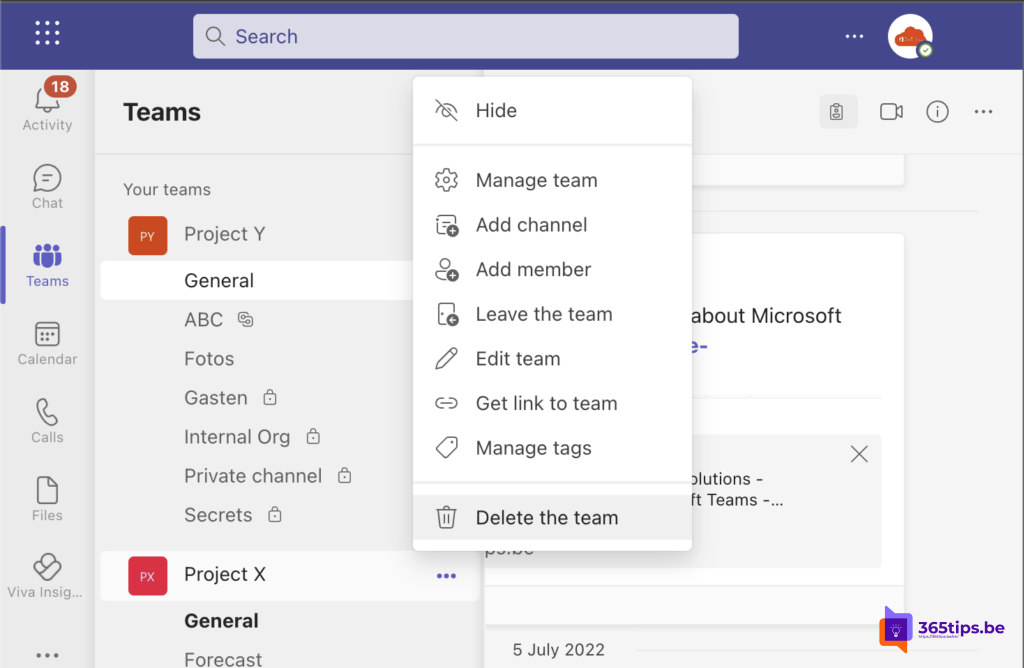
For reference: an owner deletes a team in Teams via More options (...) next to the team name > Delete the team. If you just want to tidy up without deleting, choose Archive team. Everything then stays readable.
1. Restore via the Microsoft 365 admin center
- Go to admin.microsoft.com.
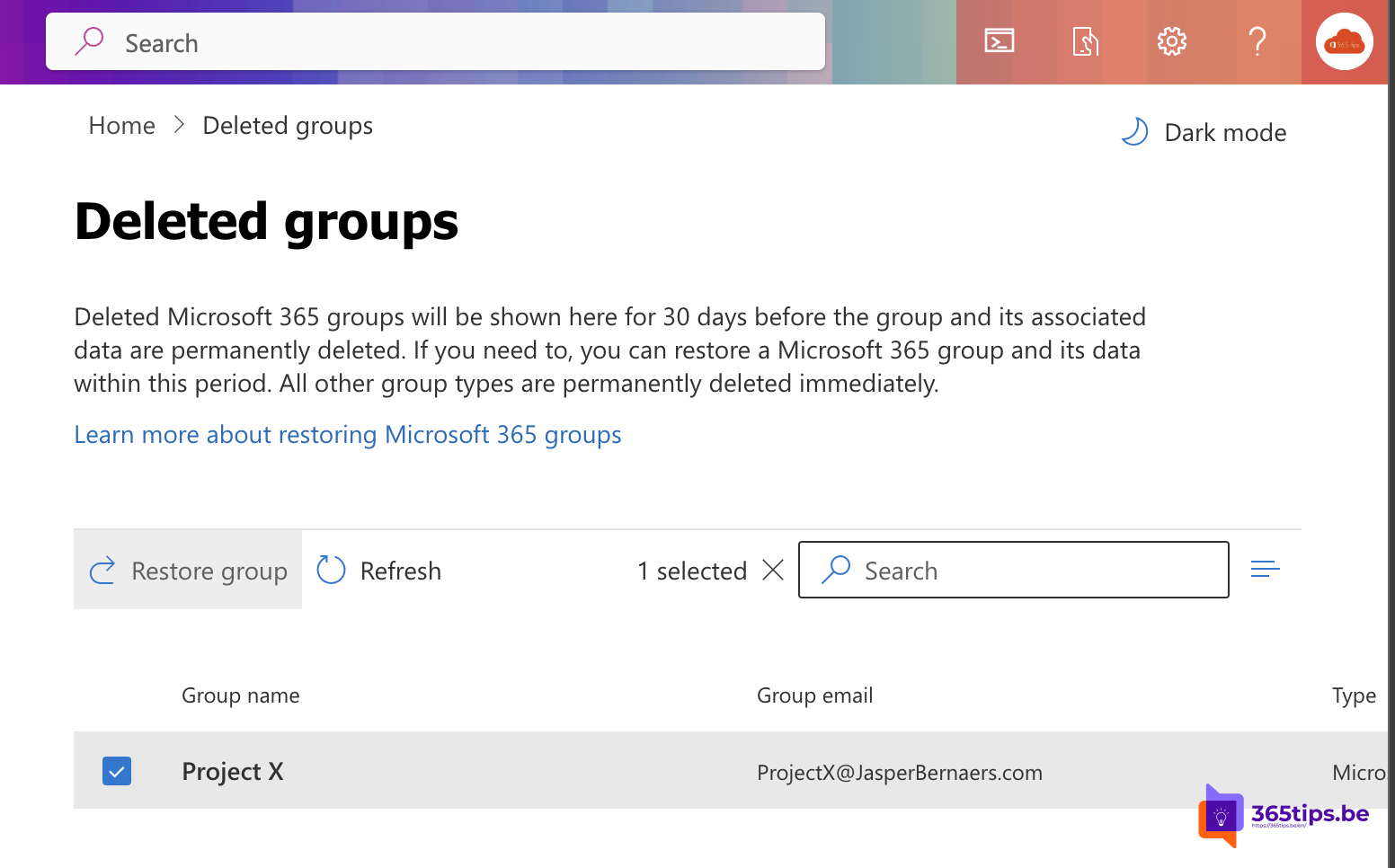
- Select Teams & groups > Deleted groups.
- Select the team's group.
- Select Restore group.

2. Restore via the Entra admin center
- Go to entra.microsoft.com.
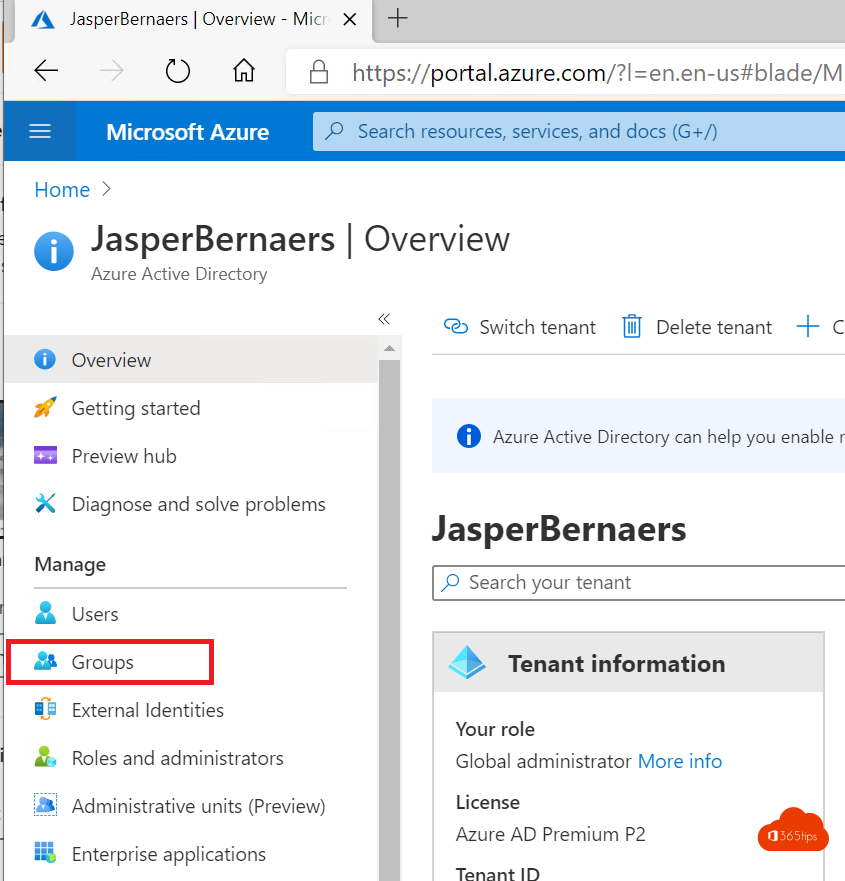
- Select Entra ID > Groups > Deleted groups.
- Find the group and choose Restore group. Confirm with Yes.

3. Restore with PowerShell
Connect-MgGraph -Scopes "Group.ReadWrite.All"
# Find deleted groups
Get-MgDirectoryDeletedItemAsGroup | Select-Object Id, DisplayName, DeletedDateTime
# Restore the group
Restore-MgDirectoryDeletedItem -DirectoryObjectId "<group-id>"
After the restore
- It can take up to 24 hours before the team shows up in Teams again.
- Members, channels, files and conversations come back.
- Past the 30 days? Then you need a backup, for example Microsoft 365 Backup or a third-party solution.
- A deleted channel is restored separately: in Teams open Manage team > Channels > Deleted.
Also see restore deleted files in Teams or SharePoint and backup options in Microsoft 365.
Nederlandstalige versie: Een verwijderd team in Microsoft Teams herstellen
Related articles
▸Stop members deleting channels, tabs and apps in TeamsSet member and guest permissions in a team so nobody accidentally deletes channels, tabs or apps. Plus how to…
▸How to restore deleted files in Microsoft Teams and SharePointDeleted a file in Teams? Restore it from the SharePoint recycle bin (93 days), the second-stage recycle bin…
▸Delete a Microsoft 365 group or distribution group with PowerShellDelete Microsoft 365 groups and distribution groups with Exchange Online PowerShell or Microsoft Graph, and…
▸Clean up Microsoft Teams automatically with expiration policies and archivingClean up old teams automatically with an expiration policy, let owners confirm with access reviews, fix…
▸Delete a user in Microsoft 365: soft delete and hard deleteDelete a user from Microsoft 365, restore them within 30 days or remove them permanently through Entra ID or…