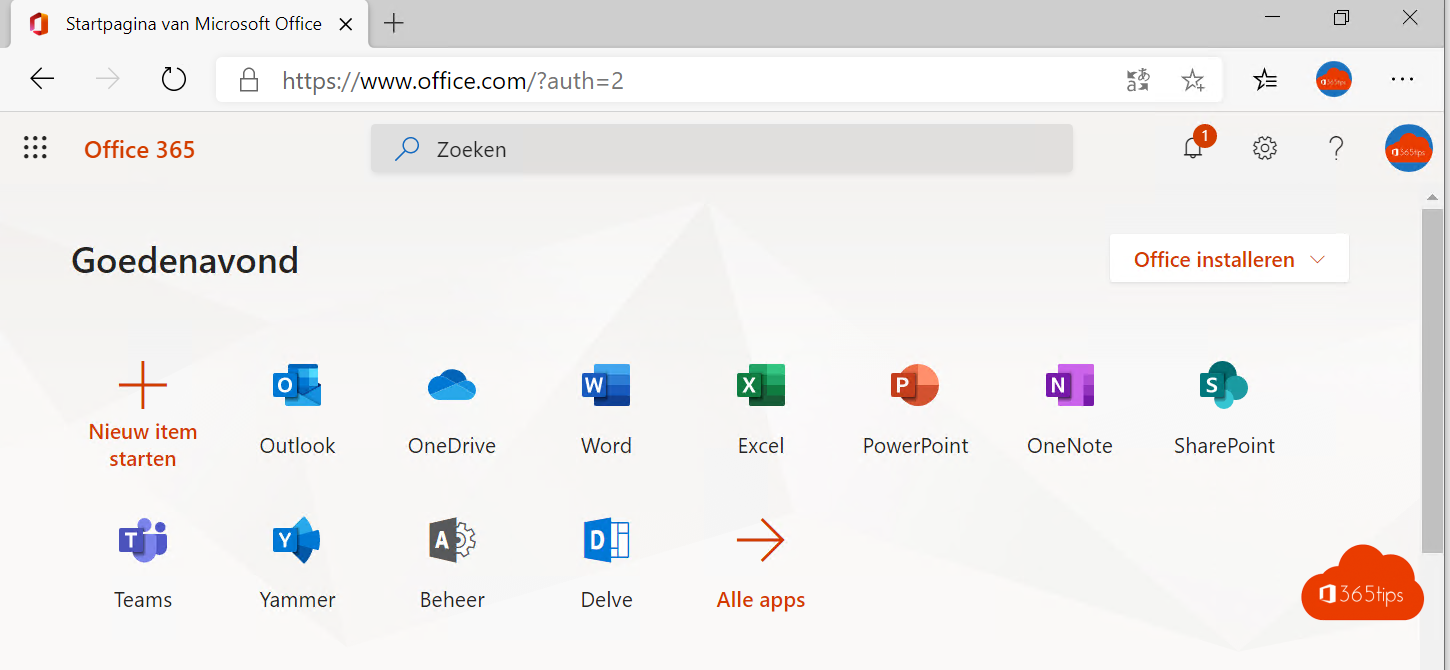
Just received a Microsoft 365 account from work or school? This starter guide shows how to sign in, where to find your apps and email, how to install the Office apps and how to secure your account. Office 365 is now called Microsoft 365, the start page and the Office app are now the Microsoft 365 Copilot app, and Yammer is now Viva Engage. You'll be up and running in fifteen minutes.
Step 1: sign in on the web
- Go to microsoft365.com (the old address office.com redirects you automatically).
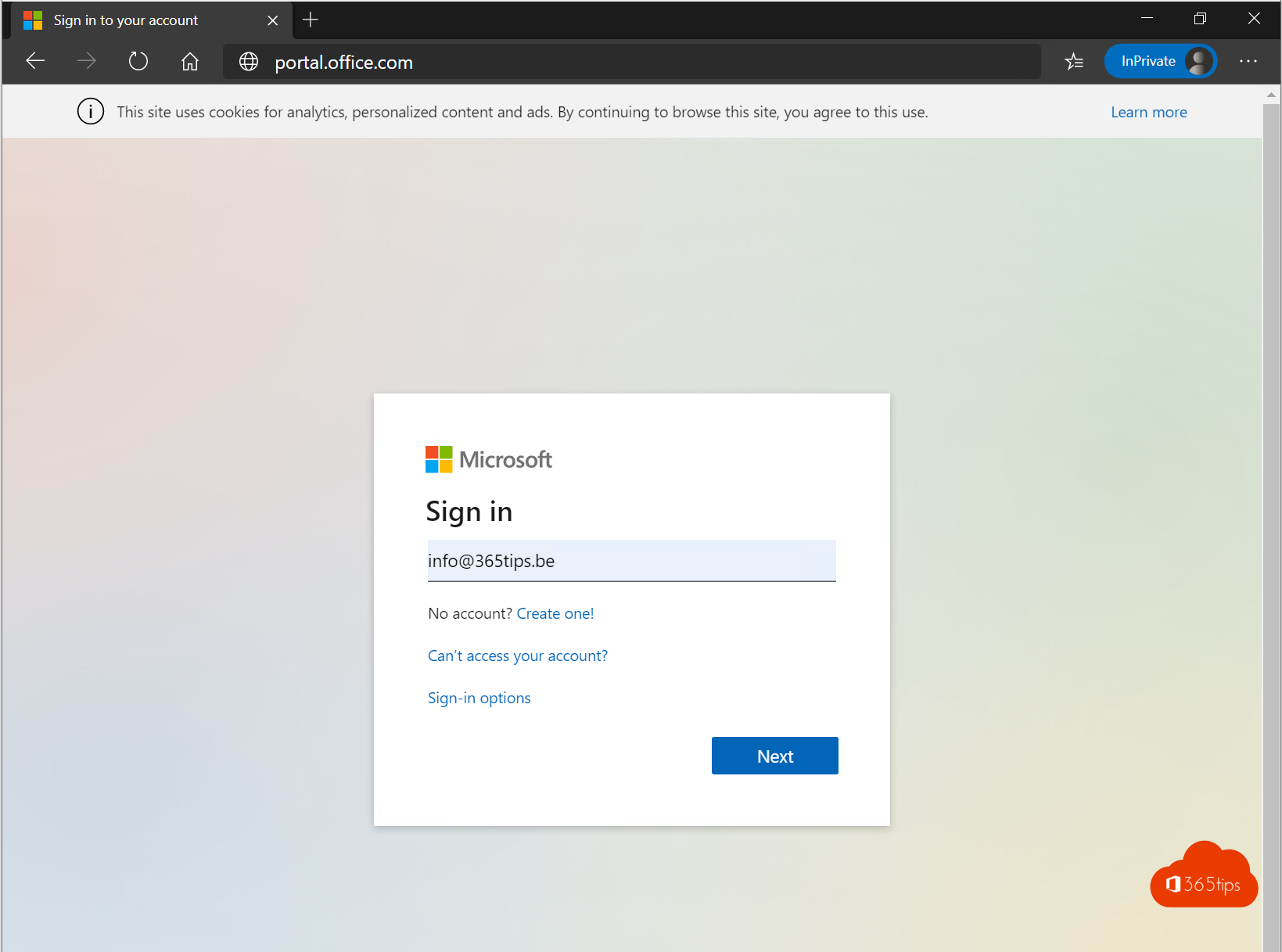
- Sign in with your work or school account, for example firstname@company.com, and your password.
- You land on the start page with your recent files and all your apps.
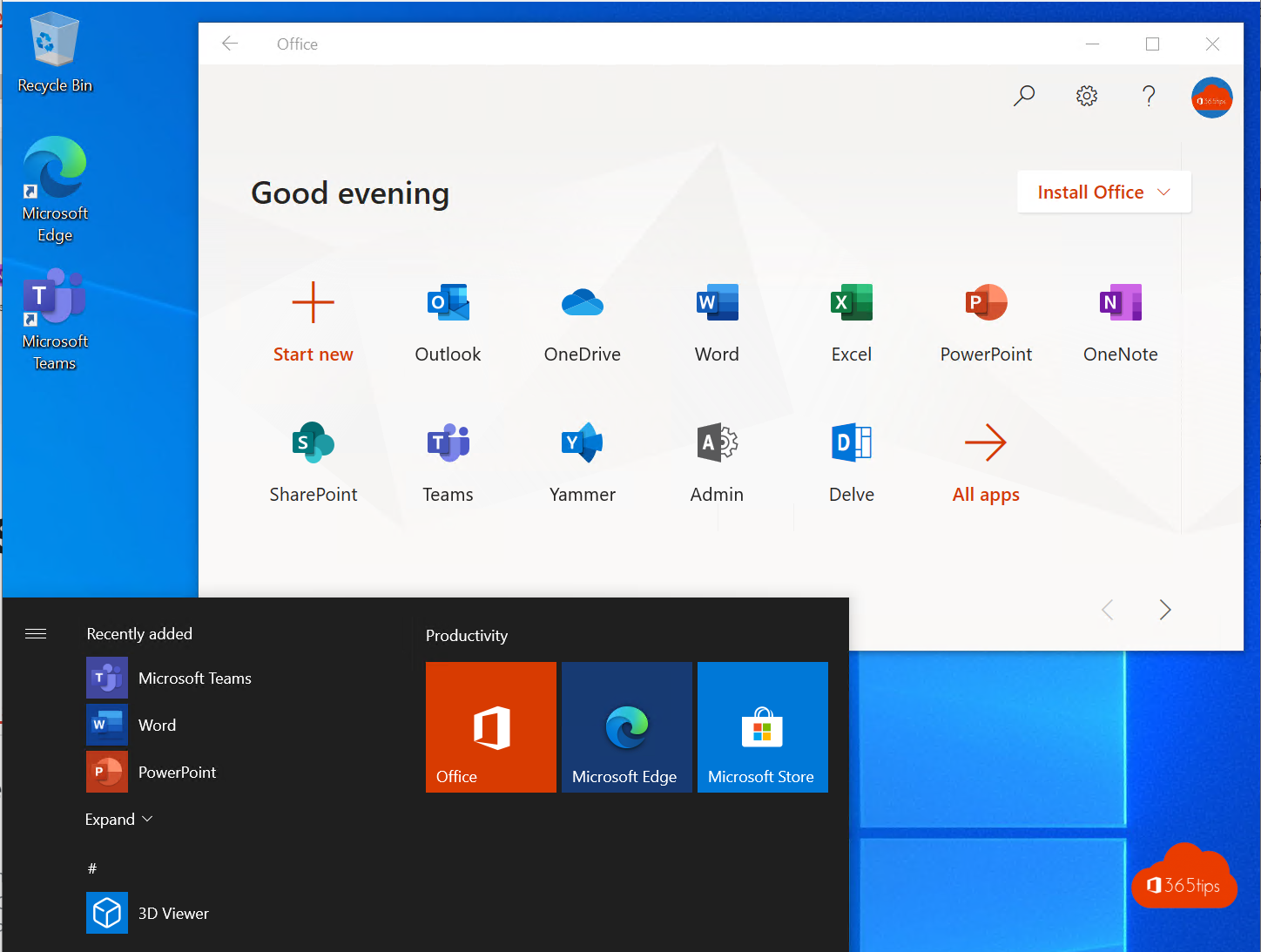
Click the app launcher (the nine dots at the top left) or Apps to open Word, Excel, PowerPoint, OneNote, Teams, OneDrive, SharePoint, Viva Engage and other apps. Which apps you see depends on your license. Also read signing in to Microsoft 365.
Step 2: open your email
Go to outlook.office.com and sign in with the same account. That way you can read your mail, calendar and contacts in any browser. On your phone, install the Outlook app.

Step 3: install the desktop apps
If your license includes the desktop apps, you can install them yourself:
- On the start page, click Install apps > Microsoft 365 apps.
- Open the downloaded file and follow the steps.
- Sign in to the apps with your work or school account.
Most plans let you install the apps on several devices per user, such as PCs, Macs, tablets and phones. You manage devices through your account on the start page. If you only have web versions, just work in the browser. See also installing Microsoft 365 apps on Windows.

Step 4: secure your account
- Go to mysignins.microsoft.com/security-info.
- Add a sign-in method, preferably the Microsoft Authenticator app.
- Follow the steps to link your phone.
With multifactor authentication, someone who knows your password still needs your phone to get in.
Step 5: keep going
- Store your files in OneDrive so you have them everywhere.
- Chat and meet with colleagues in Microsoft Teams.
- Forgot your password or want to change it? Read change your password.

Also see using Office online for free and enabling MFA in Microsoft 365.
Read also
Sign in to Microsoft 365, the admin center or Azure
Install the Microsoft 365 apps (Office) on your Windows PC
Enable multi-factor authentication (MFA) in Microsoft 365
Nederlandstalige versie: Startersgids voor Microsoft 365: aanmelden, apps, e-mail en beveiliging