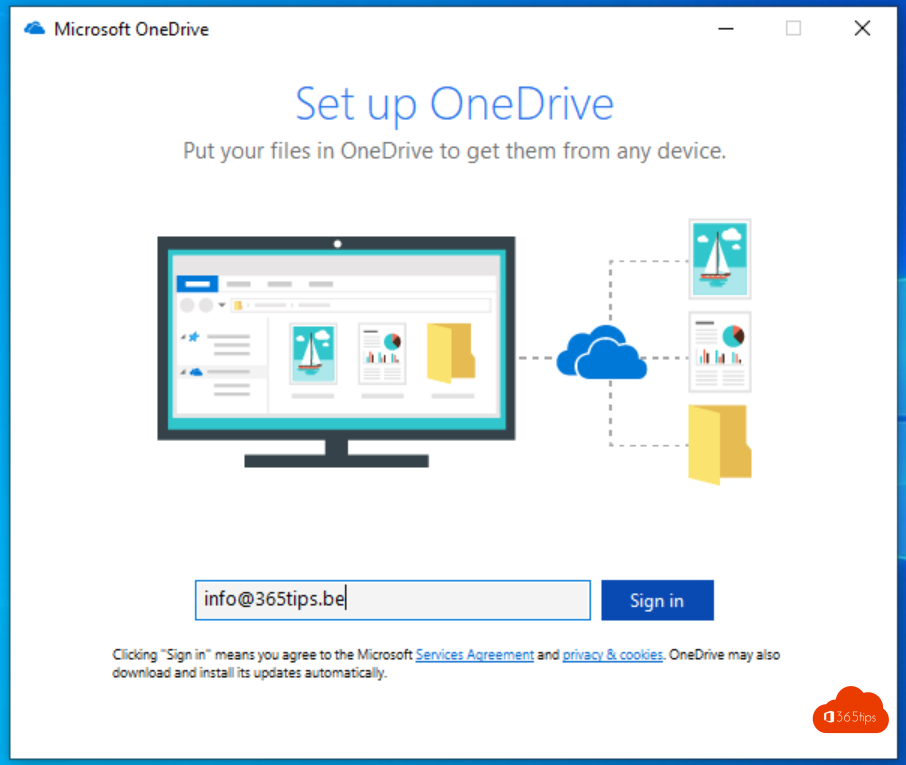
You've got a work account and want to keep your files in OneDrive. In this quick start you sign in, set up sync on your computer and upload your first files.
1. Sign in on the web
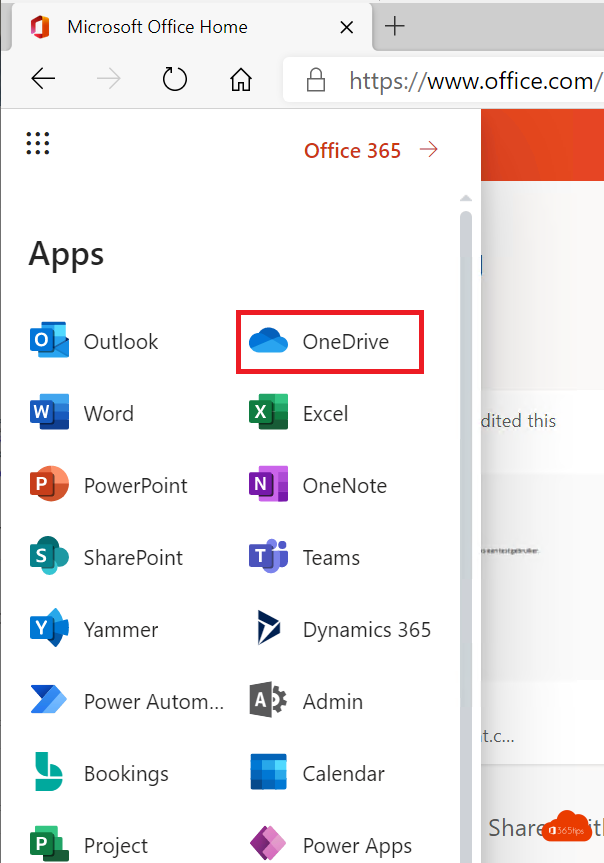
- Go to onedrive.com or microsoft365.com and sign in with your work account.
- Choose OneDrive in the app launcher.
- Drag files into your browser to upload them, or select + New > Files upload.
2. Sync on your computer
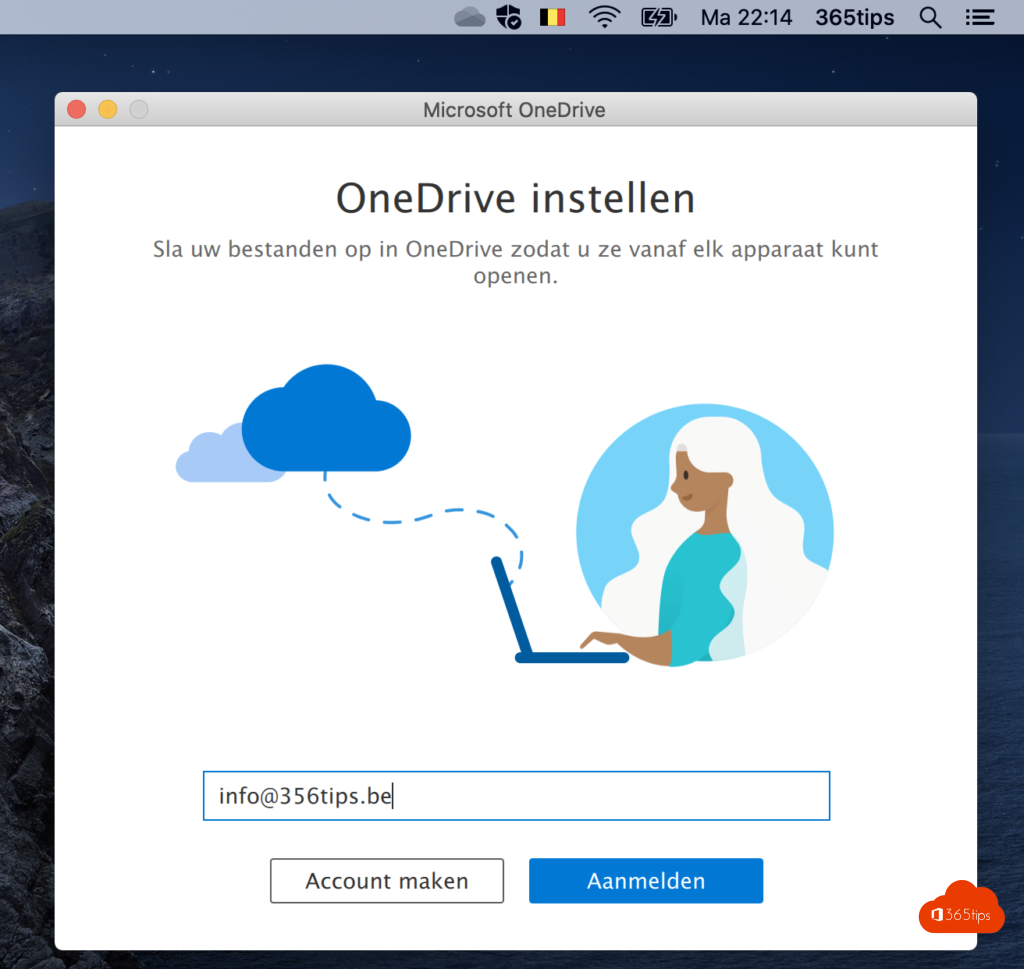
- OneDrive is built into Windows 10 and 11. Select the cloud icon in the system tray, or search for OneDrive in Start. On a Mac, install the app from the App Store.
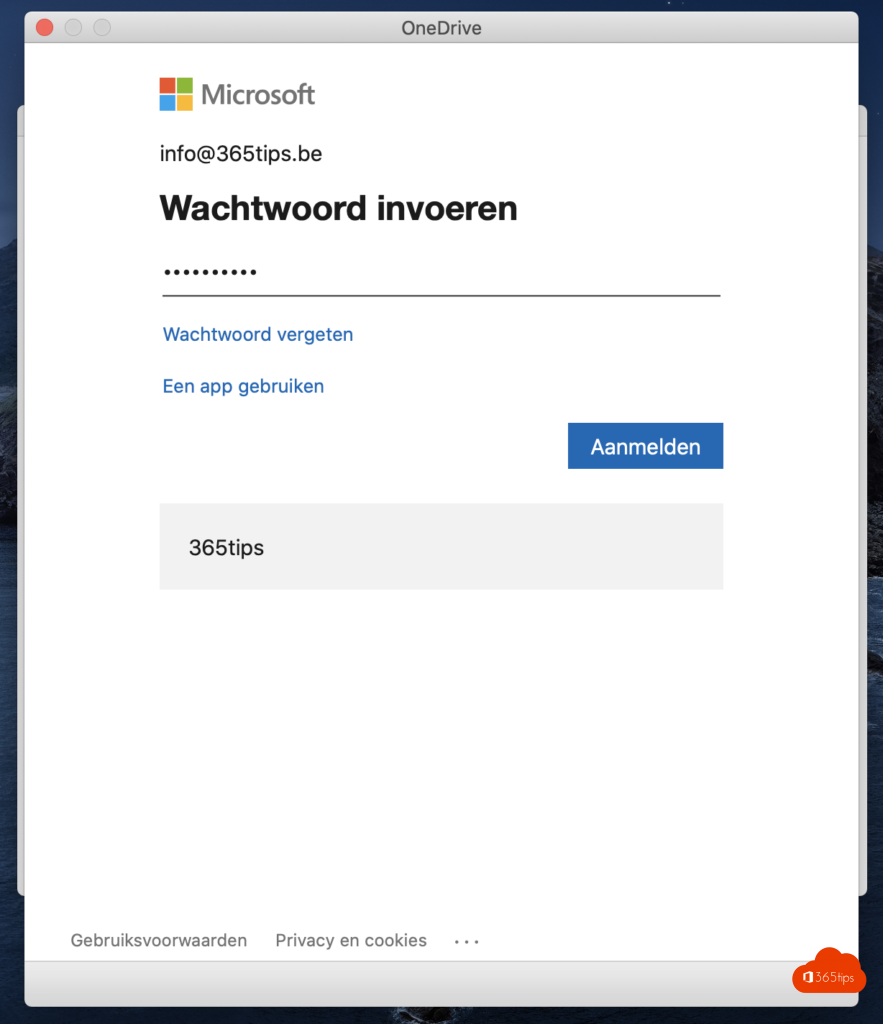
- Sign in with your work account.
- Choose the location of your OneDrive folder and follow the steps.
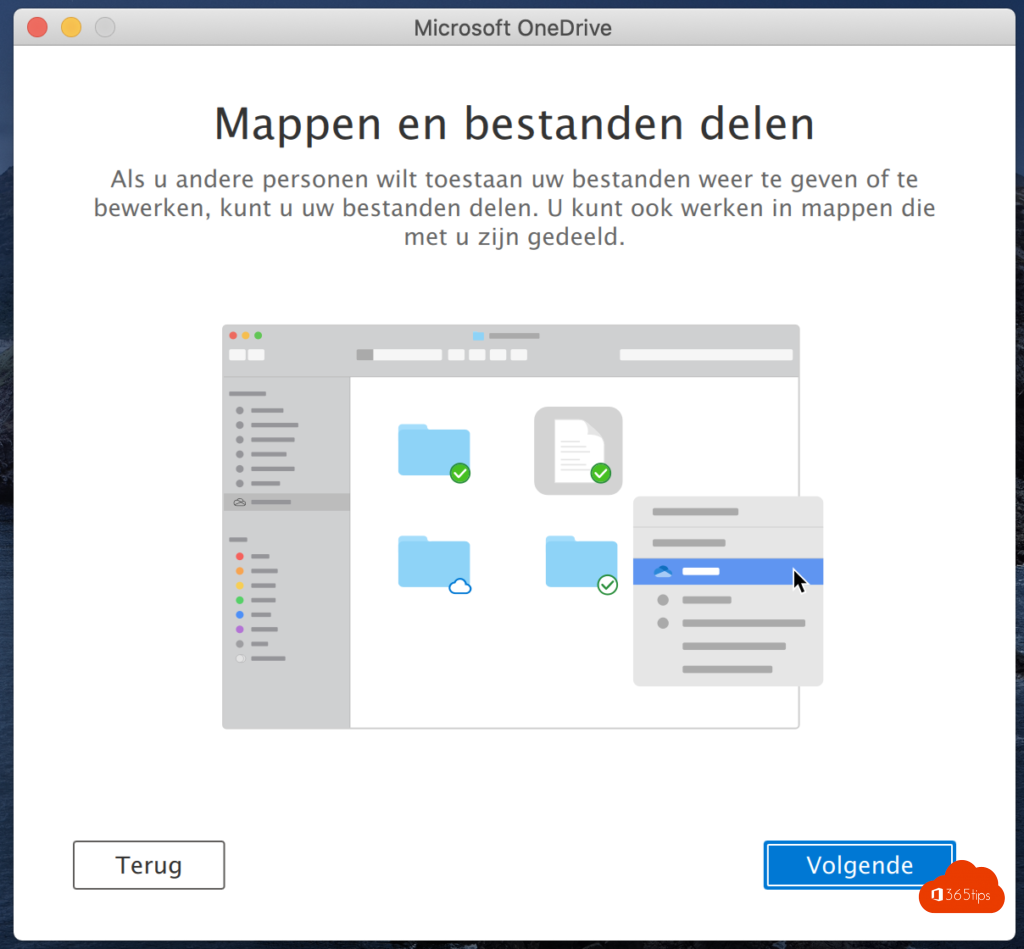
- Your files appear in File Explorer or Finder under OneDrive - your organization.

3. Understand the icons
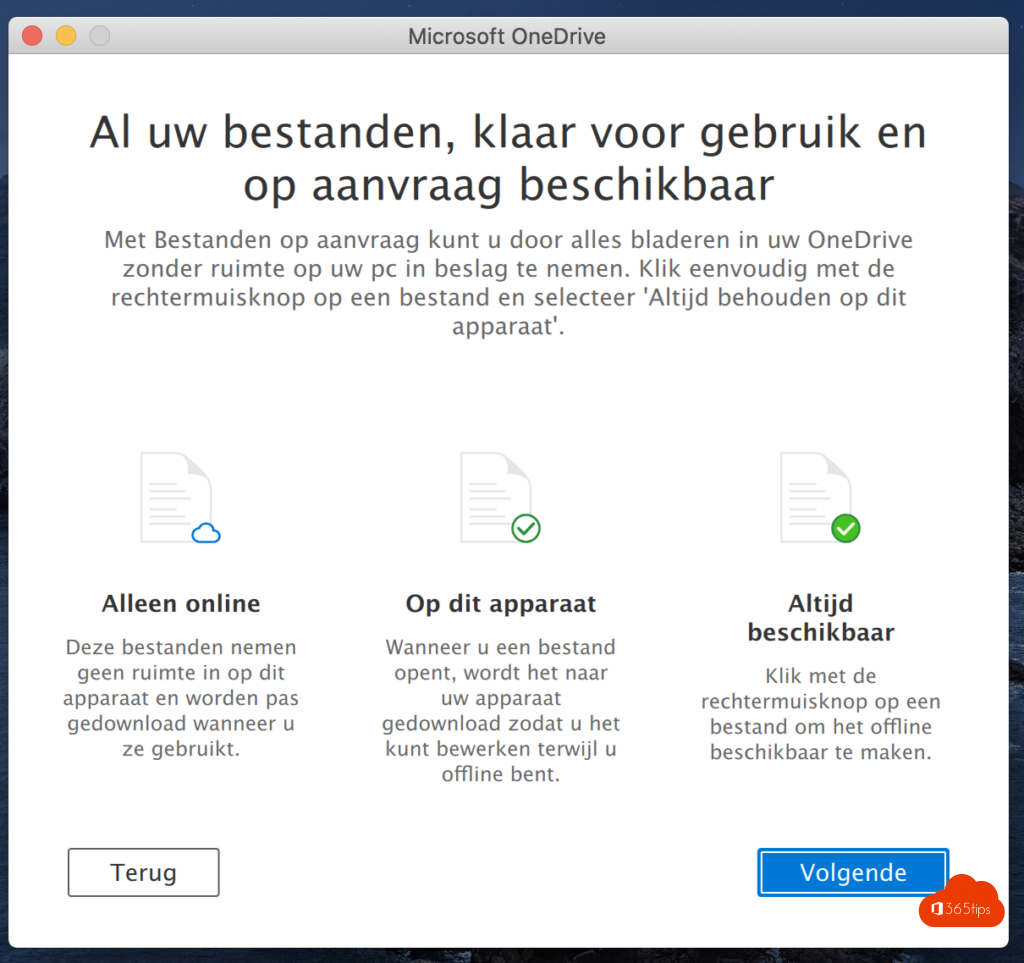
- Cloud: the file is only online and downloads when you open it.
- Green check: the file is also on your computer.
- Solid green circle with check: always keep on this device.
- Red circle with cross: there's a sync problem.
Next steps
- Turn on backup of your desktop and documents.
- Learn how to share files with a link.
- Install the OneDrive app on your phone.
Also see 10 practical OneDrive tips.
Read also
The 10 most useful features of OneDrive for work or school
Automatically back up your desktop, documents and pictures with OneDrive
Share files in Microsoft 365 and Teams: all the options
Nederlandstalige versie: Snelstart: aanmelden en beginnen met OneDrive voor werk of school
More in English
▸Restore deleted OneDrive files up to 93 days after deletionGet deleted files back from the OneDrive recycle bin or second-stage recycle bin, or restore your whole…
▸Restore an earlier version with version history in OneDrive and SharePointView and restore earlier versions of files in OneDrive, SharePoint, Teams and the Office apps, and learn how…
▸Open Microsoft Teams files in File Explorer with a shortcut or syncPut a Teams channel's files in File Explorer with Add shortcut to My files or Sync, using Files…
▸Block specific file types from OneDrive syncStop OneDrive from uploading .pst, .ost or .iso files. Via the SharePoint admin center, PowerShell, Intune or…