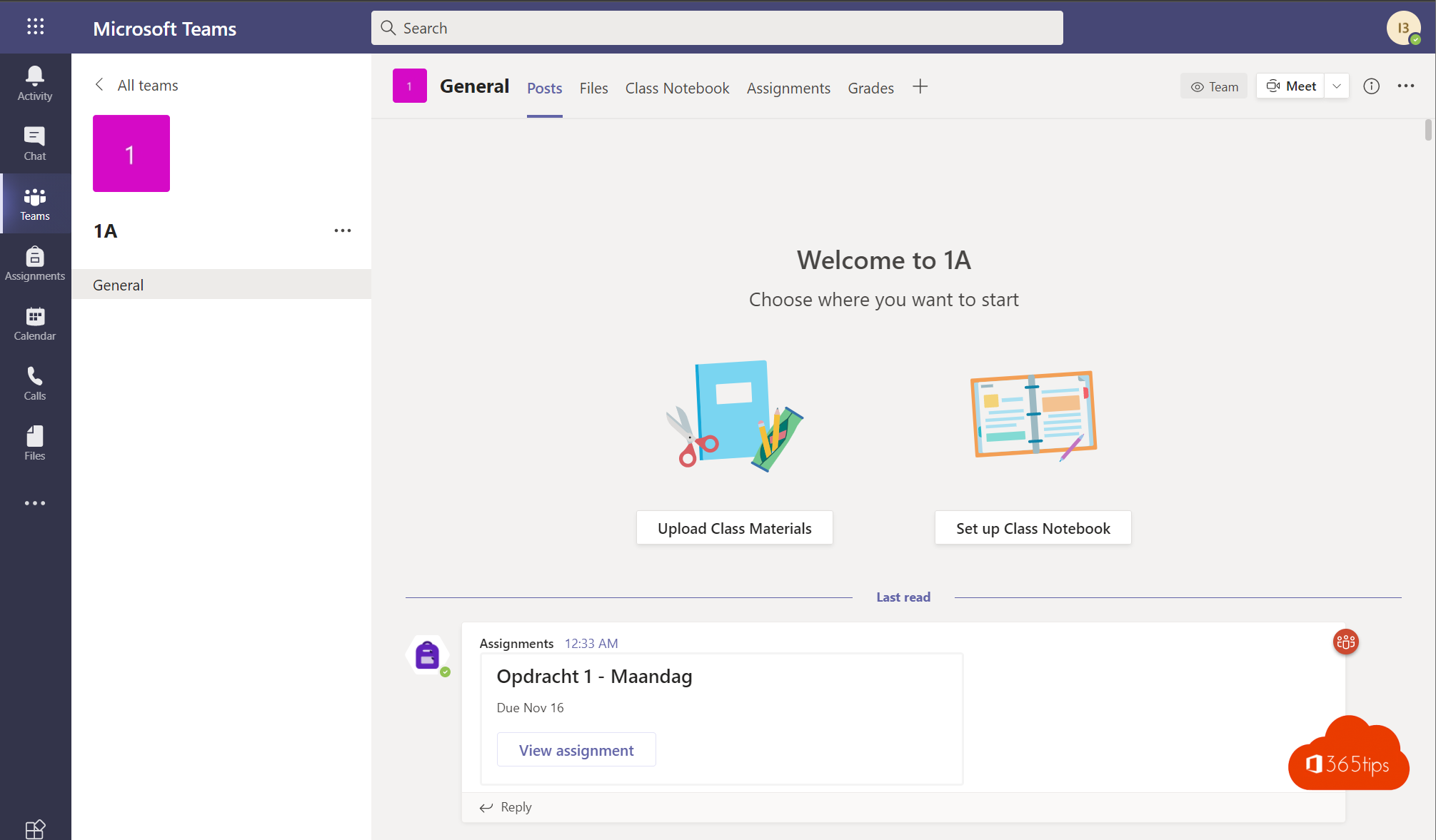
Want to get your school started with Microsoft Teams, OneNote and the other Microsoft 365 apps? This starter guide walks you through setting up an education environment step by step: from the right license and your own domain to users and the first class teams. Office 365 for education is now called Microsoft 365 A1, A3 and A5. Terms and included storage change regularly, so check them with Microsoft or your partner.
Step 1: choose the right license
| License | What's included (in broad terms) |
|---|---|
| Microsoft 365 A1 | Free for qualified education institutions. Teams, Exchange Online, SharePoint, OneDrive and the web versions of Word, Excel, PowerPoint and OneNote. |
| Microsoft 365 A3 | Everything in A1, plus the desktop apps and more management and security options. |
| Microsoft 365 A5 | Everything in A3, plus advanced security, compliance and analytics. |
Your school has to be verified as an education institution before you get education licenses. That happens after you sign up.

Step 2: create your environment
- Go to the Microsoft 365 education page and choose to sign up your school.
- Enter the details of your school and the admin.
- You get a temporary address such as schoolname.onmicrosoft.com. Use it to sign in to the Microsoft 365 admin center.
- Wait for your school to be verified.

Step 3: add your own domain
- In the admin center, go to Settings > Domains and choose Add domain.
- Type your school's domain, for example myschool.edu.
- Prove you own the domain with a TXT record at your domain registrar.
- Add the DNS records Microsoft suggests so email and Teams work properly.
See add a domain to Microsoft 365 for more detail.

Step 4: add teachers and students
- A few users: add them manually under Users > Active users.
- Many users: import them with a CSV file.
- Automatically: connect your student information system with School Data Sync. It creates users, classes and class teams and keeps them up to date.
Give teachers and students the right license. With group-based licensing that happens automatically.

Step 5: set it up securely
- Turn on multifactor authentication, especially for admins and staff.
- Limit who can create teams: see restrict who can create teams.
- Decide what students can do in meetings, for example not starting meetings themselves.
Step 6: set up your first class
- In Teams, create a team of the Class type.
- Add students, or share a team code with them.
- Set up the Class Notebook and a Staff Notebook for your staff.
- Hand out your first assignment.


Also see Parent connection in Teams for Education and getting started with Microsoft 365.
Read also
Set up and use the Staff Notebook in Microsoft Teams for Education
Add your own domain to Microsoft 365
Bulk import users or guests with a CSV file
Nederlandstalige versie: Microsoft 365 in het onderwijs: je school en klas inrichten