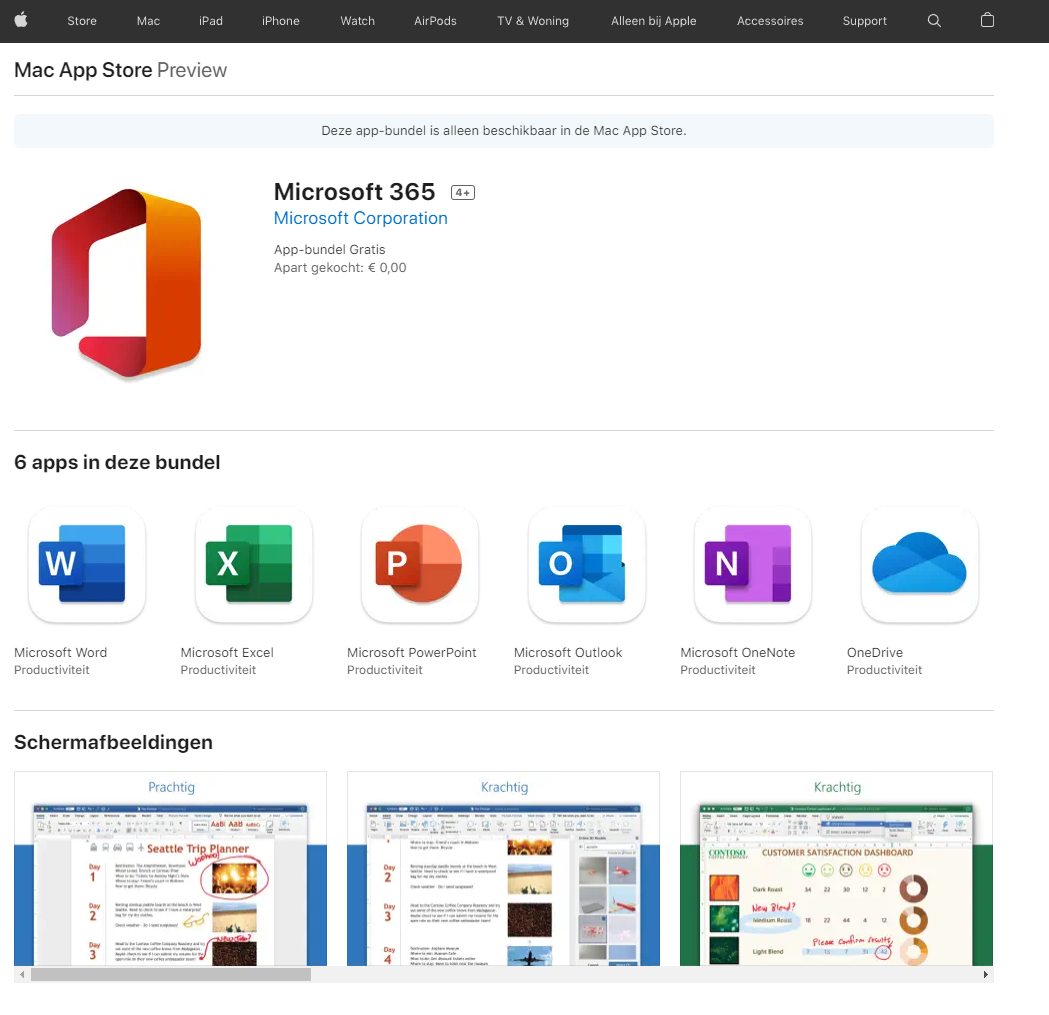
If you have a Microsoft 365 licence with apps through work or school, you can often install Word, Excel, PowerPoint, Outlook and Teams on your own computer too. This article shows how to install the Microsoft 365 apps on a Windows PC, on how many devices that's allowed and how to free up a device.
Do you have the right licence?
You need a licence with desktop apps, such as Microsoft 365 Business Standard, Business Premium, Apps for business, E3 or E5, or A3/A5 in education. Business Basic or E1 only give you the web versions. Read check your Microsoft 365 licence.
Install on Windows
- Go to microsoft365.com and sign in with your work or school account.
- Select Install apps > Microsoft 365 apps.
- Open the downloaded file and follow setup. Keep the PC on and connected to the internet.
- Open Word and sign in with the same account to activate.
On how many devices?
Each user can install the apps on 5 PCs or Macs, 5 tablets and 5 phones. See a device you no longer use? Go to myaccount.microsoft.com > Office apps (or Apps & devices) and sign out of that device.
Tips for home
- Already have a personal Microsoft 365 subscription on that PC? Add both accounts via File > Account.
- Keep work files in OneDrive for work, not locally on your home PC.
- If you leave the organisation, the apps become read-only after a while.
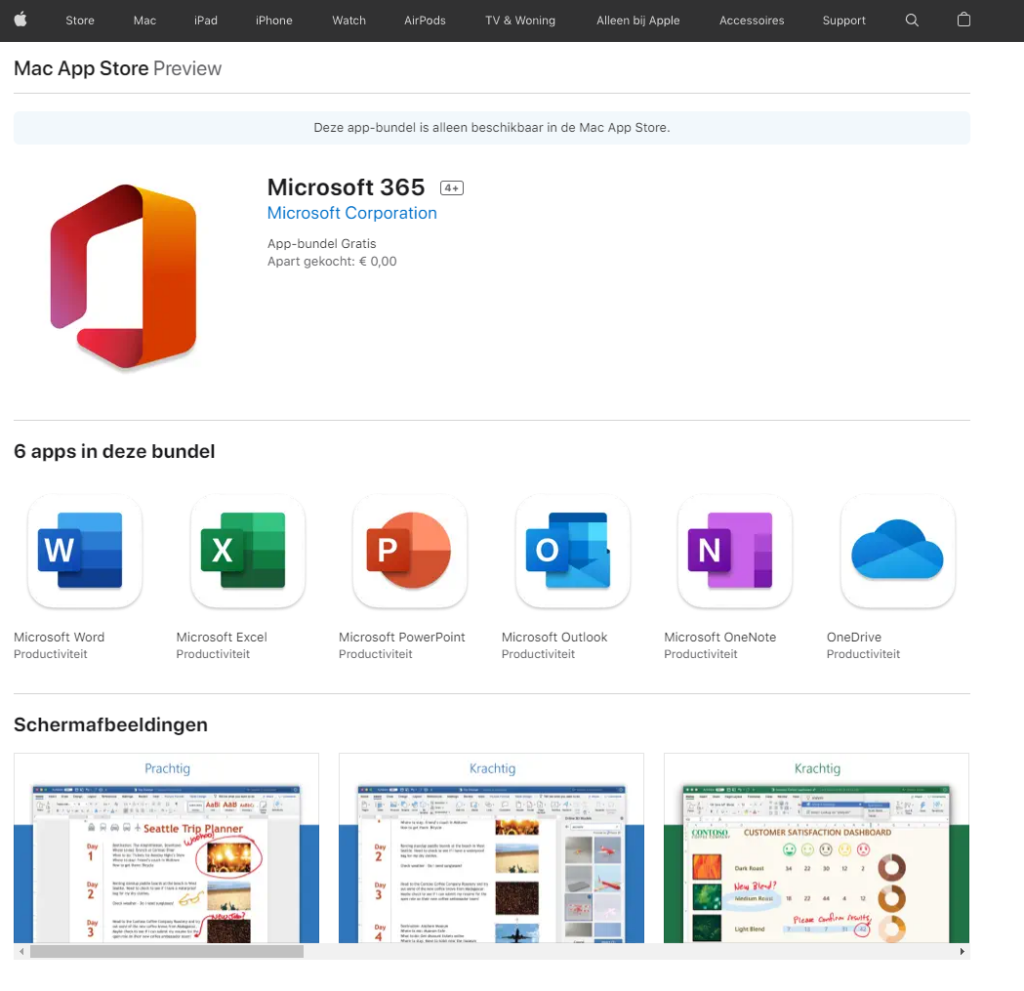
- On a Mac? Read install Microsoft 365 apps on a Mac.
Read also
Install the Microsoft 365 apps (Office) on a Mac
Which Microsoft 365 licence do I have? How to check
How to remove a device from your Microsoft account or Microsoft 365 account
Nederlandstalige versie: Microsoft 365-apps (Office) installeren op je Windows-pc