Need to change your Microsoft 365 password because it expired, because you think someone knows it, or just to be safe? It takes a few steps. This article shows how to change your password, what to do if you've forgotten it and how an admin resets a user's password.
Change your password
- Go to myaccount.microsoft.com and sign in with your work account.
- Under Password, select Change password.
- Enter your old password and the new one twice, then select Submit.
On a Windows PC joined to Microsoft Entra, you can also use Ctrl + Alt + Delete > Change a password.
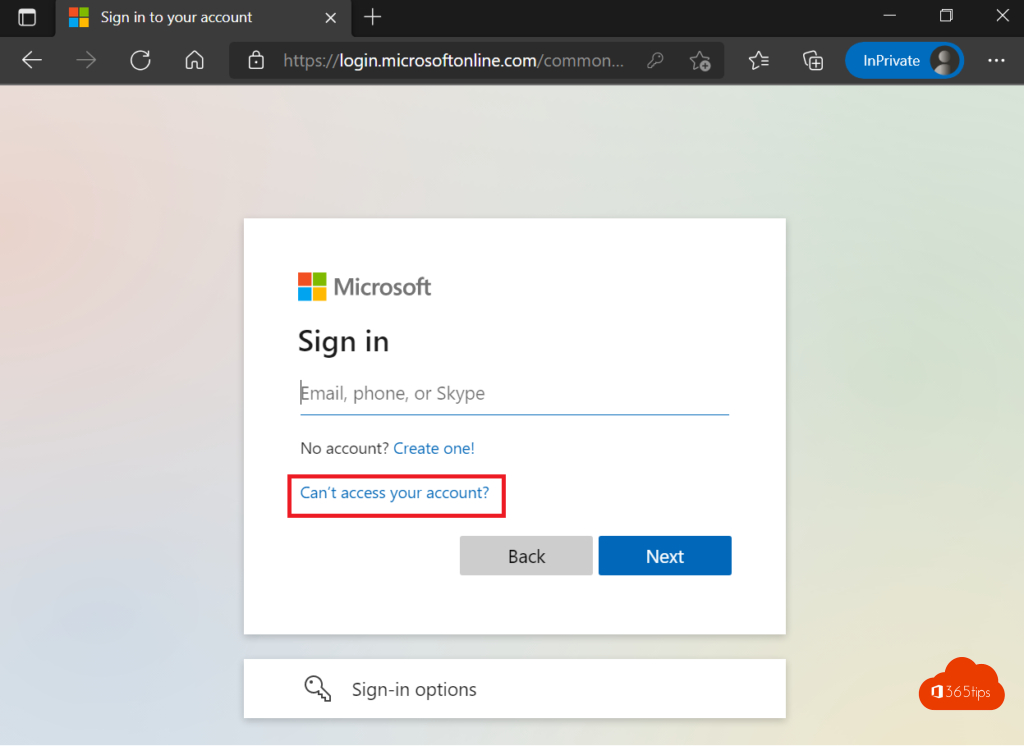
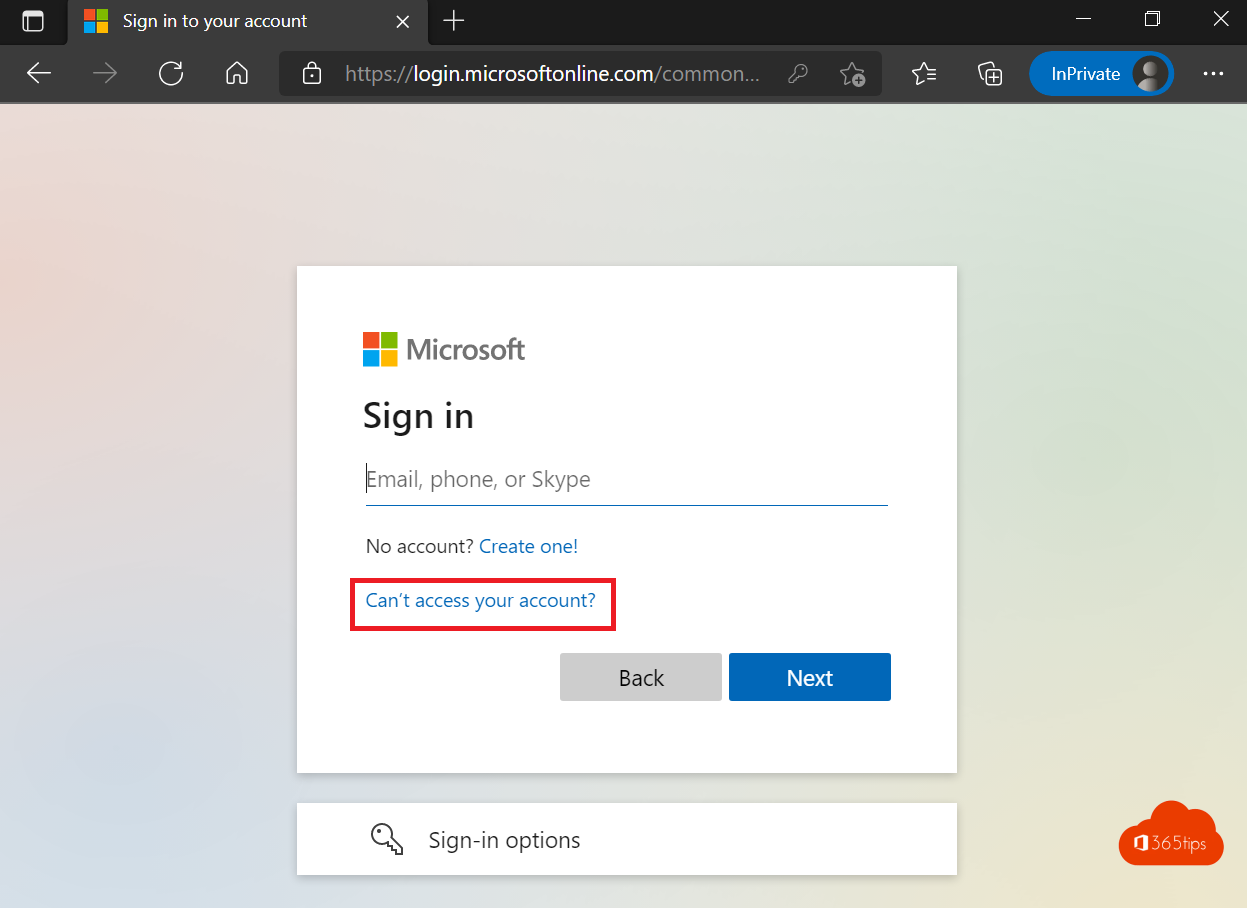
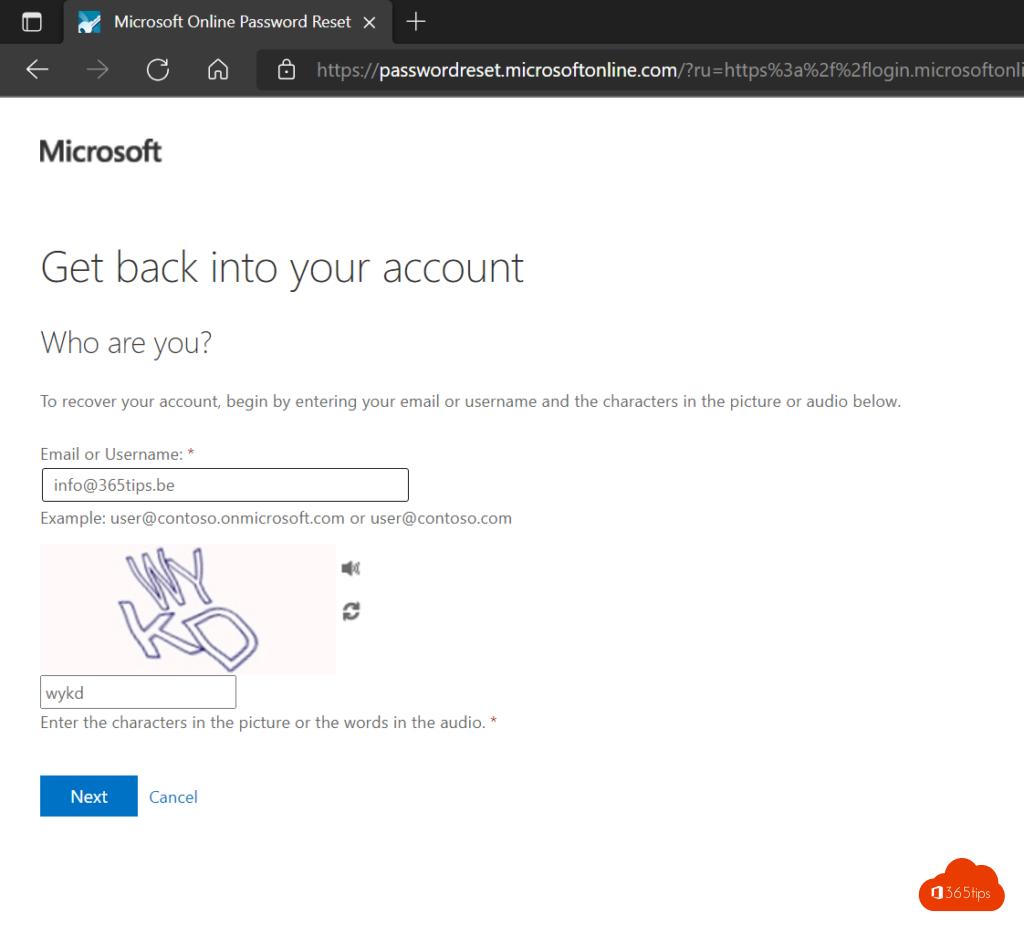
Forgot your password?
Select Forgot my password on the sign-in screen, or go to aka.ms/sspr. Verify with the Authenticator app, text message or email and choose a new password. If that doesn't work, your organisation hasn't enabled self-service and you need to contact IT. Read Self-Service Password Reset.
For admins
- Go to admin.microsoft.com > Users > Active users.
- Select the user and choose Reset password.
- Auto-generate a password or type one, and tick Require this user to change their password when they first sign in.
Syncing users from on-premises Active Directory? Then change the password there, unless password writeback is on.
Tips for a good password
- Use a long passphrase, for example four random words.
- Don't reuse it anywhere. Check Have I Been Pwned to see if your address was in a breach.
- Turn on MFA, or move to passwordless sign-in.
Read also
Enable Self-Service Password Reset (SSPR) in Microsoft Entra ID
How to set the password expiration policy in Microsoft 365
Enable multi-factor authentication (MFA) in Microsoft 365
Nederlandstalige versie: Je wachtwoord wijzigen of opnieuw instellen in Microsoft 365