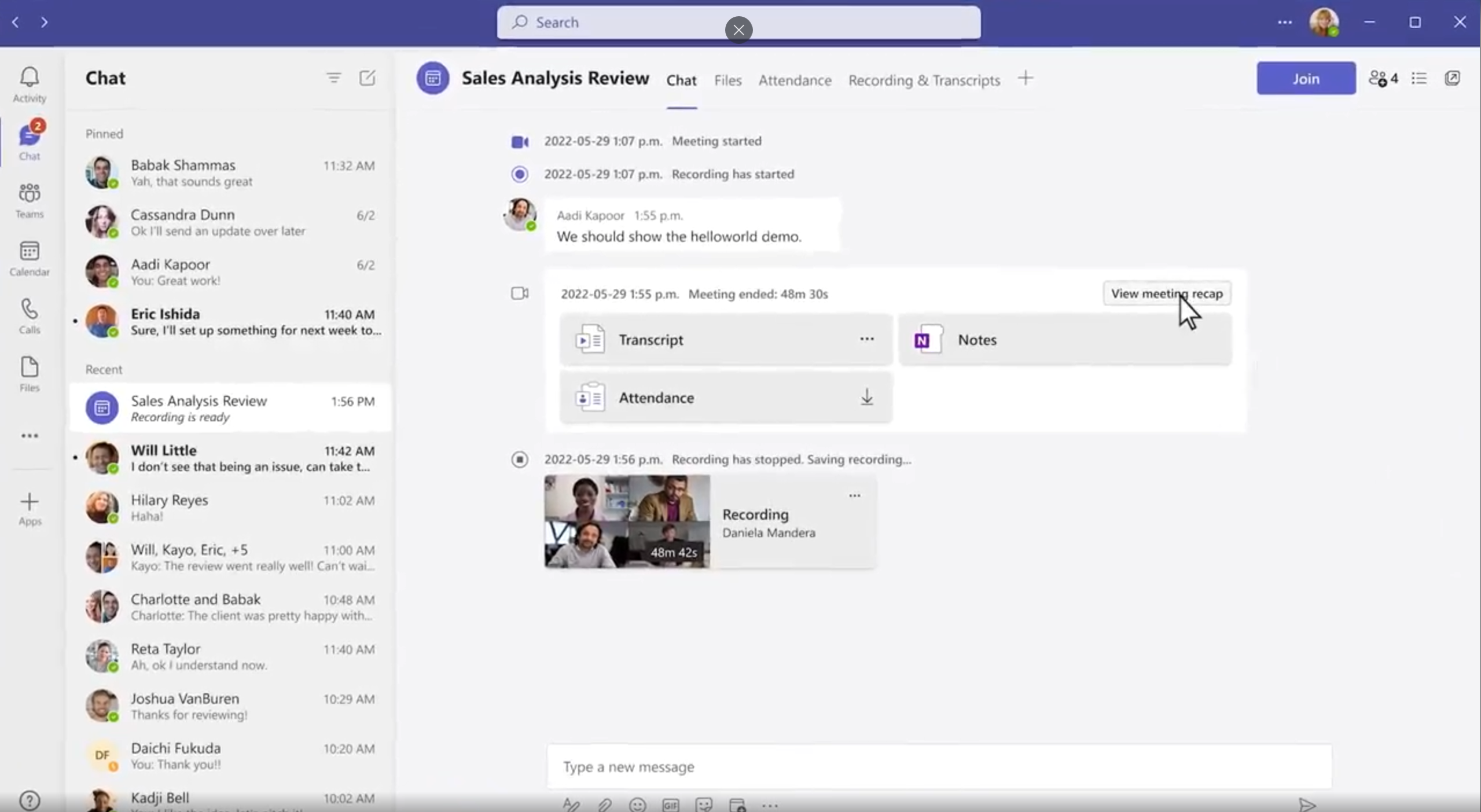
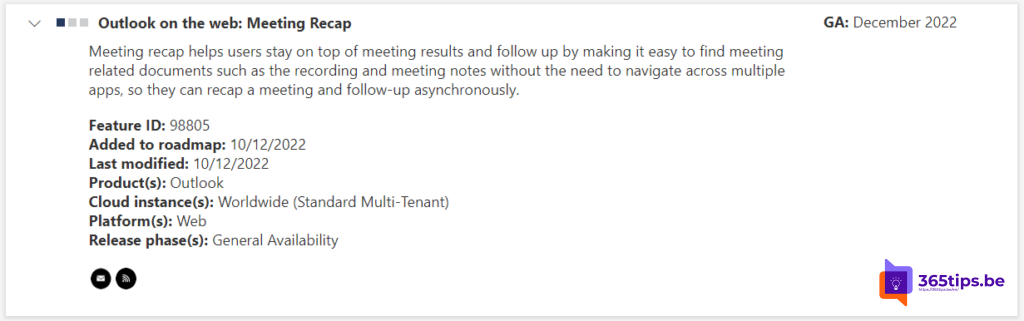
Missed a meeting, or want to quickly find what was decided? With intelligent recap in Microsoft Teams you don't have to rewatch the whole recording. Teams automatically creates notes, tasks and chapters based on the transcript. The AI parts require a Teams Premium or Microsoft 365 Copilot license; without one you get the standard recap with recording, transcript and files. This article explains what you need and how to use it.
What's in the recap?
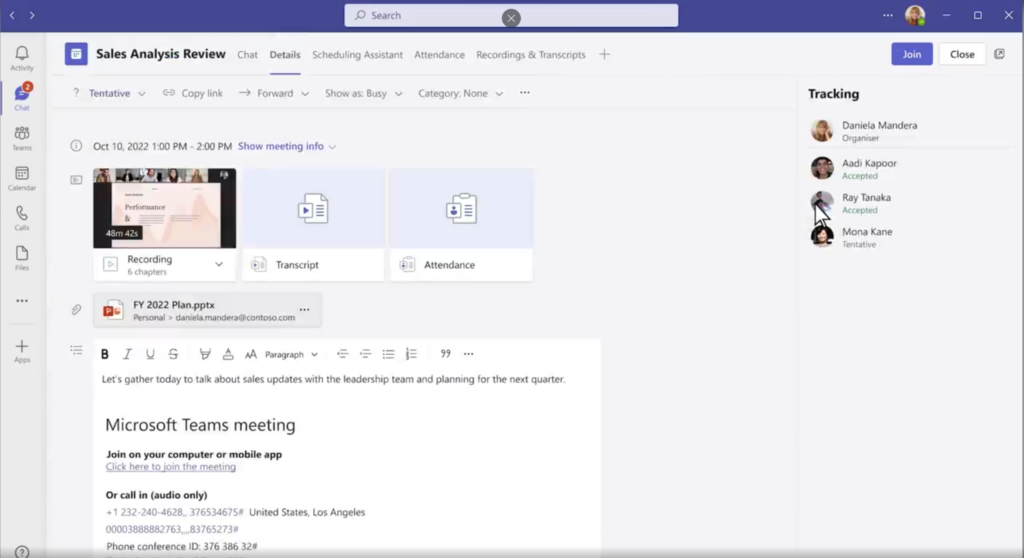
After each meeting you'll find a Recap tab in the meeting chat and in the calendar event. What you see there depends on your license.
| Feature | Without an extra license | With Teams Premium or Microsoft 365 Copilot |
|---|---|---|
| Recording and transcript | Yes, if they were started | Yes |
| Shared files and chat | Yes | Yes |
| AI notes by topic | No | Yes |
| Suggested tasks and action items | No | Yes |
| Chapters and moments where you were mentioned | No | Yes |
What do you need?
- A Teams Premium or Microsoft 365 Copilot license for the AI features.
- A recording and/or transcript of the meeting. Without a transcript Teams can't create notes.
- The admin has to allow recording and transcription in the meeting policy.
Which features are available for channel meetings, ad hoc calls or external participants changes regularly. Check what you see in your own environment.
How to use the recap
- During the meeting, start recording or transcription via More > Record and transcribe. You can also record automatically at the start.
- Afterwards, open the meeting chat or the event in your calendar.
- Choose the Recap tab.
- Read the notes and suggested tasks. Click a topic or chapter to jump to that moment in the recording.
- Check the tasks and share the recap with colleagues who weren't there.
Tips
- AI notes are an aid. Review them before you send them as official minutes.
- State clear decisions and action items out loud. The recap picks them up better that way.
- Want to ask questions about what was said during the meeting? You need Copilot in Teams meetings.
- Recordings expire after a while. Read how to change the expiration date.
Also see recording a Teams meeting and attendance reports in Teams.
Read also
Create meeting minutes in Teams with Microsoft 365 Copilot
Record, find and share a Microsoft Teams meeting
How to record and transcribe a Teams meeting automatically from the start
Nederlandstalige versie: Intelligente samenvatting (intelligent recap) voor Teams-vergaderingen