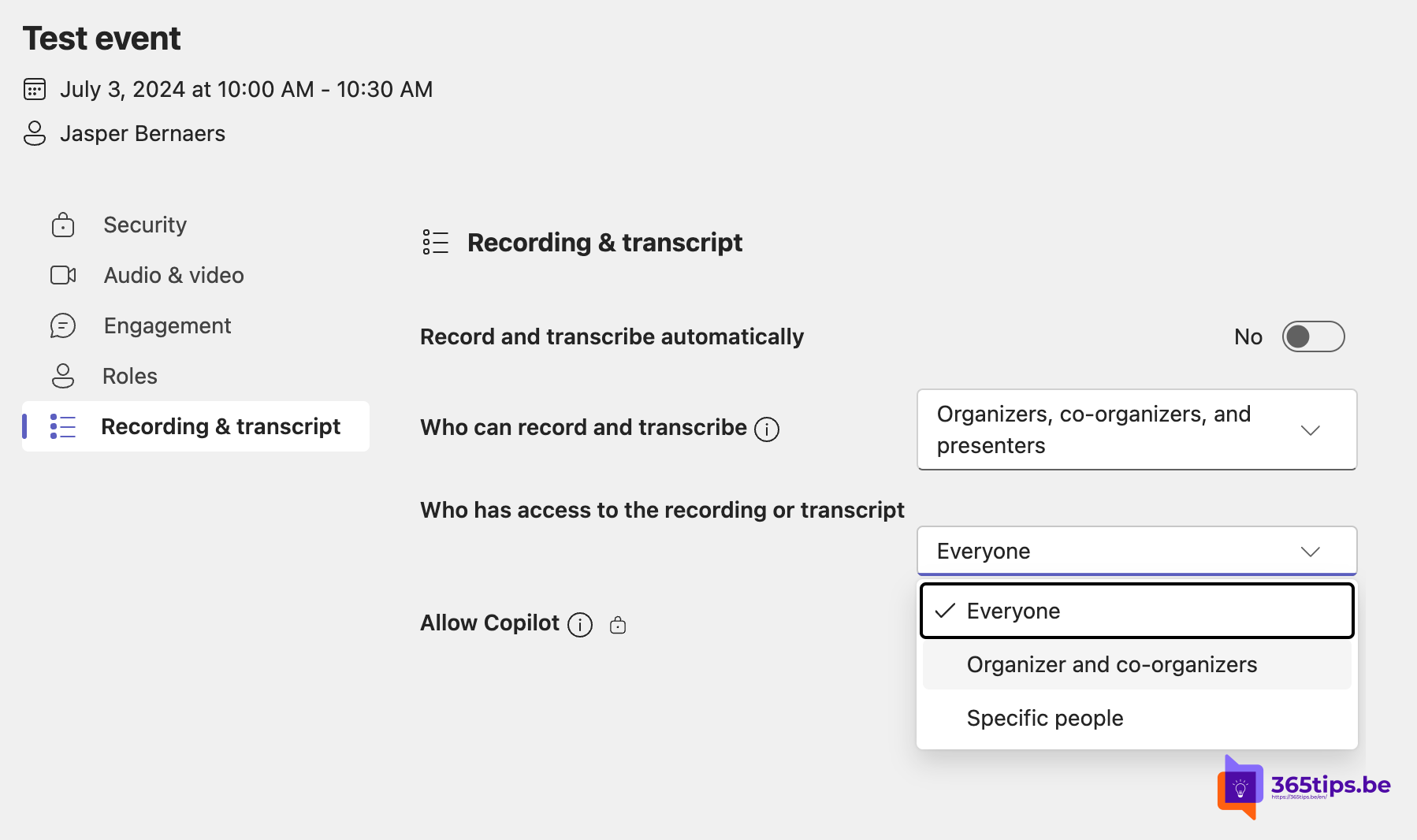
In a long meeting, not every attendee is needed for every part. The first hour may cover HR or budget, the second a product overview. Then you don't want everyone to be able to watch the full recording, transcript or AI summary afterwards. With the meeting options in Teams, you as the organizer decide who can record and who can see the recording and transcript.
These options are available to organizers with Teams Premium or Microsoft 365 Copilot. The AI summary (intelligent recap) also requires one of those licenses. The exact names of the options can differ.
Decide who can record and transcribe
- Open the meeting in your Teams calendar and choose Meeting options (or Options during the meeting).
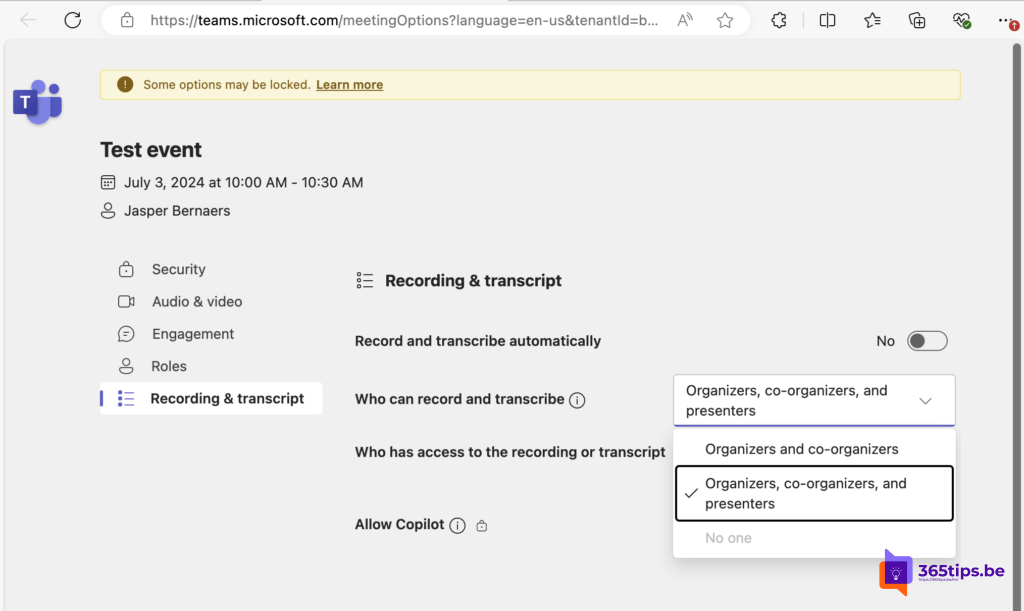
- Find the option Who can record and transcribe.
- Choose, for example, only organizers and co-organizers, or organizers and presenters.
- Click Save.
For highly confidential meetings you can also turn recording and transcription off completely, so nothing is stored.
Decide who can see the recording and transcript
- Open the Meeting options again.
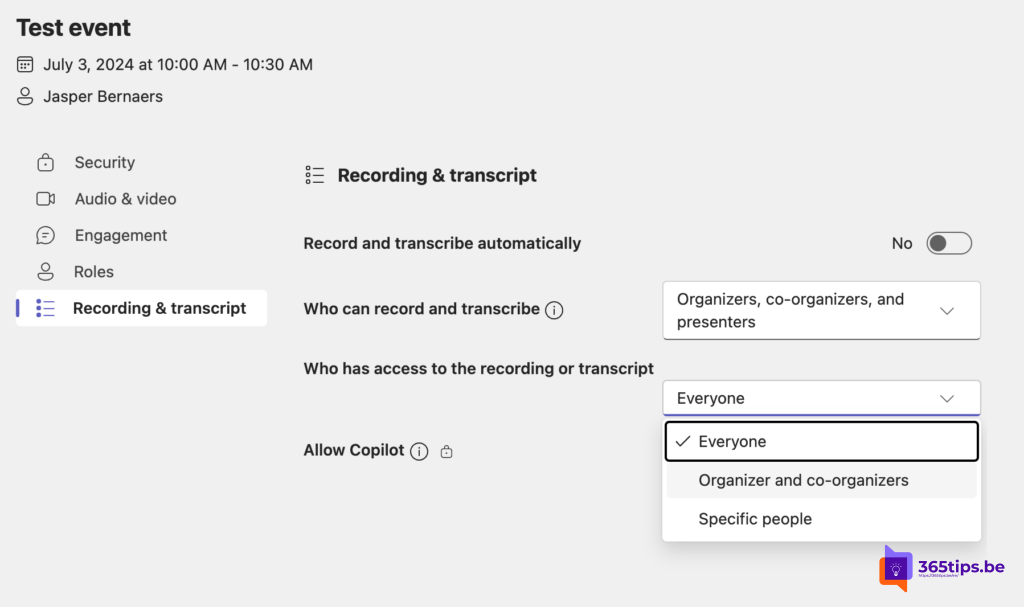
- Find the option Who has access to the recording and transcript.
- Choose who gets access: everyone, only organizers and co-organizers, or specific people.
- Click Save.
This setting also determines who later gets the AI notes in Recap and Copilot's answers about the meeting, because those are based on the transcript.
Tips
- Split sensitive parts into a separate meeting with stricter options.
- Let attendees know the meeting is being recorded, and why.
- As an admin, you also set how long recordings are kept in the Teams admin center.
Also see intelligent recap in Teams meetings and auto-delete Teams meeting recordings.
Nederlandstalige versie: Bepalen wie opneemt en wie opnames, transcripties en AI-notities ziet in Teams