Do you often forget to click Record, or do you want a training session or weekly meeting always recorded from the first minute? Microsoft Teams can automatically record and transcribe a meeting as soon as it starts. This article shows how to set that up as an organizer, what an administrator has to allow, where the recording ends up and how long it is kept.
Turn on automatic recording as an organizer
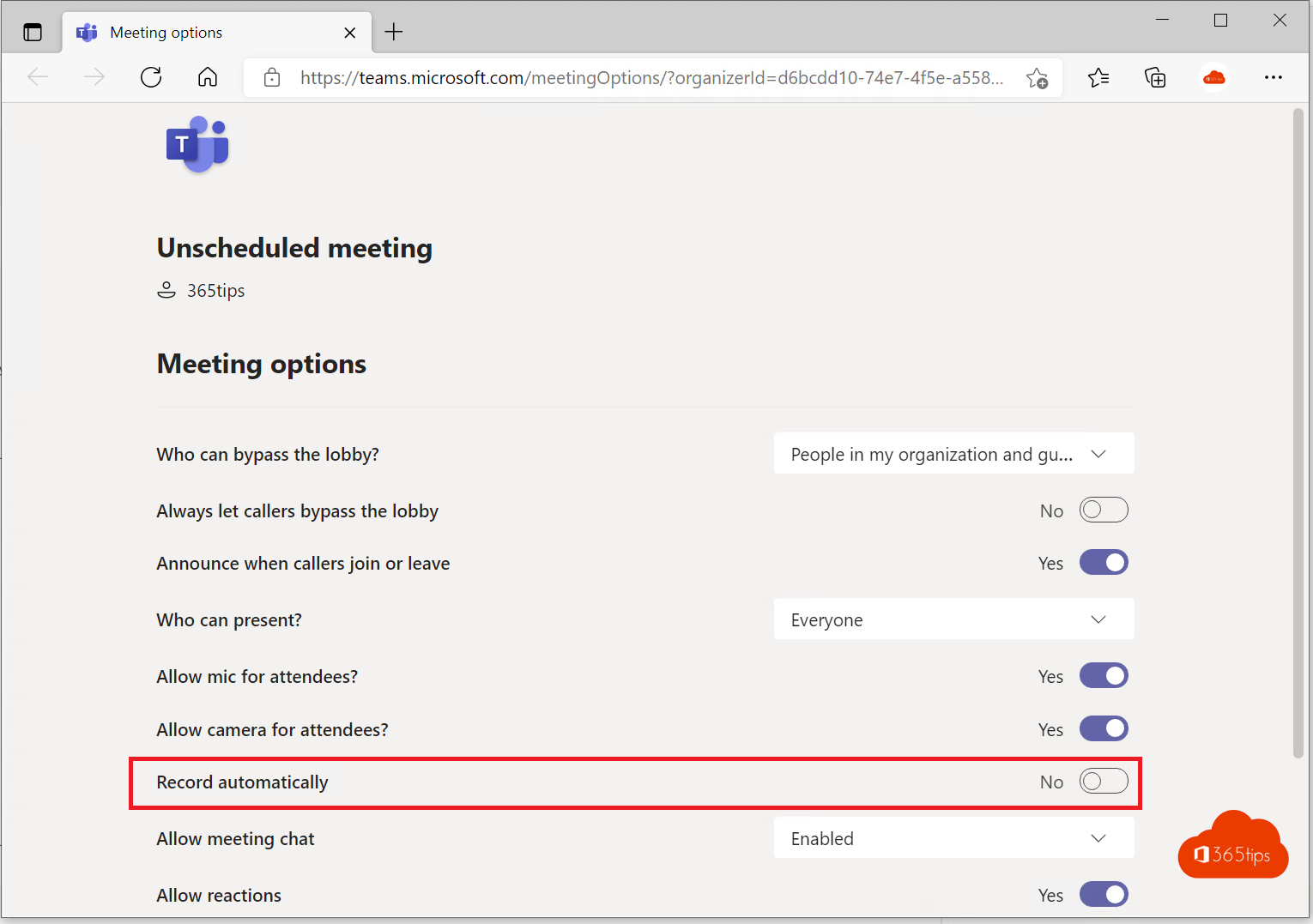
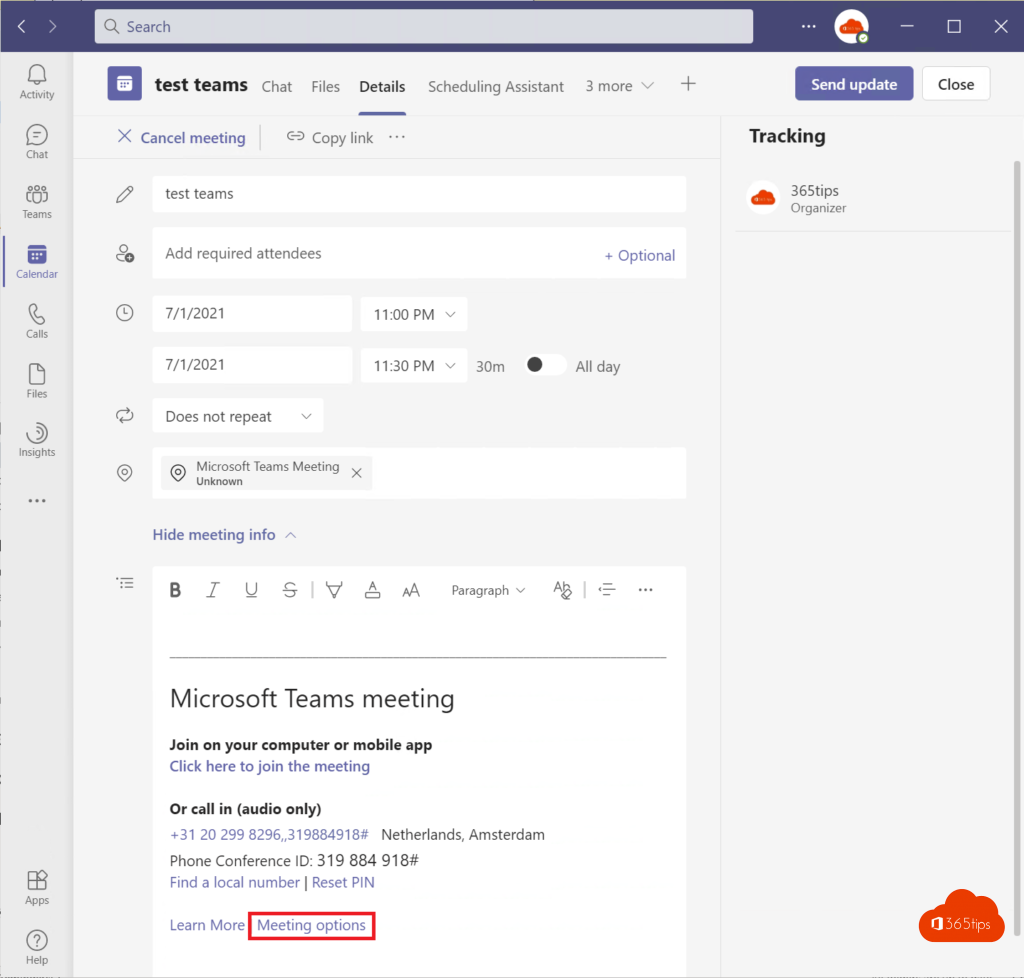
- Open the meeting in your Teams calendar (or in Outlook) and click Meeting options. During a meeting you'll find it under ... > Settings > Meeting options.
- Go to the Recording & transcription section.
- Turn on Record and transcribe automatically.
- Click Save.
You set this per meeting. For a recurring series the setting applies to every meeting in the series. For webinars and town halls the option is on by default.
Who can start and view the recording?
- Recording starts as soon as the first person with recording rights joins.
- In meeting options, under Who can record and transcribe, choose whether only organizers and co-organizers may do so, or presenters too.
- Everyone in the meeting sees a notice that it is being recorded.
Option missing? What the administrator must do
The option only appears if the meeting policy allows recording. A Teams administrator checks this in the Teams admin center under Meetings > Meeting policies: Meeting recording and Transcription must be on.
An administrator can also enable automatic recording for certain users or groups with PowerShell:
Connect-MicrosoftTeams
Set-CsTeamsMeetingPolicy -Identity "Training" -AutoRecording Enabled
Even then the organizer has to turn the option on per meeting. A meeting template can switch it on by default; organizers need a Teams Premium licence for assigned templates.
Where is the recording saved?
- Regular meeting: in the OneDrive of the organizer (or whoever started the recording), in the Recordings folder.
- Channel meeting: in the team's SharePoint site, in the channel's Recordings folder.
You also find the recording in the meeting chat and on the meeting's Recordings & transcripts tab in your calendar.

How long is a recording kept?
New recordings get a default expiration of 120 days. After that they go to the recycle bin. You can change the expiration per recording in the file details, and an administrator can change the default.
Note: consent and privacy
A recording contains personal data: voices, images and names. Under the GDPR you must inform attendees and have a valid reason to record. Mention in the invitation that the meeting will be recorded, and ask external attendees for consent in advance. Don't record confidential conversations, such as performance reviews, automatically.
Tips
- Transcript without video: if you only want notes, turn on transcription only. With Microsoft 365 Copilot or Teams Premium you also get an automatic summary.
- Recording started but nobody stays: recording stops automatically when everyone leaves.
- Recorded by mistake? Delete the recording in OneDrive or SharePoint; it then disappears from the chat too.
Read also
How to schedule a chat message in Microsoft Teams
How to restore deleted files in Microsoft Teams and SharePoint
Black screen when sharing your screen in Microsoft Teams: causes and fixes
Nederlandstalige versie: Een Teams-vergadering automatisch opnemen en transcriberen vanaf de start