A colleague couldn't make it, or you want to watch a training again later? A recording of your Teams meeting captures video, audio and shared screens, together with a transcript. This article shows how to record, where the recording ends up and how to share it.
Record a meeting
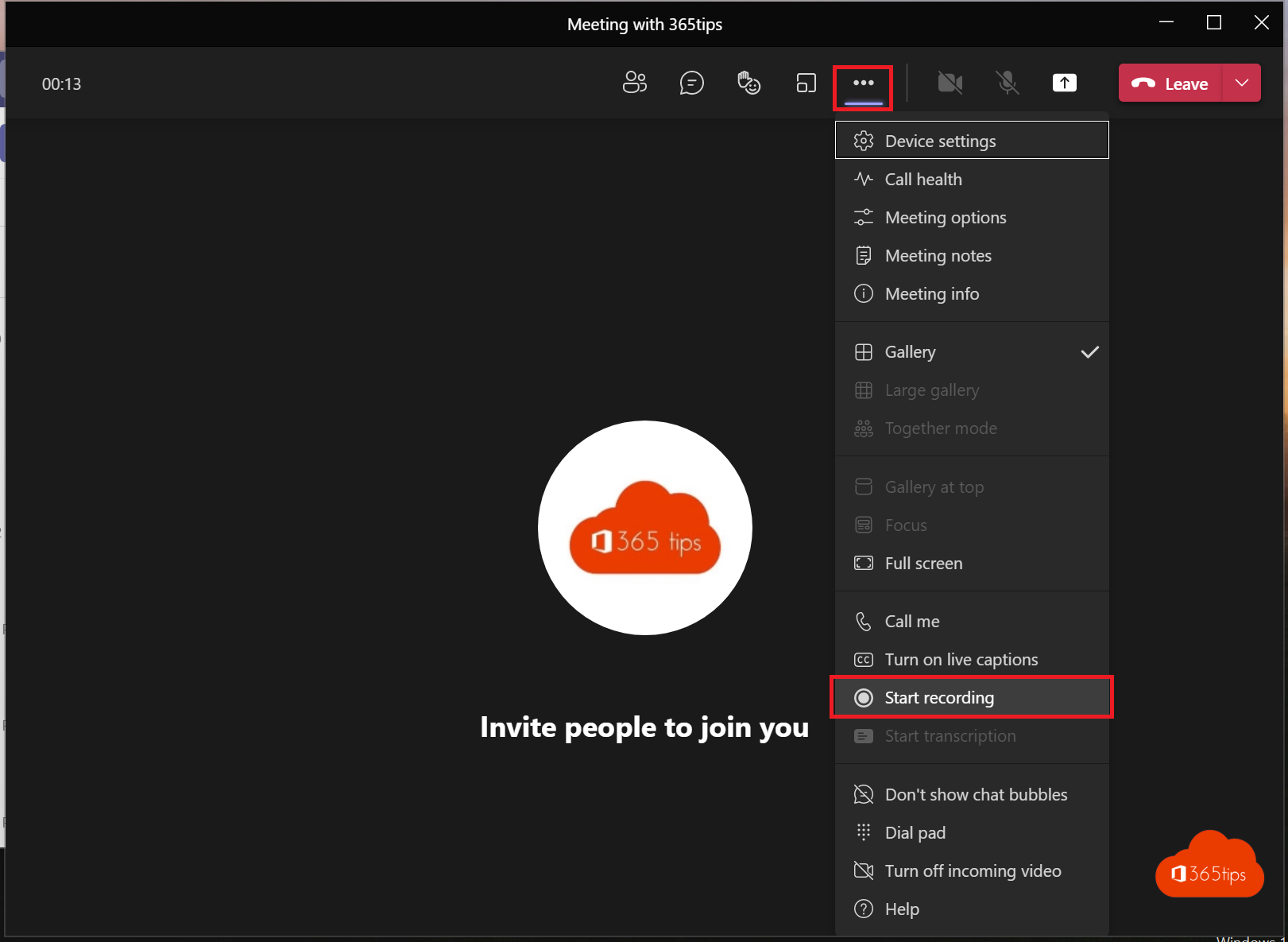
- In the meeting, select More (...) > Record and transcribe > Start recording.
- All attendees get a notification that the meeting is being recorded.
- Stop via More > Record and transcribe > Stop recording, or the recording stops when everyone has left.
Want every meeting recorded automatically? Read record meetings automatically.

Who can record?
- Organizers, co-organizers and presenters from your own organisation, if the meeting policy allows recording.
- Guests and anonymous attendees can't record.
- The organizer can choose in meeting options who may record.
Where is the recording stored?
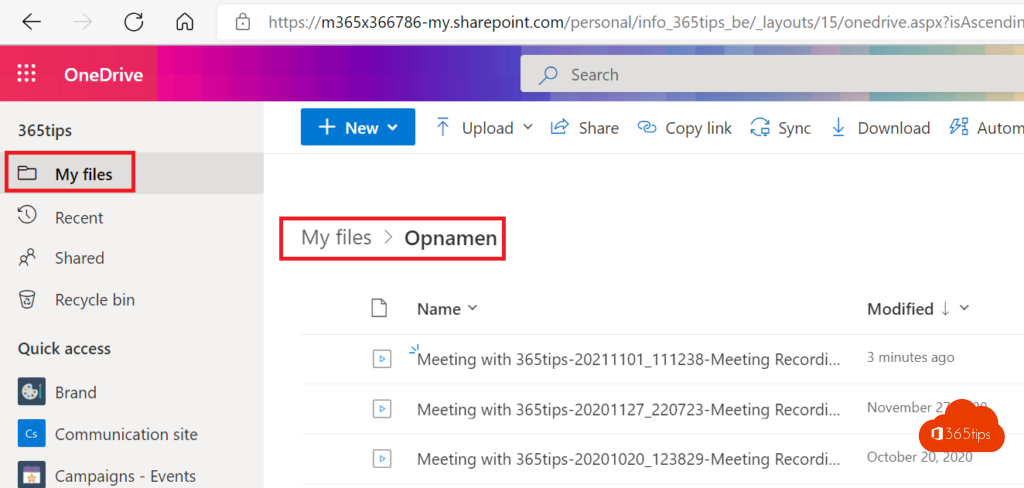
- Regular meeting: in the OneDrive of the person who started recording, in the Recordings folder.
- Channel meeting: in the channel's SharePoint library, in the Recordings folder.
- You'll also find it in the meeting chat and on the Recordings and transcripts tab of the meeting in your calendar.
Share it
Everyone who was invited gets access automatically. To share with others, open the recording and select Share, as with any OneDrive file. You can also play it faster: read change playback speed.
Note: recordings expire
Recordings get an expiration date by default and are then moved to the recycle bin. To keep one longer, change the date. Read change a recording's expiration date.
AI summary
With a Copilot or Teams Premium licence you get a summary, chapters and action items from the transcript after the meeting. Read recordings, transcripts and AI in Teams.
Nederlandstalige versie: Een Microsoft Teams-vergadering opnemen, terugvinden en delen