Teams meeting recordings disappear automatically after a while. That saves storage, but it's annoying when you want to keep a training session or customer presentation longer. This article shows how long a recording is kept by default, how to change or turn off the expiration of one recording, how an administrator changes the default for the whole organization, and how to recover an expired recording.
How long is a recording kept?
- New recordings expire after 120 days by default, unless your administrator set something else.
- Before the expiration date a notice appears in the meeting chat.
- On the expiration date the recording is deleted and the owner gets an e-mail.
- The recording is then still in the OneDrive or SharePoint recycle bin, where you can restore it.
A recording of a regular meeting is stored in the OneDrive of whoever started it; a channel meeting recording is stored in the team's SharePoint site. See also how to record a Teams meeting automatically.
Change the expiration of one recording
- Open the meeting chat and click the recording, or find it in OneDrive (Recordings folder).
- The recording opens in Stream. Click the i icon (Details) at the top right, or the video's Settings.
- Under Expiration date, choose a new date, a number of days, or No expiration.
- The change is saved immediately.
Only the organizer, whoever started the recording and people with edit rights on the file can change the expiration. Others should ask the owner.


Change the default for the organization
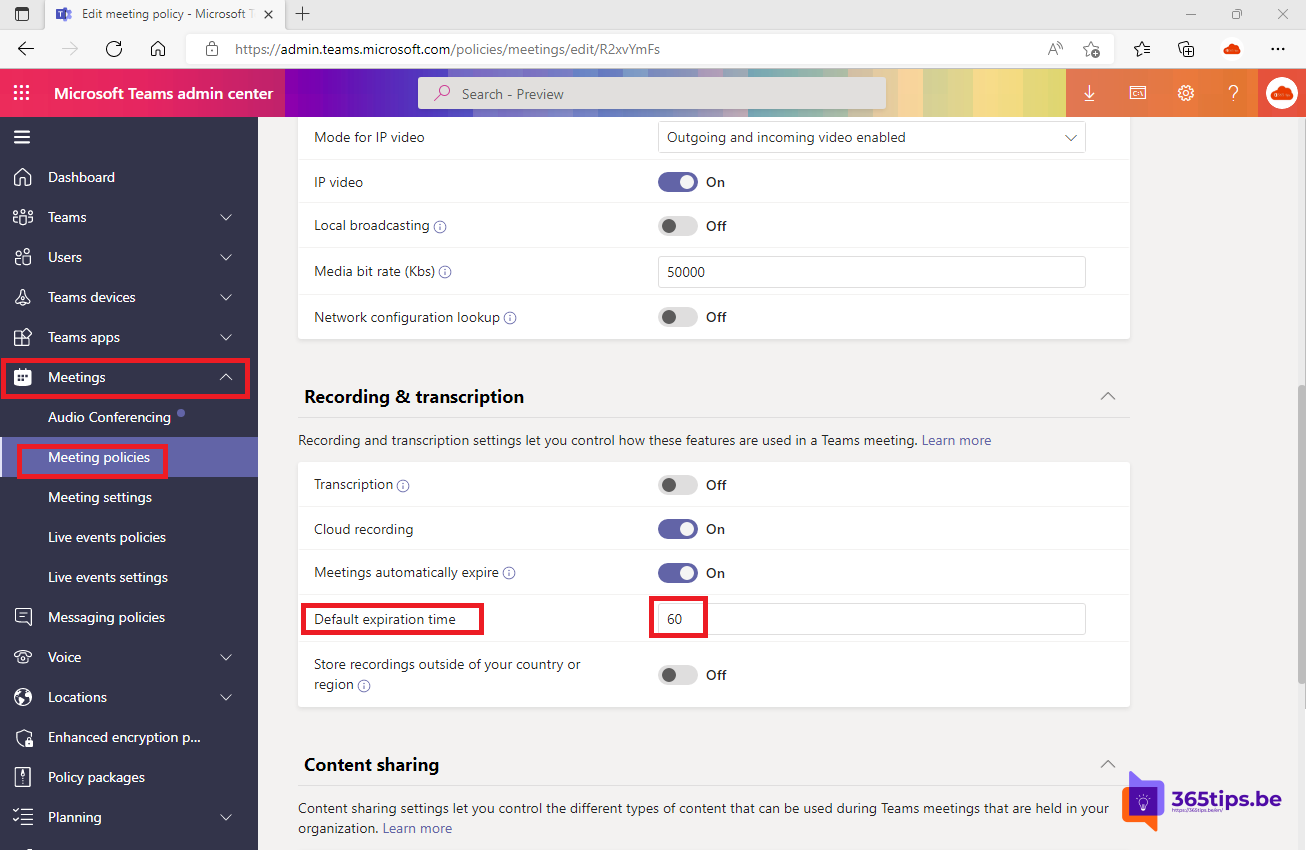
A Teams administrator decides how long new recordings are kept by default:
- Go to the Teams admin center > Meetings > Meeting policies.
- Open the policy, for example Global (Org-wide default).
- Go to Recording & transcription.
- Keep Meetings automatically expire on and enter the number of days, or turn it off so recordings never expire.
- Click Save.
With PowerShell:
Connect-MicrosoftTeams
Set-CsTeamsMeetingPolicy -Identity Global -NewMeetingRecordingExpirationDays 365
# Never expire:
Set-CsTeamsMeetingPolicy -Identity Global -NewMeetingRecordingExpirationDays -1
You can choose 1 to 99,999 days. The new setting only applies to new recordings; existing recordings keep their expiration date.
Recover an expired recording
- Open OneDrive (or the team's SharePoint site) in the browser.
- Click Recycle bin.
- Select the recording and click Restore.
A restored recording no longer expires automatically. Read more in how to restore deleted files in Teams and SharePoint.
Tips
- Keep important recordings in a fixed place, such as a SharePoint library for training, and turn off expiration there.
- Retention policies in Microsoft Purview take precedence: if your organization must keep recordings longer, they are kept even after the expiration date.
- Storage: recordings count towards the owner's OneDrive storage. Clean up old recordings if your OneDrive is filling up.
- Privacy: don't keep recordings longer than needed; they contain personal data.
Read also
How to record and transcribe a Teams meeting automatically from the start
How to restore deleted files in Microsoft Teams and SharePoint
How to change the OneDrive storage of a single user
Nederlandstalige versie: De vervaldatum van een Microsoft Teams-opname wijzigen