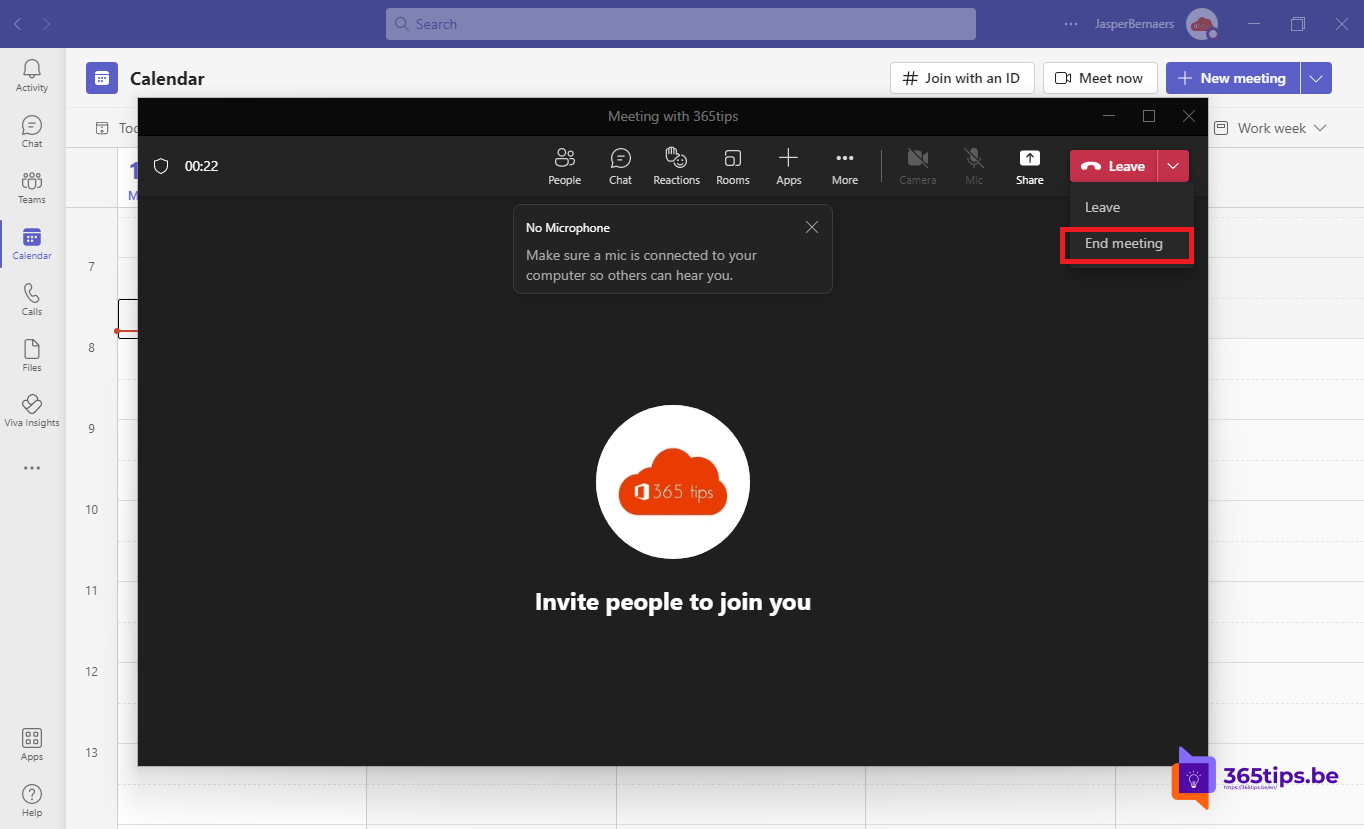
When the organizer selects Leave, the Teams meeting simply continues for everyone else. Students or attendees can keep chatting, talking or even recording. With End meeting you stop the meeting for everyone in one click. This article shows where that button is, who can use it and how to prevent attendees from carrying on without you.
End a meeting for everyone
- In the meeting, select the arrow next to Leave.
- Choose End meeting.
- Confirm with End.
Everyone is removed from the meeting immediately. Any running recording and transcription stop too, and the chat stays available in the meeting chat.

Who can end the meeting?
- The organizer and any co-organizers.
- In a channel meeting or a Meet now session, the person who started it has that role.
- Presenters and attendees don't see the option. If the arrow is missing, check your role in the participant list.
With breakout rooms
Using breakout rooms? Close them first via Rooms > Close. Attendees return to the main meeting. Then end the main meeting for everyone.
Stop attendees from continuing alone
- In meeting options, set Who can bypass the lobby to Only organizers and co-organizers so no one can start before you. Read who can bypass the lobby.
- Lock the meeting once everyone has joined.
- Schools can turn off Meet now for students so they can't start a meeting in a channel themselves.
- Meetings that are accidentally left open are ended automatically by Teams after a while.
Tip
Download the attendance report if you want to know who stayed until the end. It's also available afterwards in the meeting's Attendance tab.
Read also
Lock a Microsoft Teams meeting
The co-organizer role in a Microsoft Teams meeting
Track attendance with the Microsoft Teams attendance report
Nederlandstalige versie: Een Teams-vergadering voor iedereen tegelijk beëindigen