In a workshop, class or brainstorm, small groups often work better. With breakout rooms you split a Teams meeting into separate rooms and bring everyone back together afterwards. This article shows how to create rooms, assign attendees and manage the rooms.
Create rooms
- Start the meeting as organizer and select Rooms at the top.
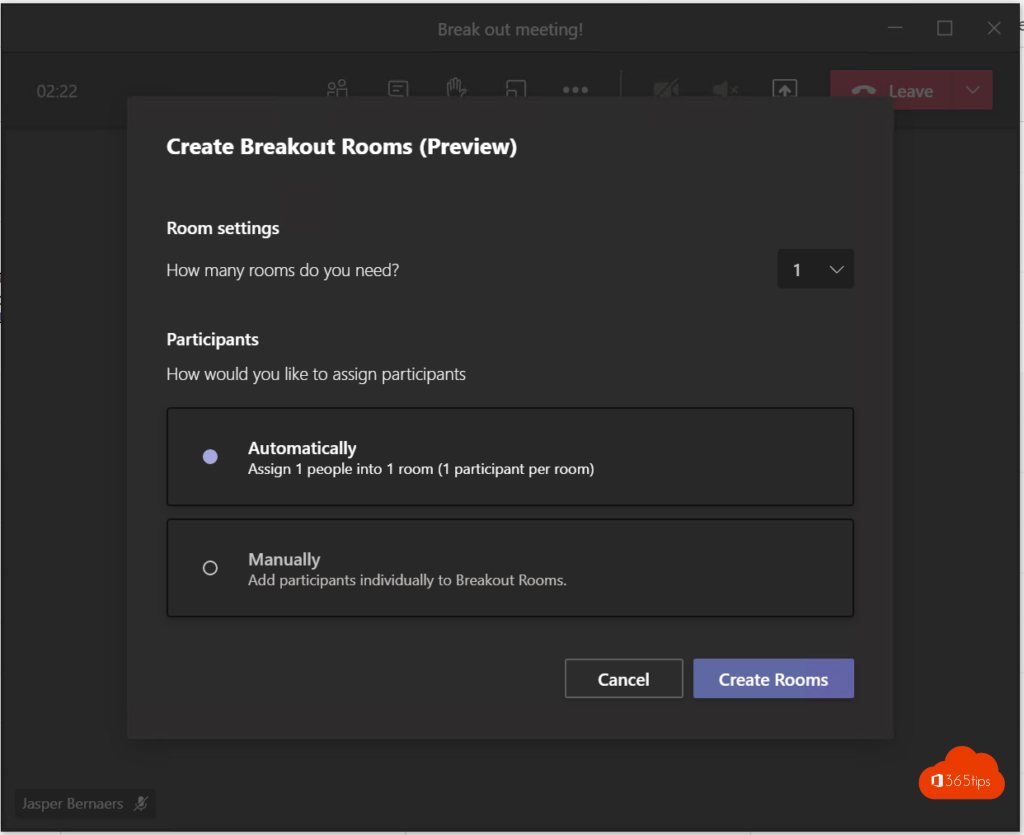
- Choose the number of rooms (up to 50).
- Choose Automatically (Teams assigns attendees) or Manually (you choose).
- Select Create rooms.
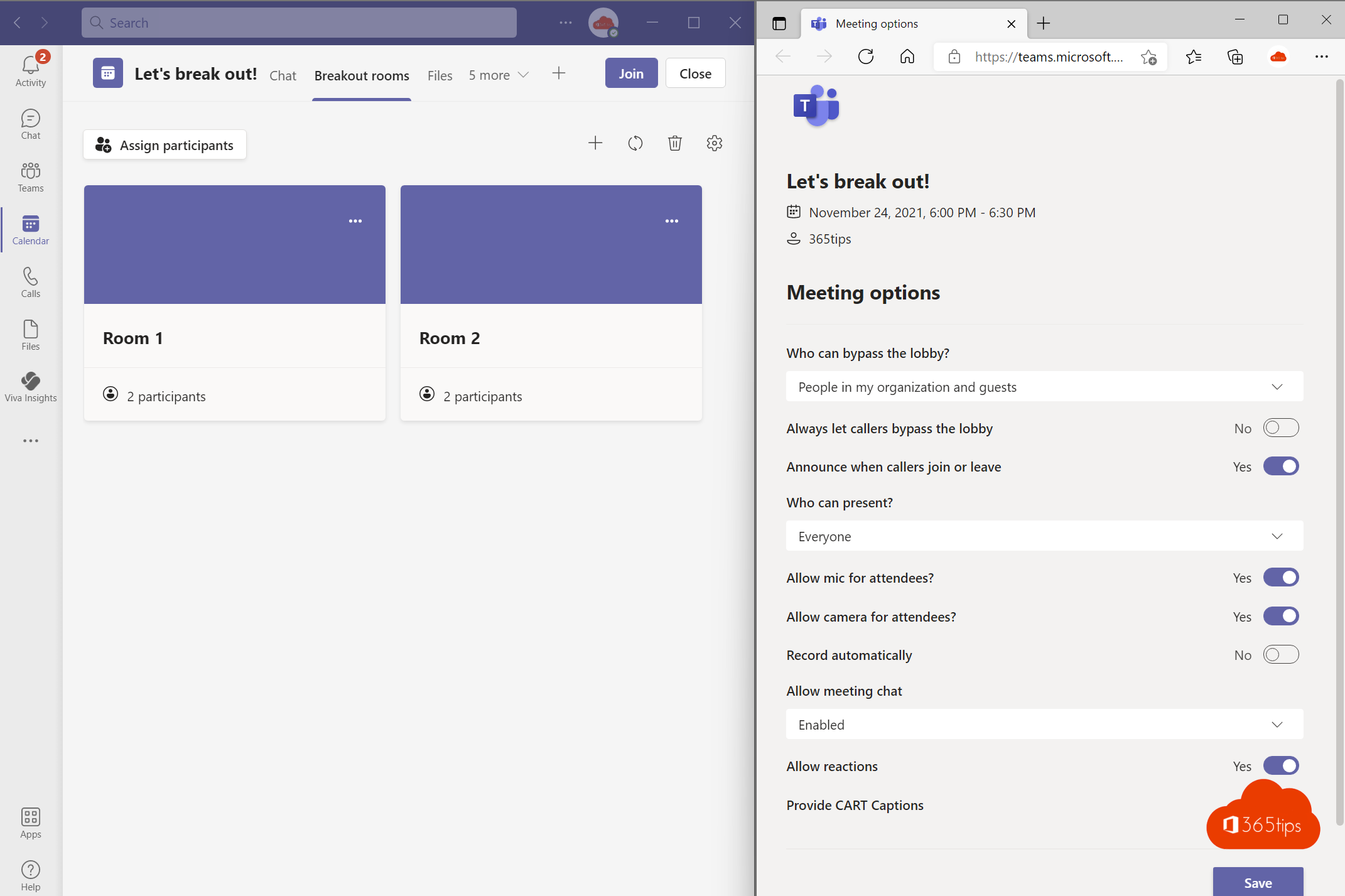
You can also create rooms in advance: open the meeting in your calendar and choose the Breakout rooms tab. You can already assign the people you invited.
Settings
In the Rooms pane, select the three dots > Rooms settings:
- Assign presenters to manage rooms: colleagues help you manage.
- Automatically move people into opened rooms: attendees don't need to click.
- People can return to the main meeting.
- Set a time limit: when it ends, everyone returns automatically.
During the session
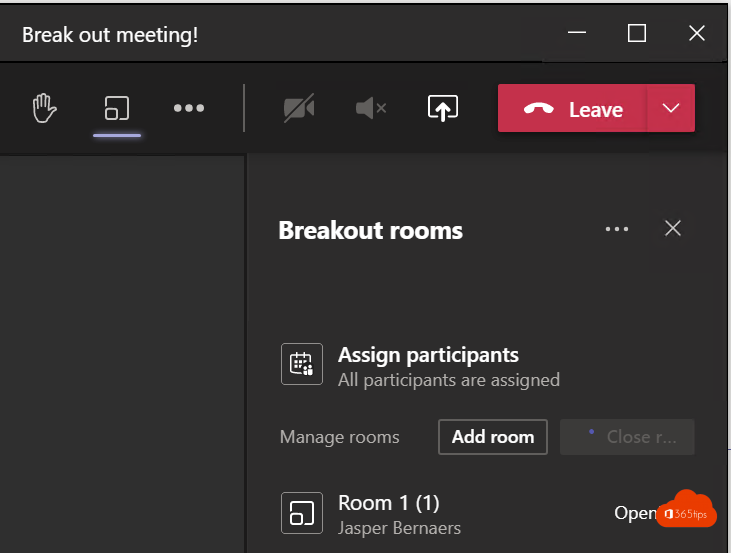
- Select Open rooms to start the groups.
- Send an announcement to all rooms, such as 5 minutes left.
- Join a room yourself via More options > Join room.
- Select Close rooms to bring everyone back.
Each room has its own chat. Files and notes remain available afterwards.
Reuse rooms
In a recurring meeting, rooms and assignments are kept. Want to start fresh? Choose Recreate rooms.
Good to know
- Breakout rooms work in meetings of up to 300 attendees, not in webinars and town halls.
- You need the desktop app to create and manage rooms.
- Not the organizer? Become a co-organizer or room manager.
- Collaborate visually in each room with Microsoft Whiteboard.
Read also
The co-organizer role in a Microsoft Teams meeting
Use Microsoft Whiteboard in Teams channels and meetings
Schedule and host a webinar with Microsoft Teams
Nederlandstalige versie: Alles over breakout rooms in Microsoft Teams