Running a large meeting, a training or a webinar? Then you want to share the work: someone to watch the lobby, moderate the chat or start the recording while you present. With the co-organizer role you give colleagues almost the same rights as the organizer. This article shows how to add co-organizers, what they can do and how they differ from presenters.
Add co-organizers
- Create the meeting and invite the colleagues who'll be co-organizers. Save the meeting.
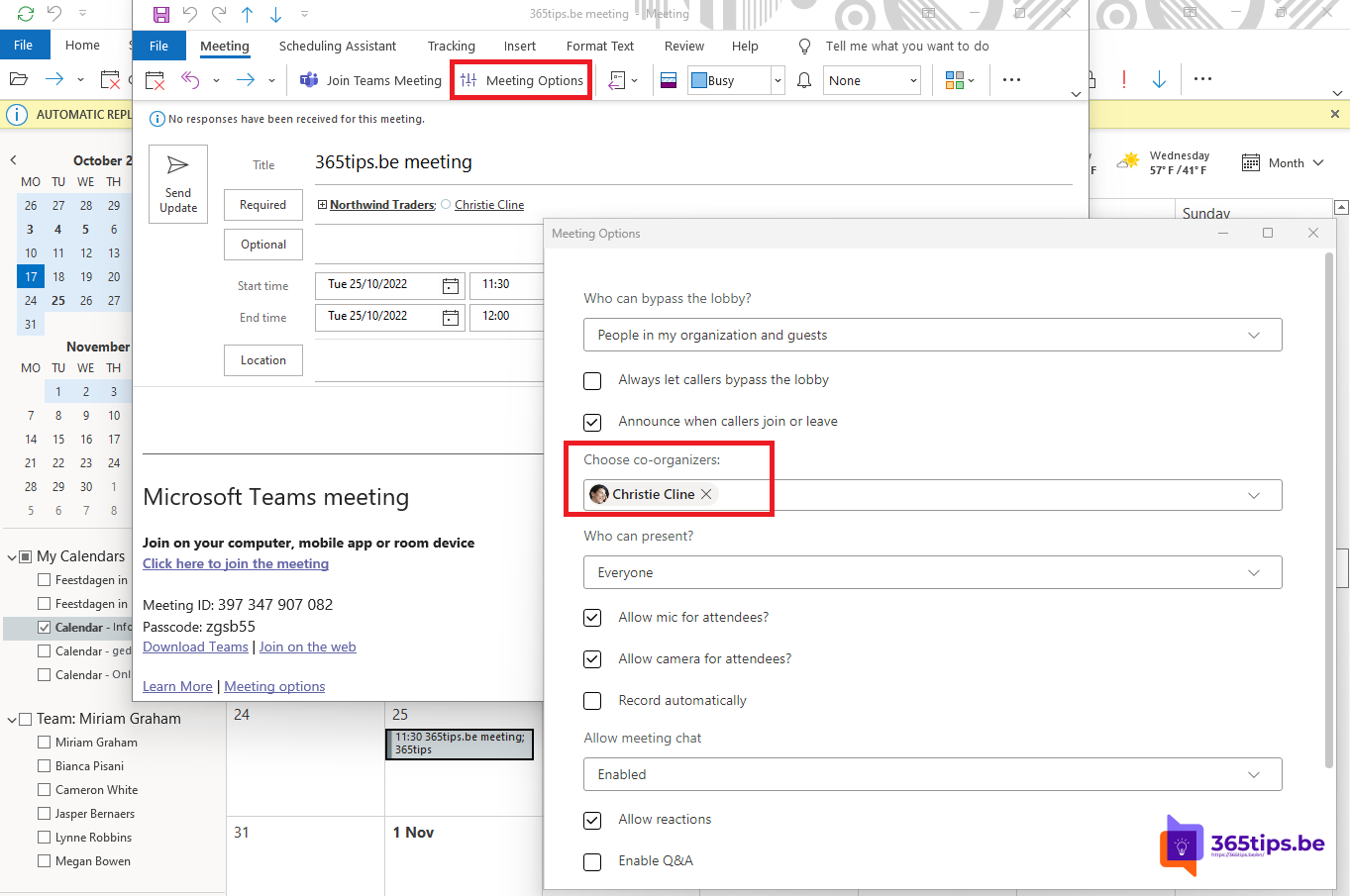
- Open the meeting in your Teams calendar and select Options (Meeting options).
- Under Choose co-organizers, pick people from the list of invitees.
- Select Save.
You can name up to 10 co-organizers. They must be invitees with an account in your organization.

What can co-organizers do?
- Change meeting options, such as the lobby, who can present and the chat.
- Admit people from the lobby and mute or remove participants.
- Start recording and transcription.
- Manage breakout rooms, if the organizer allows it.
- View the attendance report.
- Lock the meeting and end it for everyone.
Co-organizers can't edit the invitation itself (time, subject, attendees) or remove the organizer.
All roles compared
| Role | Present | Change options | Manage lobby | Edit invitation |
|---|---|---|---|---|
| Organizer | Yes | Yes | Yes | Yes |
| Co-organizer | Yes | Yes | Yes | No |
| Presenter | Yes | No | Yes | No |
| Attendee | No | No | No | No |
Change a role during the meeting
Select People, hover over a name and select ... > Make a presenter or Make an attendee. Co-organizers are set through meeting options.

Tips
- For large meetings always add at least one co-organizer, in case your connection drops.
- Let a co-organizer moderate Q&A and the chat.
- Scheduling on behalf of a colleague? Make them co-organizer instead of creating the meeting from their calendar. See also lock a Teams meeting.
Read also
Lock a Microsoft Teams meeting
Track attendance with the Microsoft Teams attendance report
Who can bypass the lobby in Microsoft Teams: every option explained
Nederlandstalige versie: De rol van medeorganisator in een Microsoft Teams-vergadering