Not everyone in IT needs to be a Global Administrator. Someone who only resets passwords, manages Teams or looks at invoices is fine with a limited admin role. That limits the damage if an account is compromised, and it's a requirement in virtually every security audit. This article covers the main roles, how to assign them in the Microsoft 365 admin center and how to grant roles only temporarily with Privileged Identity Management.
The most used roles
| Role | Can | Give to |
|---|---|---|
| Global Administrator | Everything | 2 to 4 people, not for daily work |
| Global Reader | See everything, change nothing | Auditors, consultants, report viewers |
| User Administrator | Manage users and groups, reset passwords (not of admins) | Service desk tier 2 |
| Helpdesk Administrator | Reset passwords of regular users | Service desk tier 1 |
| Exchange Administrator | Mailboxes, mail flow | Mail team |
| Teams Administrator | Teams admin center, meeting policies | Teams or collaboration team |
| SharePoint Administrator | Sites, OneDrive, sharing | Intranet admins |
| Billing Administrator | Subscriptions, invoices, payments | Finance |
| License Administrator | Assign licenses | HR or service desk |
| Security Administrator | Defender, security policies | Security team |
Assign a role in the admin center
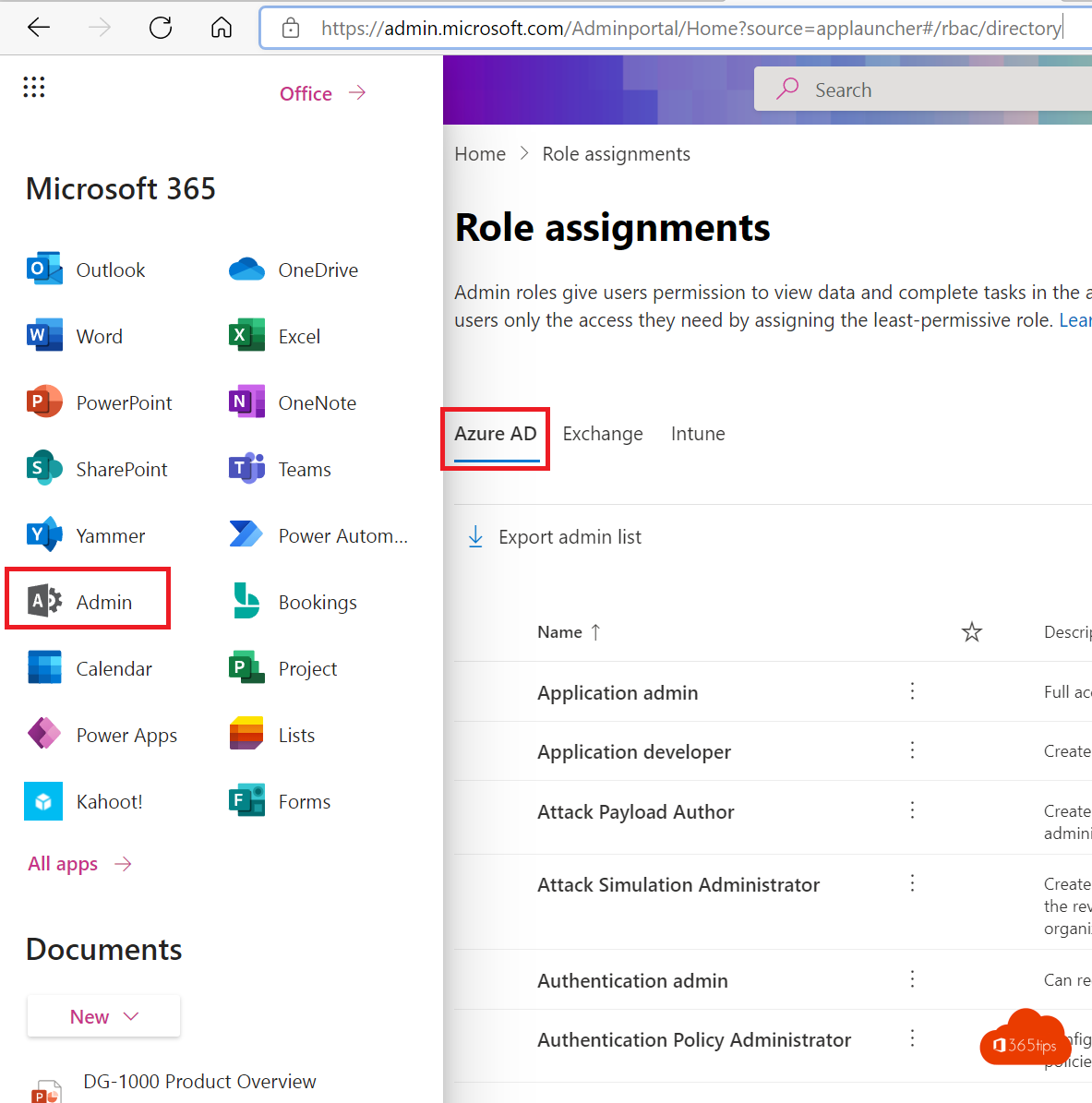
- Go to the Microsoft 365 admin center > Roles > Role assignments.
- Choose the Microsoft Entra ID tab and select the role, for example Helpdesk Administrator.
- Select Assigned > Add users or Add groups.
- Pick the people and select Add.
Per user it works too: Users > Active users > user > Manage roles. There you immediately see which roles someone has.

Least privilege in practice
- Give each admin a separate admin account (for example adm-ann.peeters) without a mailbox, and keep their daily account free of admin roles.
- Use Global Reader for people who only need to look.
- Require MFA for all admins, preferably phishing-resistant. See passwordless sign-in.
- Keep two emergency access accounts with Global Administrator, with a long password in a vault, and monitor their sign-ins.
- Review every quarter who has which role: Roles > Role assignments or with Get-MgDirectoryRoleMember.
Grant roles temporarily with PIM
With Privileged Identity Management (Entra ID P2 or ID Governance) an admin is only eligible for a role. When they need it, they activate it themselves for, say, four hours, with a reason and optional approval. The role then expires automatically. Outside those moments there are no active Global Administrators to abuse. Set it up in the Microsoft Entra admin center > ID Governance > Privileged Identity Management.
Limit rights to a department
With administrative units you can, for example, give a school's service desk rights over only that school's students and teachers, not the whole organization.
Read also
Security defaults in Microsoft Entra ID: what they do and how to enable them
Enable passwordless sign-in in Microsoft 365 in 3 steps
All Microsoft 365 admin portals in one list: the right URLs in 2026
Nederlandstalige versie: Beheerdersrollen toewijzen in Microsoft 365