Every month all your Windows devices download the same updates, apps and Office packages. If each device does that separately over the internet, your network fills up fast. Delivery Optimization lets devices share those files with each other. In Microsoft Intune you configure it centrally. This article gives you a good starting point.
What is Delivery Optimization?
Delivery Optimization is a peer-to-peer technology built into Windows. A device that already has an update passes pieces of it on to other devices nearby. It works for Windows updates, Microsoft Store apps, Microsoft 365 Apps and Intune Win32 apps. You save bandwidth, especially at sites with many devices. This article assumes Windows 11, since Windows 10 reached end of support on 14 October 2025.

Create a profile in Intune
- Go to the Microsoft Intune admin center (intune.microsoft.com).
- Select Devices > Configuration > Create > New policy.
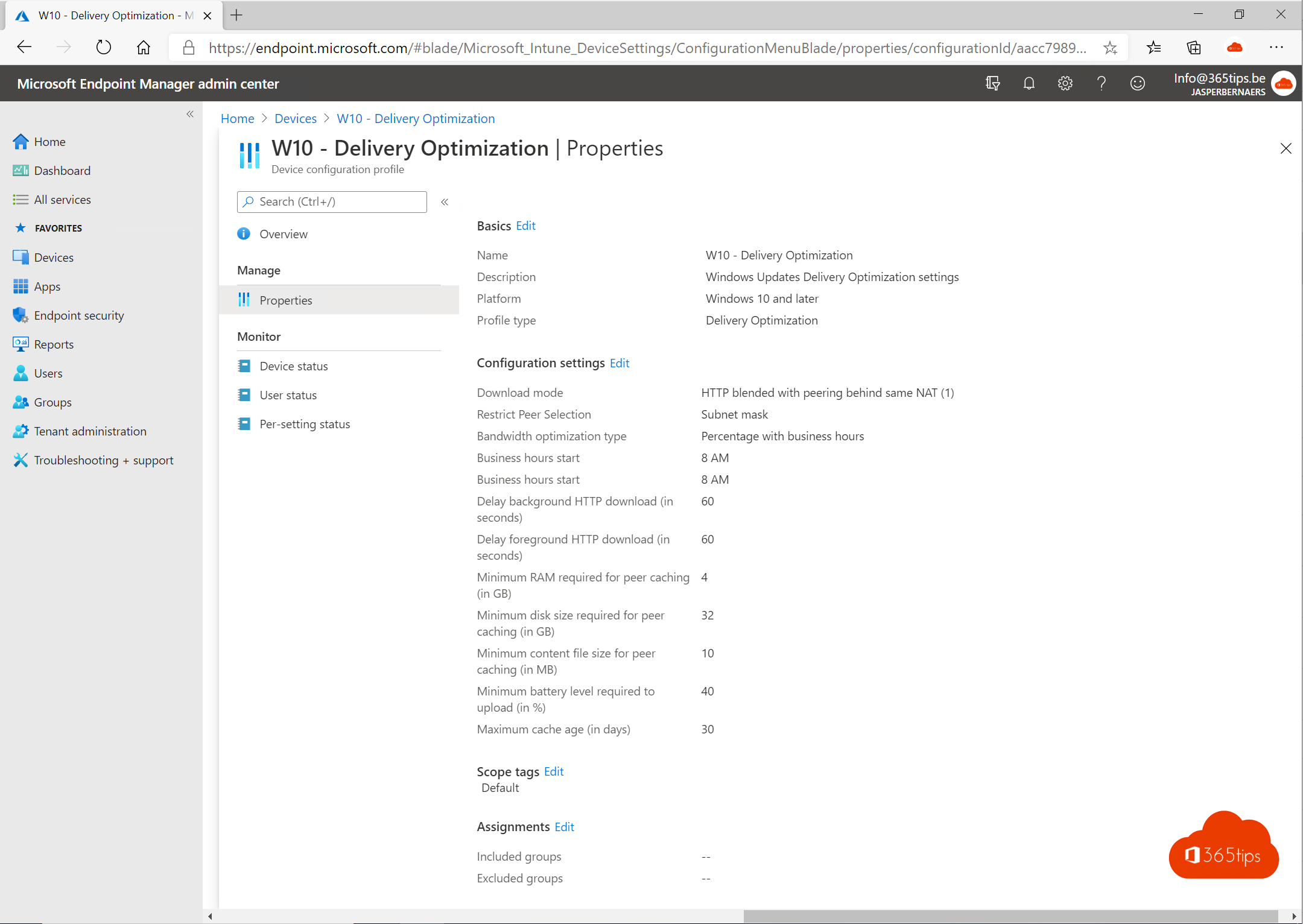
- Platform: Windows 10 and later. Profile type: Templates > Delivery Optimization. The same settings are also in the Settings catalog.
- Configure the settings (see below) and assign the profile to a group of devices.
A good starting point
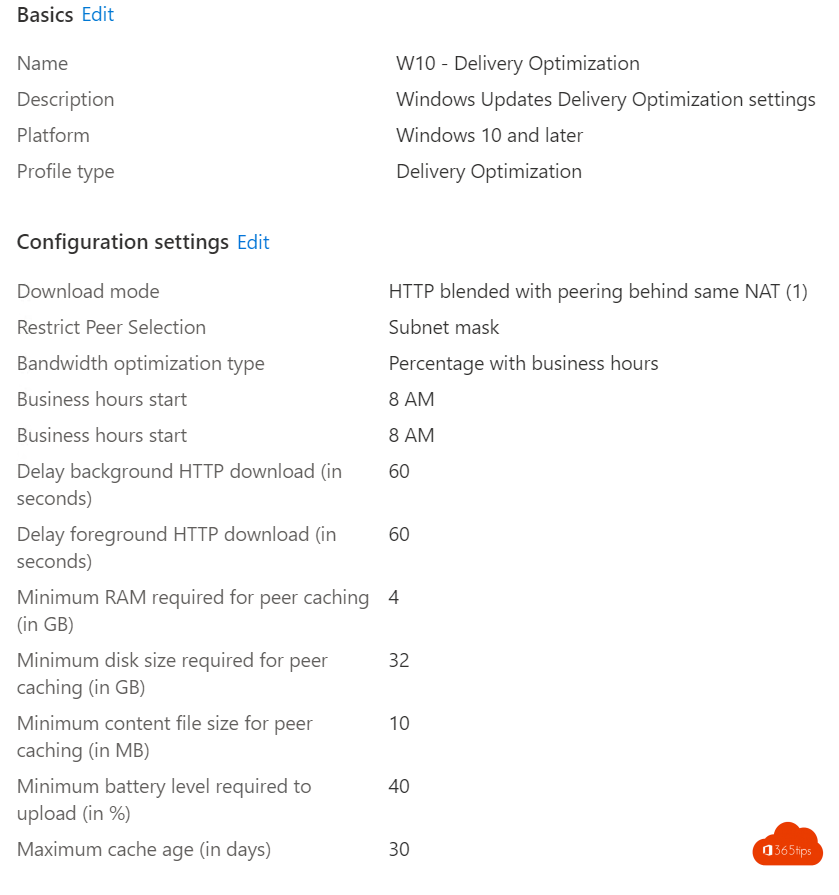
There's no universal best setting; it depends on your network. These values are a safe start:
| Setting | Starting value | Why |
|---|---|---|
| Download mode | HTTP blended with peering behind same NAT (1) | Devices on the same network share with each other. This is the default. |
| Alternative | HTTP blended with peering across a private group (2) | For multiple subnets at one site. Also set a group ID source, for example the AD site or a custom ID. |
| Bandwidth | Limit the percentage for background downloads during business hours | Updates don't slow down work. Outside business hours they can go faster. |
| Minimum RAM and disk size for peer caching | Keep the defaults or raise them slightly | Weaker devices then don't act as a source. |
| Peering over VPN | Off | Remote workers don't pull data from each other through the VPN tunnel. |
Avoid the old Bypass mode; Microsoft discourages it. If you don't want peering at all, choose HTTP only (0).
Microsoft Connected Cache
Large sites or slow WAN links? With Microsoft Connected Cache you deploy a local cache server that downloads updates and apps once and distributes them locally. Check Microsoft's documentation for the variant and requirements that fit your situation.
Monitor
- On a device: Settings > Windows Update > Advanced options > Delivery Optimization > Activity monitor.
- With PowerShell:
Get-DeliveryOptimizationStatusandGet-DeliveryOptimizationPerfSnap. - Centrally: the Windows update reports also include Delivery Optimization data.
Also see manage Windows updates with Intune and limit data usage in Windows 11.
Read also
Keep all Windows PCs up to date with Microsoft Intune
Limit your mobile data usage in Windows 11
The basic settings to start using Microsoft Intune
Nederlandstalige versie: Delivery Optimization instellen in Microsoft Intune: een goed startpunt