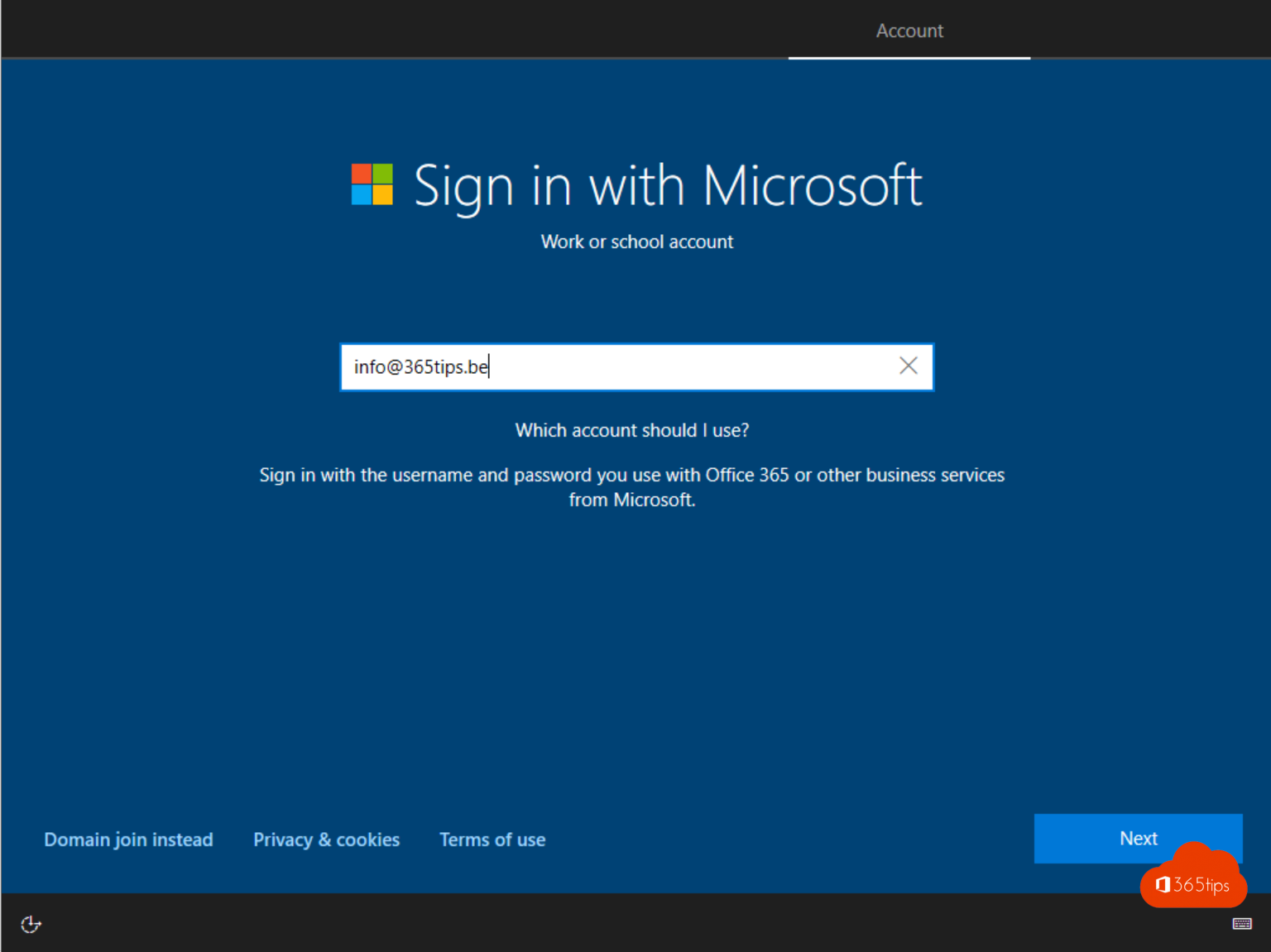
Want a new or reinstalled PC in Microsoft Intune right away? Install Windows 11 and sign in with your work account during the first setup. The PC then joins Microsoft Entra ID and Intune takes over management: policies, apps and updates arrive by themselves. Windows 10 reached end of support on 14 October 2025, so this article uses Windows 11.
Get ready first
- Hardware: the PC must meet the Windows 11 requirements, such as TPM 2.0 and Secure Boot.
- Edition: Windows 11 Pro, Enterprise or Education. Home can't join Entra ID.
- Automatic enrollment: in Intune, under Devices > Enrollment > Windows > Automatic Enrollment, set the MDM user scope to All or a group.
- License: the user has a license that includes Intune, for example Microsoft 365 Business Premium or E3.

1. Install Windows 11
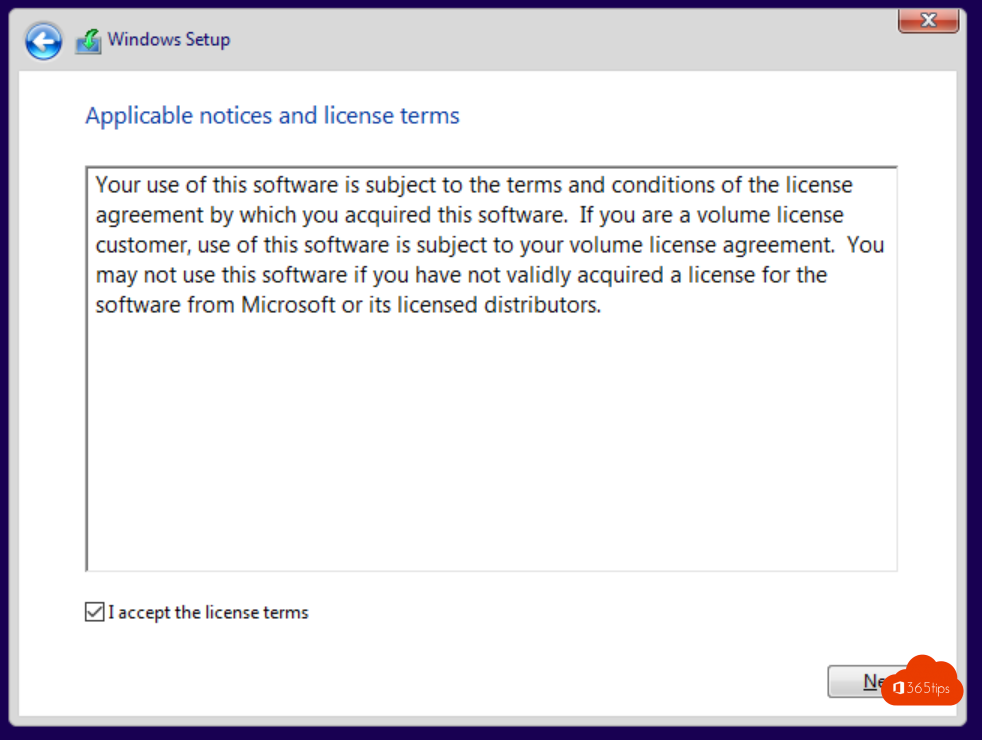
- Boot the PC from a Windows 11 USB drive or ISO and press any key.
- Choose the language, time and currency format, and keyboard.
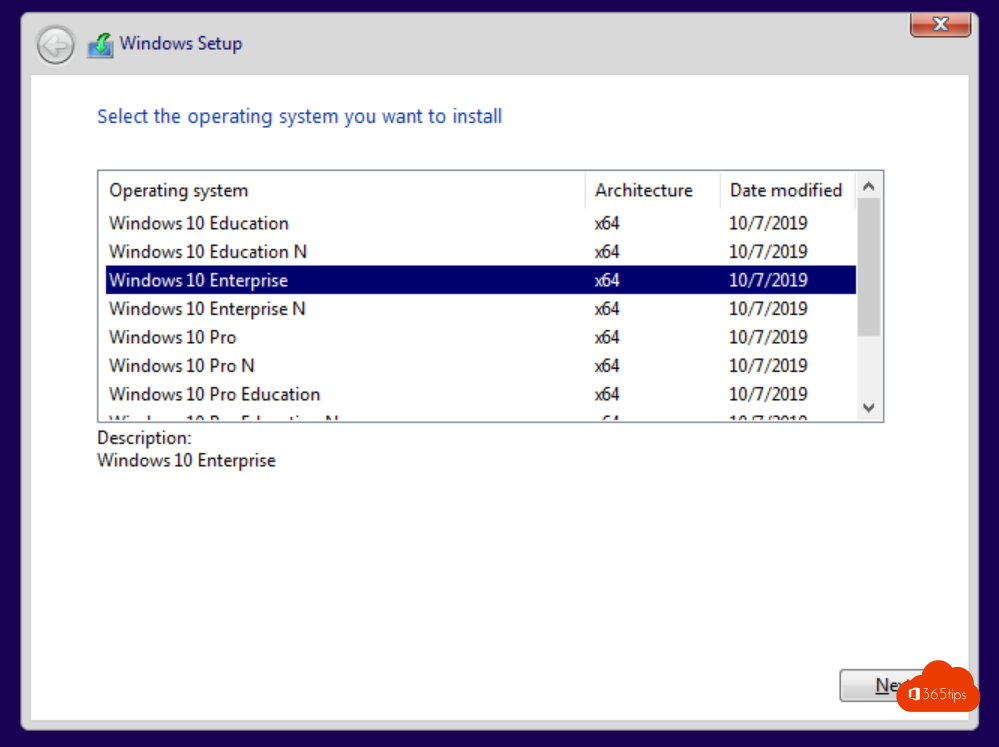
- Choose the edition you're licensed for, for example Windows 11 Pro.
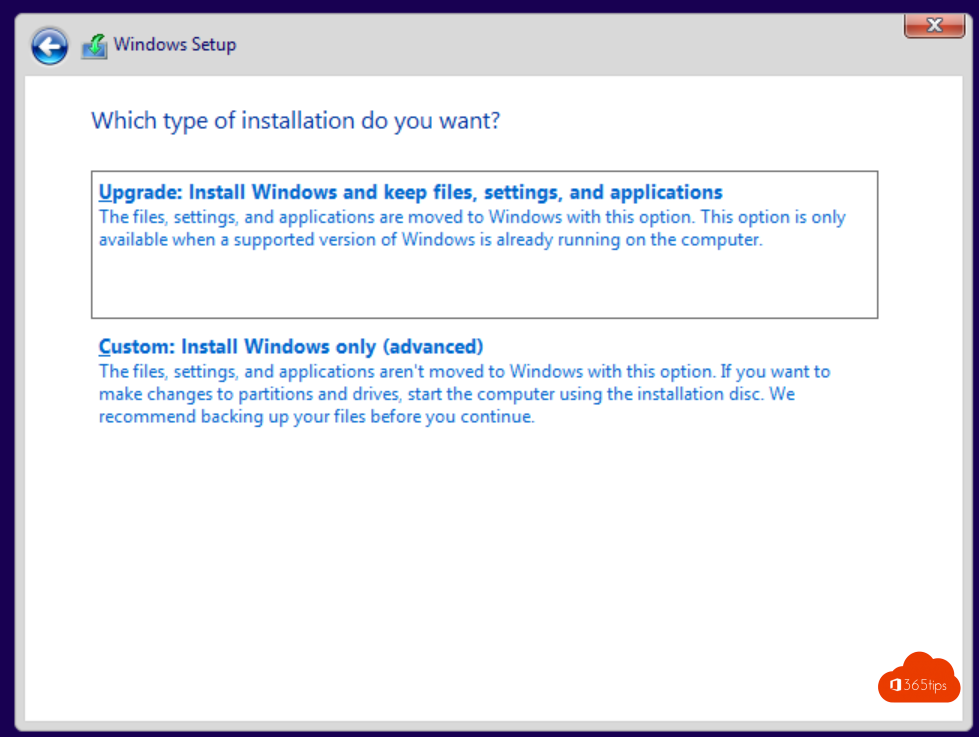
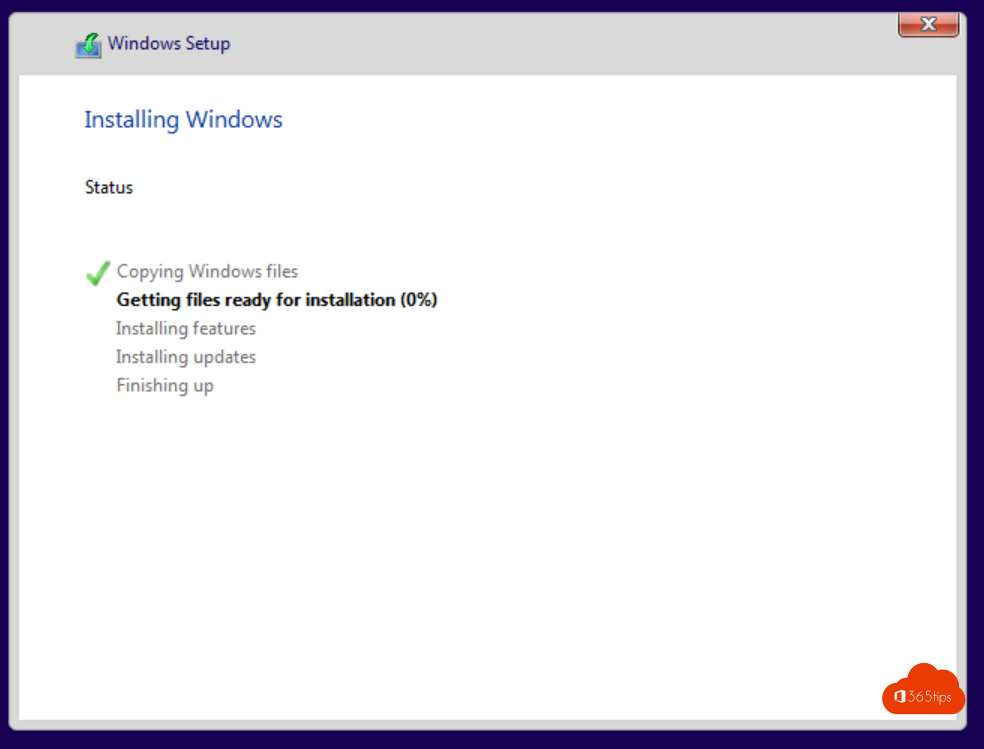
- Choose Custom, select the drive and let the installation run.
2. Complete the first setup
- Choose your country or region.
- Choose your keyboard layout.
- Connect to a network. Windows then checks for updates.
- Choose Set up for work or school if Windows asks.
- Sign in with your work account and password.
- Approve the MFA request.
- Set up a Windows Hello PIN.
3. Check
- On the PC: Settings > Accounts > Access work or school. You'll see Connected to Entra ID and can start a sync via Info.
- In Intune: Devices > Windows. The PC is in the list.
From now on you sign in to Microsoft 365 with single sign-on, and policies, apps and updates arrive automatically.
Even faster with Autopilot
Rolling out more PCs? Use Windows Autopilot. The PC recognizes your organization on first boot and gets the right settings and apps immediately, without anyone having to apply an image.
Also see Windows Autopilot explained and enroll a Windows device in Intune manually.
Nederlandstalige versie: Windows 11 installeren en de pc meteen in Intune brengen