Want to experience how Windows Autopilot and Microsoft Intune work? Build a small demo environment. With a test tenant, a virtual machine and a few settings you'll see how a new PC signs in and automatically gets the right apps and security. Plan on about an hour.
The old "cloud-managed PC" wizard in the Device Management portal no longer exists; everything is now done in the Microsoft Intune admin center. Test with Windows 11, as Windows 10 reached end of support on 14 October 2025. Besides classic Autopilot there's now also Windows Autopilot device preparation, which doesn't require importing a hardware hash.
1. Create a test tenant
Never use your production environment. Start a trial of, for example, Microsoft 365 Business Premium or E5. It includes Intune and Entra ID P1. Create a licensed test user and turn on MFA.
2. Turn on automatic enrollment
- Go to intune.microsoft.com > Devices > Enrollment > Windows > Automatic Enrollment.
- Set the MDM user scope to All or your test group.
- Using your own domain? Add the CNAME records enterpriseregistration and enterpriseenrollment to your DNS. With the default onmicrosoft.com domain that's not needed.
3. Create a virtual test PC
In Hyper-V, create a generation 2 virtual machine, enable Secure Boot and a virtual TPM, and attach a Windows 11 Pro or Enterprise ISO. Install Windows until you reach the first setup screen, but don't sign in yet.
4. Register the device for Autopilot
On the setup screen, press Shift+F10 to open a command prompt and run:
powershell
Set-ExecutionPolicy -Scope Process -ExecutionPolicy RemoteSigned
Install-Script Get-WindowsAutopilotInfo -Force
Get-WindowsAutopilotInfo -Online -GroupTag Demo
Sign in with an admin account. After a while the device appears in Intune under Devices > Enrollment > Windows > Devices (Autopilot).
5. Assign an Autopilot profile and apps
- Create a dynamic device group for your Autopilot devices, for example based on the group tag Demo.
- Under Windows > Deployment profiles, create a profile: User-driven, joined to Microsoft Entra ID. Assign it to the group.
- Turn on an Enrollment Status Page so the user sees when everything is ready.
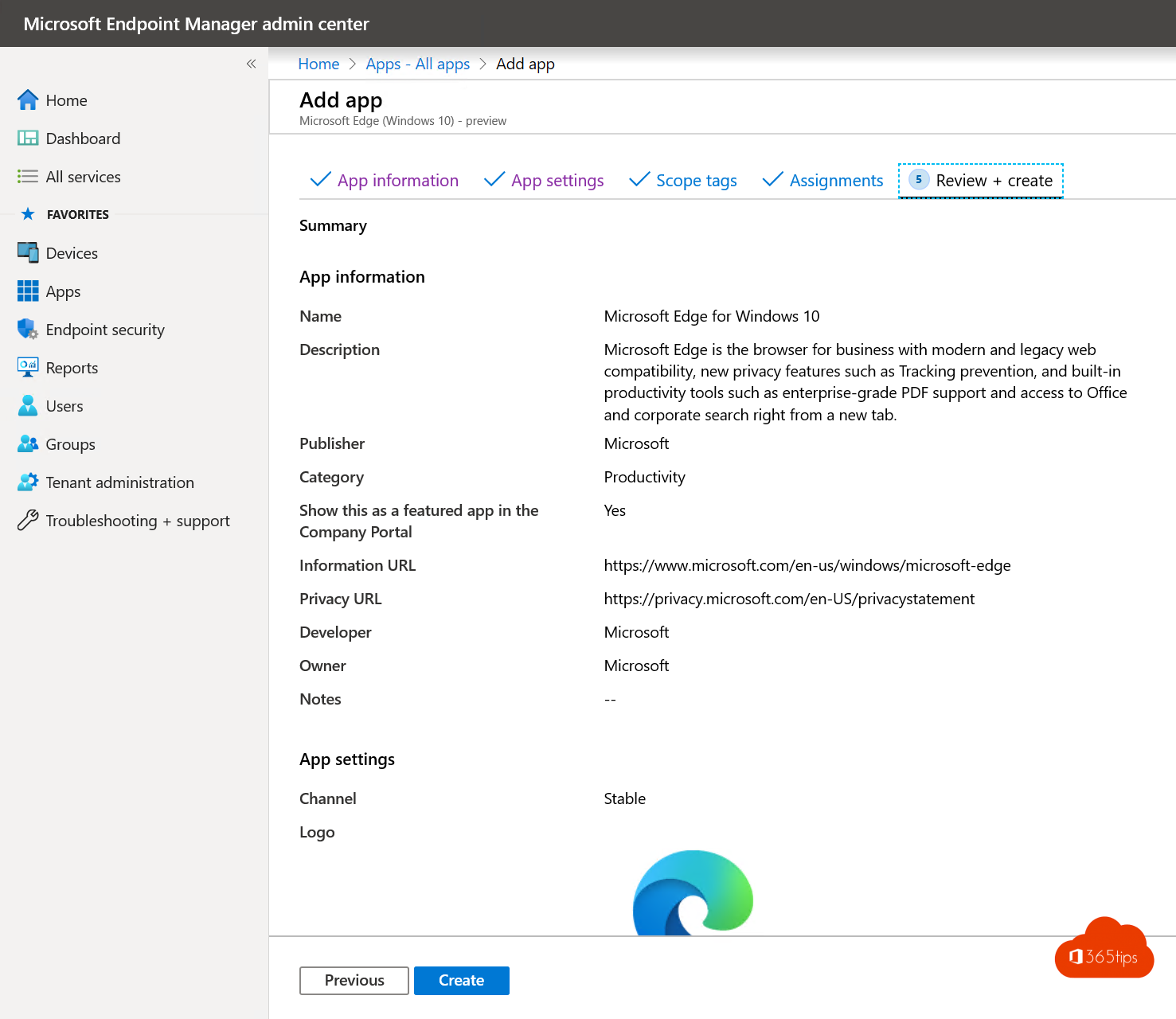
- Assign Microsoft 365 Apps and Microsoft Edge to the group.
- Add a security baseline, for example the one for Windows, and optionally BitLocker.
6. Test
- Reset the virtual machine to the start of setup, or restart it.
- The PC now shows your organization's name. Sign in with your test user and approve MFA.
- Set up a Windows Hello PIN and wait until the enrollment status is complete.
- Check that Microsoft 365 Apps are installed and that the device appears in Intune.
Also see Windows Autopilot explained and create a Microsoft 365 test tenant.
Read also
Windows Autopilot: what it is and how to set it up in 4 steps
Create a Microsoft 365 tenant for testing
Reset a Windows device with Autopilot Reset in Intune
Nederlandstalige versie: Een Windows Autopilot-demo-omgeving bouwen in ongeveer een uur